Up next in 10

C# .NET Project to Export Microsoft Excel Spreadsheet File to PDF Document Using Spire.XLS API
Jan 9, 2025

Get the full source code of application here:
https://gist.github.com/gauti123456/78592d3c9c9ab77a01655cbd71d23c8e
Show More Show Less View Video Transcript
0:00
uh hello guys welcome to this video so
0:02
in this video I will look at a
0:04
c.net application where we'll be
0:07
converting the Microsoft Excel file to
0:09
PDF document and we'll be using a
0:12
library called as spy. XLS which is a
0:16
actually a Excel API in net if you just
0:19
type here Spire do
0:21
XLS so they have their own website e i
0:25
blue and it's
0:27
a net Excel API
0:32
so you can just see spy. XLS for net
0:36
so it's a paid API but they do offer the
0:40
free trial as well if you are interested
0:43
then you can purchase their license so I
0:44
will just show you very simple example
0:47
if you have a Excel
0:49
file inside your directory so I have
0:52
this Excel file file. Exel so this file
0:56
that I want to convert this into PDF so
0:59
you can just see all these records are
1:01
there we have different columns first
1:03
name last name gender country age date
1:06
ID so all these data is there in this
1:09
Excel file and what this application
1:12
does it actually converts it into a PDF
1:14
document so it will create this file
1:17
worksheet 2
1:18
PDF so if I just run this application
1:23
so it will open this path here you can
1:26
see it has created this
1:28
file worksheet to PDF if I try to open
1:32
this you will actually see it has
1:34
successfully converted this Exel file
1:36
into a TBL structure where the
1:39
information is displayed in a table and
1:42
uh they do offer a uh you can just see
1:47
the document generated with this free
1:50
version will have a watermark so if you
1:52
want to remove this Watermark then you
1:54
need to purchase their license so it's
1:56
not a free library it does offer this
1:58
watermark
2:01
so if you don't purchase the license
2:03
then they will just put the watermarks
2:05
so so I will now show you how to
2:08
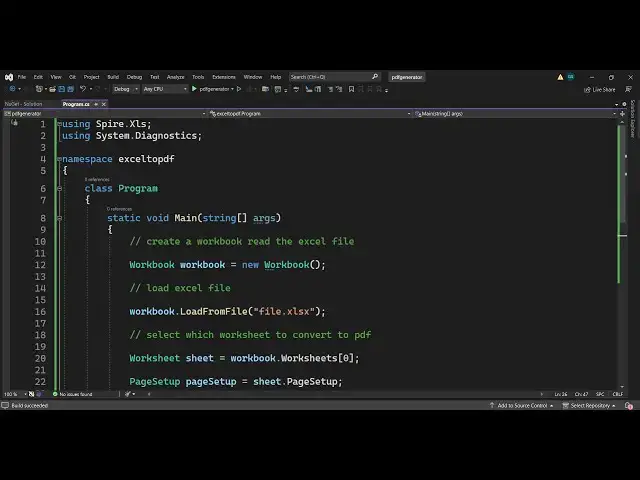
integrate this inside your net uh C
2:11
application so I will write the code
2:14
step by step so the very first thing you
2:16
need to do you need to go to tools
2:18
nugget package manager go to manage
2:20
nugget packages for solution so here you
2:23
need to Simply install this package so
2:26
go to browse and just type here spy. XLS
2:31
so the very first package which comes
2:33
this is actually the package 2.71
2:35
billion downloads so simply click on
2:39
install I have already installed it so
2:41
you need to install
2:42
it and after you install it uh you need
2:47
to include this package so you will
2:50
simply say using followed by the name of
2:53
the package which is sp. X
2:56
LS then we also be using the built-in
3:00
system diagnostic
3:03
module and then you say that name space
3:06
you'll declare it Excel to
3:09
PDF so you will have a class of
3:14
program then we will have the main
3:18
function this is just a basic C program
3:21
that we are writing so inside this main
3:24
function we will actually create a
3:27
workbook we will read this Excel file
3:30
first of all for reading it we will
3:32
simply say
3:35
workbook we'll be
3:37
using creating a new object of this
3:40
class of
3:44
workbook
3:46
Constructor
3:48
so now inside this Constructor we need
3:51
to load this Excel
3:54
file you can load your local file which
3:56
is present in the root directory so the
3:59
it offers this function which is load
4:02
you can even load from an HTML as well
4:04
load from different methods are there
4:07
but we will be loading it from a file so
4:09
we'll be using this function so my file
4:12
is present in the same directory where
4:14
the project is so I if you have it in a
4:18
different directory just paste the full
4:20
path so this is file. XLS we are
4:22
providing it then you need to select
4:27
which worksheet you want to
4:30
convert to PDF so Excel file can have
4:34
multiple worksheets as well so but in
4:36
this file we only have a single
4:38
worksheet so now to select that
4:40
worksheet we will simply declare
4:43
worksheet
4:44
class and sheet and inside the workbook
4:49
object it contains this uh property
4:51
called as worksheets this is actually a
4:54
array we need to Target the very first
4:57
worksheet which is the only worksheet in
4:59
this Excel document after selecting that
5:02
worksheet we need to set some properties
5:04
about the PDF document that will be
5:06
generated so one such property will be
5:08
the actual page size so page setup you
5:12
can use this
5:14
class so it is all part of the spy. XLS
5:18
Library so here we can set
5:23
the let me first of all show you how to
5:26
actually convert this first of all
5:27
without setting all these properties
5:30
I just want to convert this sheet and it
5:33
contains this method save to
5:37
PDF you can you can just see all these
5:40
methods are there you can even convert
5:42
this Excel to HTML image
5:44
PDF so we need to convert this to PDF so
5:48
you'll be using this method save to PDF
5:51
and here you need to Simply provide what
5:54
name that you want to do so let me call
5:56
this result. PDF
6:00
so after this we need to open this uh
6:03
open the path automatically so what we
6:07
can do you can say process.st
6:11
start
6:13
explorer.exe
6:15
and then we need to Simply open that
6:19
file automatically after
6:21
it's so all the code that I'm writing in
6:24
this video is given in the description
6:25
of this video so you can get that code
6:28
so it will open this file automatically
6:30
so here you need to replace the file
6:33
name so it is result. PDF that's all
6:36
that you need to do you need to load the
6:37
file then you
6:39
click yeah using this method we have
6:41
selecting the worksheet first of all and
6:43
then using the save to PDF method so if
6:47
you run this now
6:49
uh it will open
6:51
that location where it is you can see
6:55
the file has been generated result so if
6:59
you don't set any sort of properties it
7:01
will look something like this uh if you
7:03
want to add border as well you need to
7:06
set some properties so this is also
7:09
looking good but we can set some
7:11
properties to make it look inside a
7:12
table structure so one such property you
7:15
can set
7:17
here right after just after you select
7:21
your
7:24
worksheet you can actually set some
7:30
properties about that PDF document so
7:32
page
7:33
setup class we can
7:39
use and here we can simply say uh
7:42
whatever is the sheet sheet. page
7:45
setup and then we can actually select
7:48
the paper size so paper size actually
7:51
means that which paper size that you
7:53
selecting for your PDF document so there
7:56
are various paper sizes A4 A5 so one's
7:59
popular one is paper
8:03
A4 and then we can also set one of the
8:07
property which is is print grid lines to
8:10
true so it will make it in a tabular
8:13
structure so once again if you run this
8:17
file so now if you open
8:21
the PDF document it will have a table
8:25
like structure it will add some these
8:27
botles right here you will see that so
8:29
now it is looking like a proper table in
8:31
the PDF document so your all your Excel
8:34
data is successfully inserted into into
8:36
the PDF document so in this way you can
8:39
use this library in net to actually
8:41
carry out the Excel to PDF conversion so
8:44
all the source code is given in the
8:46
description please hit that like button
8:48
subscribe the channel as well and I will
8:50
be seeing you in the next video
#Windows & .NET
#Other