live_tv
Livestream Starting Soon
00
Hours
:
00
Minutes
:
00
Seconds
Up next in 10

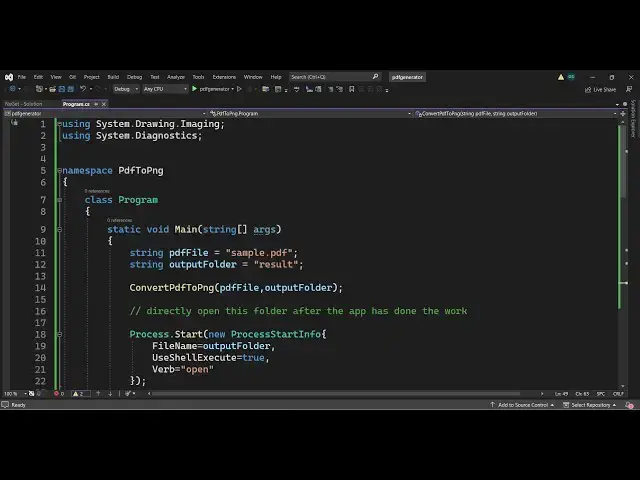
C# .NET Project to Export All Pages of PDF to Images Using Google PDFium Viewer Library
Jan 9, 2025

Get the full source code of application here:
https://gist.github.com/gauti123456/2898501938daffd929e0397cc8f0bd4c
Show More Show Less View Video Transcript
0:00
uh hello guys welcome to this video so
0:02
in this video we will be looking at a
0:05
net C library which allows you to
0:09
convert your PDF pages into images so we
0:13
are actually taking this example uh this
0:16
is actually a PDF document which
0:18
contains four pages each page we will
0:21
take a screenshot and convert this into
0:23
a image in
0:25
c.net I'm running this Visual Studio
0:28
2022 version
0:30
and we are actually using this Library
0:33
which is
0:35
PDF uh let me show you PDF
0:39
view let me just type the name in Google
0:42
and uh show to you it's a open source
0:44
Library this is the GitHub
0:48
page this PDF IU M Google's PDF it's a
0:54
PDF viewer library and it also supports
0:57
taking screenshots of individual PD of
1:00
document pages so we will be using this
1:03
library inside our
1:05
c.net project and we are just have the
1:08
sample. PDF right here and what we will
1:11
do we will actually take
1:13
screenshots of all these Pages which are
1:16
present and convert this into individual
1:18
images we'll create this folder PDF
1:21
images so if I just run this project you
1:23
will see just see automatically it will
1:26
create this folder which is PDF images
1:29
it will open it and now if I open
1:31
individual image you will actually see
1:33
that PDF page has been converted to PNG
1:36
image this is a first page this is the
1:39
second page that you see this is the
1:41
third page which is converted to image
1:44
right here this is a fourth page you can
1:47
just see so all the four pages in The
1:50
PDF document has been converted to P
1:52
images we will look at this project so
1:55
let's start building it so I will first
1:59
of all
2:00
install this package so go to tool
2:02
section and just go to nugget package
2:05
manager and then go to manage nugget
2:08
packages for solution and here need to
2:10
search for this package inside Visual
2:13
Studio
2:15
PDF ium this is actually the name of the
2:19
package it is almost 1.73 million
2:22
downloads so it's a PDF viewer based
2:24
upon the Google PDF Vim project so Ive
2:28
already installed it so what you need to
2:30
do simply click this and simply click
2:32
install and install it inside your
2:34
project so I've already installed it and
2:37
now just inside your program.cs it's a
2:39
simple terminal application that we are
2:41
building in cop so first of all what we
2:44
need to do we need to require these
2:46
packages so we will simply say using
2:49
system. drawing Imaging we need this
2:53
library and uh we also need the package
2:56
of system. Diagnostics
3:00
that's all so these are two built-in
3:02
packages in c.net you don't need to
3:05
install these you just need to install
3:07
that package so after this we will
3:10
simply write
3:14
here we will we just be creating a class
3:17
here name
3:19
space let me just turn on
3:25
my turn off the GitHub co-pilot because
3:28
it actually creates some
3:30
quote suggestions so I don't want that
3:33
so first of all I will simply say PDF uh
3:37
I will declare this uh Nam
3:40
space inside that namespace I will write
3:42
my code so it will convert PDF to PNG
3:45
and here we'll be having the main class
3:47
of
3:49
program and uh we will have the main
3:51
function static void
3:54
main
3:56
string arguments passed so so inside
4:00
this function we will actually have the
4:02
PDF file which we need to convert in
4:05
this case we are converting the sample
4:07
PDF file which is present in the same
4:09
directory where this project is located
4:12
so while you're developing this project
4:14
you can click this section of solution
4:16
Explorer and right click your project
4:18
open folder in file explorer so right
4:20
here it will open this so your C project
4:24
is located in the bin bin directory by
4:27
default and inside your dback directory
4:30
we have the net 6.0 folder so inside
4:34
this directory I Bas pasted my
4:36
sample.pdf file that you can see right
4:39
here so you can just uh reference with
4:42
any location you just need to paste the
4:44
path but I am storing it in the same
4:46
directory so that's why I'm just
4:47
referring it sample.pdf just by the name
4:50
itself so then we need to create a
4:53
folder of output folder where all the
4:56
images will be created so this folder
4:58
let me call this as result this result
5:02
folder will get created in the same
5:05
directory so now we will be actually be
5:07
calling a custom function convert PDF to
5:11
PNG and we'll be passing these two
5:13
arguments first of all the input PDF
5:15
file and the output
5:19
folder so now we need to Define this
5:24
function so as you can just see it is
5:26
saying to us that this function is not
5:28
defined so so we just need to just
5:32
have you can Define this function as
5:35
private
5:38
static void
5:41
convert PDF to PNG and then we will
5:46
actually take
5:48
the two arguments first is the PDF file
5:52
and the second will be the output
5:56
folder oh so you can see the error has
5:59
gone away so we are calling this custom
6:00
function which takes these two arguments
6:02
first is the input PDF file and the
6:04
second is the output folder so right in
6:06
this function guys what we need to do we
6:08
first of all need to create that output
6:11
folder if
6:14
it doesn't exist so here we need to have
6:18
a if condition if the output folder
6:20
doesn't
6:21
contain is not there directory we can
6:25
just inside C we can use this method
6:28
directory. exist
6:30
and here we can just check in this if
6:32
condition it will either return true or
6:34
false whether this folder exists or not
6:37
if it doesn't exist then it will return
6:38
false in that case we do need to create
6:41
this directory we'll call this create
6:43
directory function which will actually
6:45
create this folder in the same location
6:47
which is output
6:49
folder very simple code so you have a if
6:52
condition if this directory doesn't
6:54
exist just create this directory so
6:56
after this we need to Loop through
7:00
all the
7:02
pages of PDF first of all we do need to
7:05
read this so here for this we will be
7:07
using the using directory V document and
7:10
here we'll be using this Library which
7:13
we installed PDF VI
7:16
viewer and it actually contains PDF
7:21
document and do load load function will
7:25
actually load this PDF file in the
7:27
memory of this program
7:31
PDF
7:36
file so you can just see here PDF file
7:39
we are referencing the path here and
7:40
passing it to this load function so it
7:42
will actually read all the content of
7:44
the PDF file and then we need to Loop
7:48
through all the pages so we will be
7:50
running a for Loop for this purpose you
7:52
will simply say document do
7:57
page page count so this document object
8:01
will contain a property called as if you
8:03
see it contains this page count so this
8:05
simply means that how many pages are
8:07
there in the PDF so let's suppose four
8:08
pages are there so this Loop will run
8:11
four times from 0 to 4 i++ very
8:15
simple so inside this uh for Loop we
8:19
will first again we will be saying for
8:24
each page we need to take the screenshot
8:27
so for taking the screenshot we will
8:29
again use this document object it
8:30
contains a function called as render so
8:33
render function will actually take the
8:35
screenshot of that image we'll put I
8:38
here as a index variable so this will
8:41
repeat for every page zero page 1 second
8:44
third page how many pages are there and
8:46
then here you need to provide the width
8:48
and the height of that uh screenshot you
8:51
can change this to accordingly but I'm
8:53
just sticking to 300 WID 300 height and
8:57
the last parameter is uh
9:01
true that's
9:03
all
9:04
so after you do this put a set of curly
9:07
brackets so right here after it took the
9:10
took this image it will actually store
9:12
this image in this variable of image now
9:14
we need to save this image in that
9:18
output
9:19
folder so now to basically save this
9:22
image we will actually use uh first of
9:25
all create a variable image path we'll
9:28
use the path function inside C and we'll
9:31
simply say combine fun function and
9:34
whatever is the path given which is this
9:37
output folder name
9:39
given we will simply put a comma and
9:43
then we will simply
9:45
say dollar
9:50
sign page and here you can basically put
9:55
dynamically
9:56
I do PNG so here we have putting Dynamic
10:00
variables in this uh template string so
10:03
whatever it will be screenshot will be
10:06
created page zero page 1 page two page
10:08
three like this so now to save this we
10:12
have the image and it contains a save
10:15
function what this will do it will
10:18
actually save this image file at that
10:20
location here we need to provide the
10:22
location which is present in the image
10:25
path variable and then we need to Simply
10:28
select in which format we need to save
10:31
this file you can select jpg or PNG
10:35
inside your image
10:39
format and it actually contains either
10:42
webp you can even uh take screenshot in
10:44
webp as well Tiff PNG jpg as well let me
10:48
stick to PNG for
10:50
now that's
10:52
all that's all that we need to do guys
10:55
very simple application we actually call
10:57
this function custom function if the
10:59
directory doesn't exist we create the
11:01
directory then we Loop through all the
11:02
pages of the PDF document first we load
11:05
the PDF file how many pages we calculate
11:08
then we render each page take the
11:10
screenshot then we save each image in
11:13
that location that's all PNG image so
11:16
now we can run this so you will
11:18
basically see in
11:20
this a result folder will be created so
11:24
now as I run this file nothing happens
11:26
but now if I
11:28
check you you will actually see a result
11:31
folder should have created you can now
11:34
see if I just zoom in a result folder
11:37
has been created and if I open this
11:40
folder now you will basically see page
11:42
zero page 1 page two page three for each
11:45
page in this PDF document it has taken
11:47
the screenshot and this is actually the
11:50
first page you can just zoom in the
11:53
quality of the image looks tremendous
11:55
this is the first page this is the
11:57
second page this is the third third page
11:59
this is the fourth page so each for each
12:01
page it has taken the screenshot and uh
12:05
now the job is little bit uh easy if you
12:08
want to open this image after it saves
12:11
you can actually inside
12:14
C after this function call you can
12:17
directly open this
12:20
folder after the app has done the work
12:25
so now to open that folder automatically
12:28
what we can do we can uh simply call
12:31
process. start function it will start a
12:35
new process where it will actually open
12:37
that folder automatically process start
12:41
info and here you'll pass the location
12:44
in which location you need
12:49
to so here we are passing this uh PDF
12:54
file to this function of process start
12:58
it will actually take three properties
13:00
we need to pass a curly bracket here we
13:03
need to pass your what file name that
13:05
you need to open we need to open that
13:08
output
13:12
folder then we will simply say
13:18
use uh use sorry this is not colon this
13:22
is equal to in C you don't use colon is
13:27
equal to and then we simp simply say use
13:30
shell
13:32
execute it will be set to true and verb
13:36
it will be set to open because we need
13:38
to open that output folder when it
13:40
actually executes this application and
13:44
then what we can do uh this
13:47
is we can just put a simple line in the
13:51
console that the work has been done
14:00
PDF is converted to images like
14:04
this so now if
14:07
you let me
14:10
see this parentheses are not needed like
14:14
so if you try this now it will directly
14:18
open that output folder you don't need
14:20
to manually open it the
14:23
application we'll directly open that uh
14:26
destination directory where you can
14:28
actually see your all your images now
14:31
let me change this PNG extension to any
14:33
other extension let's suppose I want it
14:36
to have jpg so I will simply select jpg
14:40
here and then here jpg so if I execute
14:44
now so you will actually see the files
14:47
let me just delete everything from
14:54
here again run this now if you see uh
14:58
that the extension here will be jpg if
15:01
you see uh let me zoom in this is now
15:06
jpg similarly we can also have webp as
15:13
well so various formats are available
15:16
webp is also there which is a cool
15:19
little extension
15:21
for browser images so if I again run
15:24
this uh
15:30
me delete this start from
15:35
again so now it opens in the browser you
15:37
will see it's a webp image it runs in
15:40
the browser so this is actually this
15:42
application guys all the source code
15:44
that I used in this video is given in
15:45
the description you can get that source
15:49
code thank you very much please hit that
15:50
like button subscribe the channel as
15:52
well and I will be seeing you in the
15:54
next video