live_tv
Livestream Starting Soon
00
Hours
:
00
Minutes
:
00
Seconds
Up next in 10

Build a Vue.js 3 PDF Viewer to Embed PDF From URL With Controls Using vue-pdf-embed in TS
Jan 13, 2025

Get the full source code of application here:
https://codingshiksha.com/vue/build-a-vue-js-3-pdf-viewer-to-embed-pdf-from-url-with-controls-using-vue-pdf-embed-in-ts/
Show More Show Less View Video Transcript
0:00
uh hello guys welcome to this video so
0:02
in this video I will show you a package
0:04
to embed or render out a PDF document
0:07
for from URL inside your vs3 application
0:11
so you will see we are displaying a PDF
0:13
document from a URL and we can even
0:17
show we have all these controls so we
0:20
can navigate to a particular page if you
0:23
want to show all the pages you can click
0:25
this Mark and now it will show all the
0:26
pages or you can actually read Page by
0:29
Page by clicking un toogle this now you
0:32
will see this is page number one and you
0:35
can read this page now if you want to
0:38
navigate to the second page you click
0:39
this button now you can navigate to the
0:41
second page and read this PDF document
0:44
so it's a full screen PDF viewer and you
0:48
can navigate to the third page fourth
0:50
page in this way you can navigate to the
0:52
previous page next page with these
0:54
controls so it's a nice little PDF
0:57
viewer out there so there's a specific
1:00
package available inside vuejs 3 so if
1:03
you just go to npmjs.com uh just search
1:06
for this package which is view PDF embed
1:11
this is actually the
1:12
package uh PDF embed component for for
1:16
vuejs
1:18
3 so it's compatible with the latest
1:21
version of vuejs 3 so this is actually
1:23
the command I've already installed it
1:26
it's almost having 42,000 weekly
1:28
downloads so now to get started you just
1:31
go to your app. view file this file here
1:36
and uh now I have given all the source
1:39
code in the description of this video so
1:41
if you do need the source code you can
1:43
refer in the description link now to get
1:47
started you will just write the HTML
1:49
code in the template and then the
1:51
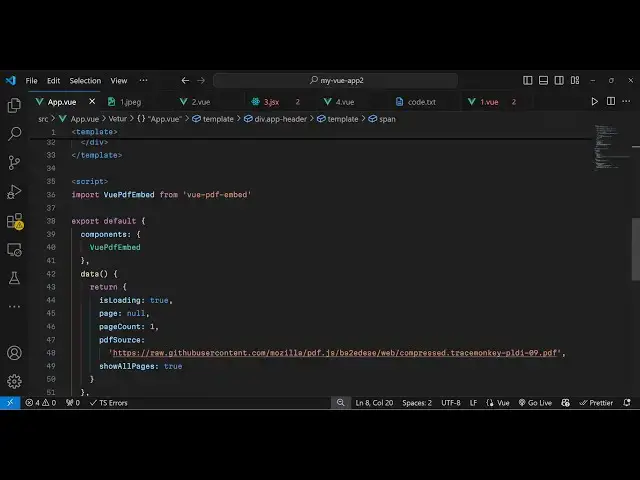
typescript code in the script tag so
1:54
right here in the script first of all we
1:57
do need to register this component for
1:59
registering
2:00
you first of all import this component
2:03
view PDF
2:06
embed and it will be coming from this
2:09
view PDF embed package after importing
2:13
it we will register it export
2:16
default and here inside this components
2:20
array so components object sorry you
2:24
will register this after registering it
2:27
we also need to provide data
2:30
what sort of variables you want to
2:32
return to your vuejs template so we have
2:35
three variables first of all this is
2:37
loading is loading is a Boolean
2:39
parameter telling that whether
2:42
the PDF is loading so by default it will
2:45
set to true and the page number will be
2:49
null by default and page count will be
2:54
set to one by
2:56
default and then the PDF source which
2:59
will be
3:01
a string value here you need to provide
3:04
the actual URL of the PDF documents so
3:07
we are just loading the simple PDF
3:09
document which is located at this
3:11
address so I will just paste this
3:13
address so here you need to replace your
3:16
own PDF
3:18
URL and last but not least we will have
3:21
a variable if you if you want to show
3:25
all the pages at once then we will have
3:28
this Boolean par meter so by default it
3:31
will set to true so we have all these
3:33
five
3:36
variables
3:40
so now we come to the template part
3:43
where we actually render out this PDF
3:45
embed component so first of all we
3:51
allow inside this div we will give this
3:55
app header
3:58
class and ins inside this
4:02
template template tags
4:07
so so you'll simply attach this V if
4:11
that
4:12
uh if it is loading if the value of this
4:16
variable is true then only show this
4:18
template so here you'll simply mention
4:20
that the PDF is loading so now if I
4:25
refresh the browser what will execute
4:27
just tell because this variable by by
4:29
default is set to true so this will
4:33
evaluate to true so now if I execute the
4:35
browser you will see that loading
4:38
message will pop in because now the PDF
4:41
is loading so now we just need to make
4:44
sure that we display the PDF document so
4:47
just after this template we another we
4:50
have another
4:52
template which will be the else
4:55
block so this is simply if else block
5:00
here so if this condition is true then
5:02
return this and if this condition is
5:04
true then return this so if the PDF file
5:08
is successfully loaded in that case we
5:09
will have a span tag and again we will
5:12
have this if condition that if the user
5:14
has selected show all pages in that case
5:18
here we display the page count variable
5:22
which will show the total number of
5:23
pages in The PDF
5:27
document so we have declared all these
5:29
variables if you see we just displaying
5:31
it in the
5:33
template so by
5:36
default this VAR variable is true that's
5:39
why it is showing loading
5:43
message and also right here if the user
5:47
hasn't selected show all pages in that
5:49
case another we will have the vlse and
5:52
in that we will
5:54
have the
5:58
button see series of
6:01
button
6:04
so so first of all what I will do right
6:07
here we need to load the PDF document
6:10
for loading
6:12
it so we will come out of this div
6:16
section here so you'll be actually be
6:20
rendering out this PDF document then we
6:22
will make sure that we display these
6:24
controls so this inside this app
6:28
content we use this component which is
6:31
view PDF
6:34
embed and this actually takes some
6:36
parameters this component so first of
6:39
all it takes the
6:40
reference so we will attach this
6:43
reference which is PDF ref then it takes
6:45
the source URL so we have defined this
6:48
URL in this variable PDF
6:51
source and the current page number which
6:53
will be contained in the
6:58
page and I think that's all that we need
7:01
to do for rendering this PDF document if
7:04
you refresh it you will see that guys
7:06
the PDF has been loaded uh so if you see
7:09
all the pages have been
7:11
rendered so you can see all the pages
7:13
have been rendered so if you now want to
7:16
display only one page at a time so what
7:20
modification I can make right
7:23
here so there is a call back function it
7:25
provides you which is at theate rendered
7:30
so as soon as the PDF is rendered this
7:32
call back function will execute so
7:34
handle document render I will just
7:37
Define this custom
7:39
function so right here in the method
7:43
section
7:47
just we will Define this
7:49
function which is called as
7:54
handle document render inside this
7:58
function
8:00
arguments will be automatically be
8:02
passed and here you'll be making the is
8:05
loading to be
8:07
false because if I don't make this false
8:10
as soon as the PDF is loading but still
8:12
this message is showing right here so we
8:15
do need to make sure that we hide this
8:17
so we say this is loading to false then
8:21
the second step we need to say how many
8:23
pages are there so page count will be
8:26
coming from this. reference
8:30
do PDF ref we have attached this
8:33
reference and this value will come page
8:36
count so if you see uh we have attached
8:39
this
8:42
reference which is PDF ref so we just
8:45
getting this reference this.
8:48
reference.pdf page
8:51
count so after we get the total number
8:54
of pages we stored in this variable
8:56
this. page
8:58
count so now now what happens uh if you
9:03
see it will display the total number of
9:05
pages and you will see now if I want to
9:10
display the controls so just
9:13
after before
9:18
this you will add this code so all the
9:20
source code you can find it in the
9:22
description of this
9:26
video let me just add this code and then
9:28
explain to you what I have done in this
9:30
code so it is a little bit complicated
9:34
uh if you know the V if directive you
9:36
will perfectly understand so if the file
9:39
is loading then we showing this message
9:41
if the file is successfully loaded then
9:44
if the user has selected this option
9:46
then we are showing the total Pages
9:48
count and if they haven't selected total
9:51
Pages then we showing per page if the
9:54
click the this page then we navigate to
9:57
this next page we bind it these click
10:00
listeners we just incrementing the page
10:02
number when they click next and then we
10:05
are decrementing it whenever they want
10:06
to get to the previous
10:08
page that's all that we are doing right
10:11
here so if you just refresh
10:15
now so by default all the pages are
10:18
loaded but if I toggle this so now we
10:21
are on the first
10:23
page so we can navigate to the second
10:26
page third page so in this way you you
10:29
can view PDF document from a URL and
10:32
display it in the browser using this VI
10:36
view PDF embed package in view js3 so
10:40
thank you very much for watching this
10:41
video all the source code will be given
10:43
in the description of this video and
10:46
also check out my website as well uh
10:48
free mediat tools.com uh which contains
10:52
thousands of tools regarding audio video
10:55
and image and I will be seeing you guys
10:57
in the next video