Up next in 10

Build a Vue.js 3 Google Drive File Picker Component With OAuth2 to Upload Multiple Files in Browser
Jan 9, 2025

Buy the full source code of application here:
Show More Show Less View Video Transcript
0:00
uh hello guys welcome to this video so
0:02
in this video I will show you a direct
0:05
component for vuejs for interacting with
0:08
Google drive if you want to upload files
0:11
directly to Google Drive there is a
0:13
special library inside vuejs with Google
0:16
authentication you can perform that so
0:18
this is actually the demo of the
0:19
application what we will be building
0:21
right here so we have a button which
0:23
will be doing the authentication for us
0:26
so as I click this button I will be
0:28
redirected to the website where I need
0:31
to Grant the access to my Google account
0:33
where the Google Drive is connected so I
0:35
will simply select the account and then
0:37
we need to Grant the permission so I
0:39
will simply click continue so that we
0:42
can use Google Drive so you will
0:43
actually now see a drag and drop
0:45
interface where you can drag and drop
0:48
your files and you can upload directly
0:50
to Google Drive so this is actually the
0:53
interface either you can drag and drop
0:55
or you can click any images or PDF files
0:59
or any videos so let's suppose I want to
1:02
upload this file you can even select
1:04
multiple files right here there is no
1:07
restriction on how many files you want
1:09
to select so let's suppose I
1:12
select these two files again so now we
1:16
actually selected two files let me
1:18
select this one as
1:20
well let me select these three files so
1:23
we selected multiple files right here if
1:26
you see uh we have let and then we have
1:30
a button here which is upload three
1:32
files so if I click this button you can
1:34
see a progress bar is there uploading
1:36
your files so once the files are
1:39
uploaded you will get a notification
1:41
that your files have been uploaded you
1:42
will see files uploaded successfully and
1:45
if I check my Google Drive you will
1:47
actually see all these images have are
1:50
been uploaded you will see three images
1:54
have been successfully
1:56
uploaded so this is a direct View ugs
2:00
component which allows direct access to
2:03
your Google Drive let me show you the
2:09
component so we have this drag and drive
2:12
interface where you can
2:14
select you can see you want to upload
2:17
all these files so you actually see the
2:20
file name the size of the file as well
2:22
so all these things are there so it's a
2:24
fully component and then we have this
2:26
button so if you want to upload these
2:28
seven files directly to Google drive so
2:30
now you can see uploading your files
2:32
please wait so once the files upload you
2:36
will get a notification
2:39
that so totally depends upon how much
2:42
files you are uploading so it is one by
2:44
one uploading all these files to your
2:47
Google Drive and you can now see files
2:49
uploaded successfully and if you open
2:51
your Google Drive you will see all these
2:54
seven files you can see one by
2:56
one has been successfully uploaded
3:01
you can even select a PDF file as well
3:04
uh let's suppose if I have a PDF file
3:06
that I want to
3:12
upload so you can see is it's a PDF file
3:16
so I will simply select the PDF file
3:18
here so I can upload this PDF file as
3:21
well so you can see file
3:23
uploaded so all these options are
3:26
supported you will see the PDF file is
3:28
successfully uploaded to my Google
3:31
Drive so in this way you can directly
3:33
upload files to Google Drive using this
3:35
component Library which supports the
3:37
drag and draw functionality so the name
3:40
of the module is uh if you go to
3:42
npmjs.com just type the module name
3:46
which is Google
3:49
drive-
3:53
view so the very first module which
3:56
comes which this is the module Google
3:58
drive- view so it's a Google Drive
4:00
component Library it's a very new
4:02
library so very new so zero weekly
4:05
download so it supports you will see
4:07
Google Au in advance it uh supports the
4:11
Google authentication drag and drop
4:13
multiple files you can upload file size
4:16
validation file format validation
4:18
customizable UI you can just change this
4:21
interface as well by editing the CSS the
4:24
very first thing you need to do you need
4:26
to in simply install this module so npmi
4:29
Google drive- view so this is actually
4:33
the command that you need to install it
4:35
so simply install this inside your
4:37
project so once install you will get
4:40
this latest version in the dependency
4:42
section so I've just made a simple vuejs
4:44
project and inside your app. view file
4:48
now I will be integrating this module
4:51
so let me start the application VI npm
4:55
RF so the now the thing is that if you
4:59
want to integrate this we will first of
5:02
all have the template
5:05
tag and in the JavaScript here in the
5:10
vuejs we need to basically this module
5:13
Works in typescript we need to change
5:16
the language of this to typescript right
5:19
here so right here we need to import the
5:21
module which is uh Google Drive and it
5:25
will be coming from Google drive- view
5:30
and also we need to import the CSS file
5:32
as well so Google Das Drive View and it
5:36
contains the styles. CSS so if you open
5:39
your nodejs modules you will see this
5:41
module installed which is this is a
5:45
module and you will basically see uh it
5:49
contains the CSS files here styles. CSS
5:52
you can edit this customizable UI you
5:55
can customize all these styles to
5:57
actually change the UI as well I will
5:59
stick to the default options so right
6:02
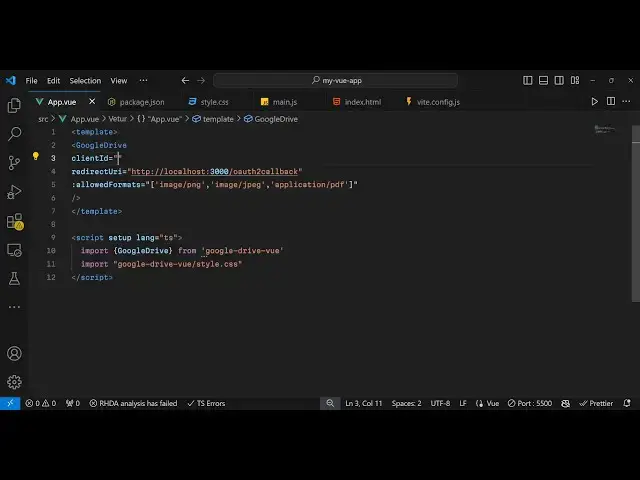
here now to integrate this we will use
6:05
this module that we imported Google
6:08
Drive and it takes some options this
6:12
module so here we do need to provide our
6:15
client ID so the first options it takes
6:18
is a client ID the second option is
6:20
takes the redirect URI and then we have
6:23
the option to allow formats so here you
6:26
can specify which image files you are
6:29
supported to upload so I will be
6:31
allowing the user to upload the PNG file
6:34
and then the jpeg
6:37
file and PDF file so we are just
6:40
providing the MIM type right here
6:43
allowed formats so the user can upload
6:45
PNG jpg PDF you can mention more
6:48
application types if you want to upload
6:51
videos as well just mention the M types
6:53
right here now to get both these
6:55
information which is client ID redirect
6:57
URI you need to register your
6:59
application in Google Cloud console so
7:02
I've already created a account right
7:04
here and first of all you need to enable
7:07
the Google Drive API inside this Google
7:10
Cloud console so just search for the API
7:13
and enable first of all your API so just
7:16
search for the API Google Drive
7:19
API and just enable this API I've
7:22
already enable this so it will change to
7:25
manage and then you need to create your
7:28
credentials so so right inside this we
7:32
need to create our this o or client
7:35
ID and application type will be web
7:39
application and in the authorized
7:41
JavaScript Origins we need to mention
7:43
the homepage of the URL so my
7:46
application is running on Local Host
7:48
3000 if you see this is my homepage so
7:52
whatever is your homepage you need to
7:54
register it simply copy
7:57
this so if you're developing on Local
8:00
Host simply copy the
8:04
URL paste it and you also need to don't
8:08
type this trailing slash and also just
8:11
register Local Host as well because you
8:13
are developing the application on Local
8:16
Host just add these URLs just make sure
8:19
your port number is 3,000 you can use
8:21
any port number so just mention whatever
8:24
is your port number and then inside your
8:26
authorized redirect
8:28
URI uh
8:31
whatever uh I will mention this redirect
8:34
URI like
8:38
this
8:41
so
8:42
HTTP Local
8:45
Host 3,000 and Then followed by o or2
8:49
call back so it can be anything I am
8:52
just mentioning like this so just make
8:54
sure you provide the same URL here also
8:57
and then you need to click on create and
8:59
it will create your client ID it will
9:02
give you your own client ID so don't
9:04
copy my client ID I will simply copy
9:06
this and simply here paste it and then
9:09
you need to paste the same client
9:12
redirect URI that you mentioned Local
9:15
Host
9:18
300/2
9:19
callback that's all is the configuration
9:22
right here so once you configure this
9:24
open the homepage now you will see this
9:27
sign with with Google and then you click
9:29
the button and then you will be
9:31
redirected to choose your account so
9:35
just grant the
9:37
permission and uh click on
9:39
continue so once you grant the
9:41
permission you will see this interface
9:43
drag and dve for files so you can drag
9:46
and drop any file that you want to
9:49
upload simply select these four files
9:51
that I want to upload so one by one you
9:55
it is uploading the files if you see so
9:58
once the files are uploaded you will get
9:59
a notification message that your files
10:01
have been
10:03
uploaded so you can see files uploaded
10:06
successfully so it's a very easy way in
10:09
this tutorial we saw this vuejs
10:11
component which supports direct upload
10:15
to Google Drive with Google
10:17
authentication so thank you very much
10:20
for watching this video please hit that
10:21
like button subscribe the channel and do
10:23
check out my website as well freem
10:25
mediat tools.com which contains
10:27
thousands of Open Source Source video
10:30
audio and image tools and I will be
10:33
seeing you in the next video
#Other
#Cloud Storage