Up next in 10

Build a Vue.js 3 Chrome Tabs UI Component to Create Multiple Panels & Tabs Using vue3-tabs-chrome in
Jan 17, 2025

Get the full source code of application here:
https://codingshiksha.com/vue/build-a-vue-js-3-chrome-tabs-ui-component-to-create-multiple-panels-tabs-using-vue3-tabs-chrome/
Show More Show Less View Video Transcript
0:00
uh hello guys welcome to this video so
0:02
in this video I will show you how to
0:04
create multiple tabs inside your vuejs 3
0:07
application something like Google Chrome
0:09
so Google Chrome interface so it looks
0:12
like something Google Chrome user
0:13
interface so we have multiple tabs we
0:15
have the cross icon as well and we are
0:17
also showing this favicon right here you
0:19
can customize it with your own image as
0:21
well so the different content is there
0:23
in different apps if you close want to
0:26
close it you can click the cross icon
0:28
the tab will close so you can manage
0:31
multiple tabs inside your vews 3
0:33
application if you want to show content
0:35
in different tabs so there is a package
0:37
here in if you go to npmjs.com uh just
0:42
search for this uh view three
0:47
tabs let me just show you so just hover
0:51
onto that and just type view three tabs
0:54
so it's a readymade component available
0:56
for view3 and the command is simple I've
1:00
already installed it so it's almost
1:02
called 158 weekly downloads so now to
1:06
get started first of all we need
1:08
to register go to your app. viw
1:14
file and I will show you from scratch so
1:18
officially they have mentioned how to do
1:22
this so the documentation is great so
1:26
right in the template you'll be writing
1:28
the HTML code and then in inside the
1:30
script tag you will be writing the types
1:32
script code so right here in the script
1:35
tag we first of all need to import this
1:38
package so
1:40
view3 tabs
1:43
Chrome so it will be coming from this
1:46
package and also we need to import it
1:48
CSS file as well so
1:51
view3 and dis SL
1:55
view3 tabs Chrome CSS
2:00
so Chrome UI it has a CSS file right
2:03
here so we can directly import this and
2:06
then for the ficon you can use your own
2:08
images so my images are present in the
2:12
assets directory so I will import my
2:19
images and then you simply import the
2:24
base packages that we need it will be
2:27
all be coming from this view package
2:31
and then we just need to register this
2:33
so export default fi Define
2:36
component and this
2:50
components so you first of all have your
2:53
Google reference
2:55
then the tabs here you'll be using this
3:00
so initial value will be on this Google
3:02
tab so you can customize the name look
3:05
and feel of this so you'll be adding
3:07
adding an array of objects each object
3:10
will reference a particular tab so the
3:13
label will be Google and then the key
3:15
here will be Google you you can
3:18
customize the name accordingly this is
3:20
not necessary that you give these same
3:22
names that I'm given and then for the
3:25
feicon this will be your image your
3:27
customized image that you imported
3:32
and similarly we can manage multiple
3:34
tabs by
3:38
adding so you can change this to Let's
3:41
suppose
3:46
Facebook change the
3:48
image then I can change it to
3:57
Twitter so for this tab we don't have
4:00
the
4:01
Fone let me add one one
4:06
more let me change this to
4:09
Reddit this also will not have faon so
4:13
now we added these so right here after
4:16
this we just need to return this so that
4:17
we can directly use them which is your
4:20
tabs and the
4:25
tab so these two variables we are using
4:28
it inside our template so go to your
4:30
template wherever you need to render
4:33
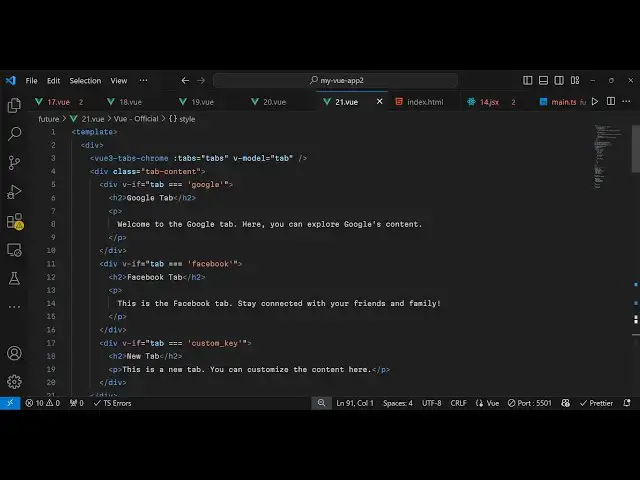
this so we use this component
4:37
view3
4:39
tabs Chrome this is the name of the
4:41
component and it actually takes some
4:43
options first of all the tabs which is
4:46
the tabs
4:48
array and the V model which will be the
4:51
actual
4:56
Tab and then inside your div section
5:02
we will give it a class here you can
5:05
even customize it using custom CSS as
5:08
well so we are attaching these custom
5:09
CSS classes and then we can attach this
5:12
V if condition that if the value of tab
5:16
triple equal to Google in that case we
5:18
will be rendering a different message
5:20
different template so here you can
5:22
Define your content what content you
5:25
want to render in this tab
5:36
just a single code sorry because we
5:39
already use double
5:41
codes so this is one condition so if you
5:44
refresh your application you will see
5:45
one tab being
5:48
added you'll see now we have four tabs
5:51
Google Facebook Twitter Reddit also
5:53
having favicon and the the content is
5:57
displaying for the Google tab and the
6:00
look and feel of it looks like Google
6:02
Chrome the color combination so in
6:06
similar way we will add the div the
6:10
content for the Facebook and Reddit tabs
6:15
as well Twitter as well so just add this
6:19
so we just added this V if condition
6:21
Facebook this
6:24
is for let's suppose Reddit
6:34
and this one will be for
6:48
Twitter so now we have multiple tabs you
6:51
can navigate to them by simply clicking
6:53
it or if I want to remove it I can click
6:55
click click the cancel icon so the tab
6:59
be removed so this is actually the
7:01
package guys you can directly use it
7:03
thank you very much for watching this
7:05
video and uh also visit my website freem
7:09
mediat tools.com uh which contains
7:12
thousands of tools regarding audio video
7:14
and MH and I will be seeing you guys in
7:17
the next video
#Other
#Other