Up next in 10

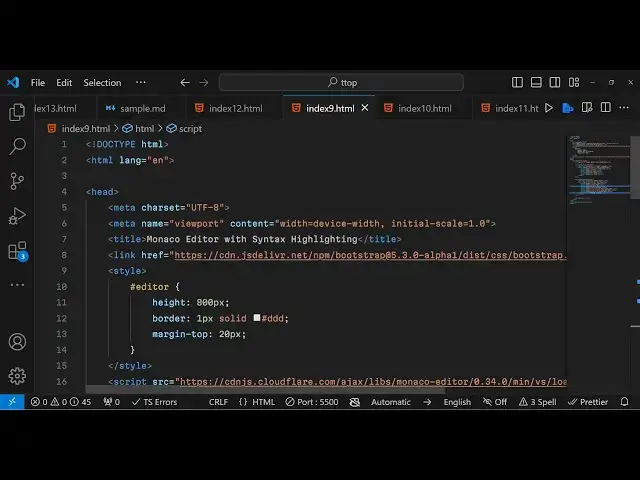
Build a VSCode Coding IDE With Syntax Highlighting Using Monaco Editor in Browser Using JS
Jan 9, 2025

Get the full source code of application here:
https://gist.github.com/gauti123456/6191b4d9dbd8afb59be829ac82c14f26
Show More Show Less View Video Transcript
0:00
uh Hello friends welcome to this video
0:02
so in this video we will look at another
0:04
syntax highlighting library inside
0:06
JavaScript which is called as Monaco
0:09
editor Monaco editor is an
0:12
all-in-one uh code editor that you can
0:14
integrate inside browser where you can
0:17
allow the
0:18
user to actually enter programming
0:23
inside any language so let me have an
0:26
example right here if I paste this HTML
0:28
code right here you will see it will be
0:30
highlighting with syntax highlighting
0:32
here the user can select their
0:35
language you can have more languages as
0:38
well so it's HTML language so you will
0:41
now see it's allinone uh code
0:44
editor with line numbers you can see
0:48
highlighting it each and every
0:50
line and uh the highlighting has
0:53
different colors for comments for
0:56
different colors of HTML tags so it's uh
1:01
something like a code editor so you can
1:04
integrate so various themes are
1:05
supported by Monaco editor this is a
1:08
light theme this is actually the Dark
1:10
theme something like VSS code you can
1:13
see that this is actually the theme vs
1:16
code uses then we have the high contrast
1:20
theme you can see so depending upon
1:22
which theme that you want drul you can
1:24
select it from the drop down and you can
1:26
see that various themes are supported
1:29
out of the box using Monaco editor and
1:33
uh GitHub
1:35
do so there are a lot more themes as
1:38
well but I'm just showing you the famous
1:41
ones and you can have this so I will now
1:45
show you how to integrate this so the
1:47
library that I'm talking about is Monaco
1:50
editor if you just write this on Google
1:53
this is the Monaco editor open source
1:56
browser based code editor that you can
1:58
integrate if you are developing any sort
2:01
of uh application related to coding you
2:05
can integrate this Monaco editor right
2:06
in the browser itself so you'll be using
2:09
the CDN right here this is their it's
2:12
basically developed by
2:14
Microsoft monacco editor it is called as
2:18
and it has basically all the
2:21
intelligence features as well you can
2:24
validation so if you want to basically
2:31
you can see all these intelligence
2:33
features will also be there so as you
2:36
write the code basically you will have
2:38
suggestions so if you change this to
2:41
JavaScript so now if you write some
2:44
language if you write function you will
2:46
actually see you will get intelligence
2:49
features as
2:51
well so as you
2:57
declare so you will basically see so so
3:00
you will get all these suggestions as
3:02
you write your code so you can just
3:06
change themes as well so now to
3:09
integrate this uh I will actually show
3:12
you from scratch
3:16
so we will have this editor so first of
3:19
all you do need to include the
3:24
CDN for Monaco editor
3:31
so let me just close the body
3:40
here so right here inside your
3:44
uh we are using bootstrap CSS so we have
3:48
included the CDN for bootstrap and also
3:50
for Monaco editor it offers the base
3:56
JavaScript CDM that we have pasted right
3:59
here so all the source code I am using
4:01
in this video is given in the
4:03
description of this video so you can get
4:04
all these CDN in the description so now
4:08
to actually write the actual
4:12
interface we will have basically the div
4:15
tag which will have the container class
4:17
of bootstrap and inside this we will
4:20
have an head heading which is Monaco
4:24
editor
4:26
syntax highlighter
4:30
and we'll giving an class to it margin
4:33
top
4:36
four and then we will actually have the
4:39
form group class or bootstrap and here
4:42
we will allow the user to actually
4:47
select the language so you'll simply say
4:51
to the user that you need to select your
4:55
language so we will have different
4:57
choices here so we will have the select
5:00
list and we will give it an ID to it so
5:03
that we can Target in JavaScript so you
5:05
can simply say language
5:08
select and we will have different
5:10
options right here first option will be
5:13
for
5:16
JavaScript and similarly we will have
5:19
more options it supports uh all the B
5:23
languages so all the basic I will just
5:27
include this ehp
5:33
be this one
5:37
HTML all the major languages are
5:39
supported so you can even try their docs
5:42
and just see the languages that it
5:45
supports so I just included the
5:48
languages if you just refresh now you
5:50
will see this drop down you do need to
5:53
include uh a class here so that it looks
5:56
good form control class of bootstrap
6:01
so it will look something like this so
6:03
now we have this after
6:06
this we will allow the user another form
6:09
group
6:12
uh and here we will allow the user to
6:15
Simply select the number of
6:18
themes so here they can select uh
6:23
themes another we will have a
6:26
select tag right here once again it will
6:29
be given an ID to
6:31
it
6:32
of form
6:35
select sorry tee select so that we can
6:38
Target in
6:40
JavaScript so we will have different
6:42
options here for different themes
6:44
supported so vs
6:49
light which is a light theme which will
6:51
be
6:54
supported so we will have different
6:56
options right here so I will copy this
7:02
so this will be the Dark theme so I will
7:04
change it here for Dark theme then we
7:08
will have HC Black
7:12
theme so these are all the themes which
7:15
it supports uh high
7:21
contrast then we have the Dracula te
7:30
uh then we have
7:48
solarized similarly we have the Dark
7:51
theme of this as well
7:59
and the
8:00
last one last two themes get up the
8:10
dark you can go to their website and you
8:14
can even find out more themes as well
8:16
but I'm just listing out the popular
8:20
ones so this is the monoo
8:24
theme so now we have two drop downs
8:30
also give it a bootstrap class or form
8:36
control and lastly after doing this we
8:39
will have the div we will give it an ID
8:41
to it of editor so here in this div tag
8:44
we will be loading the actual code
8:46
editor with intellisense and line
8:48
numbers so just give it an ID here
8:51
editor we will Target this using Javas
8:53
script so right here we will actually
8:57
write the
8:59
JavaScript code in a different file
9:01
script.js so just create a JavaScript
9:05
file so right at the very top we need to
9:08
require the basic library of
9:12
uh we will use it required config and it
9:16
takes an object and here you need to
9:19
provide the paths
9:21
object so it you can load the library
9:25
like in this fashion so here you need to
9:27
provide the CDN of from cloud
9:34
frame and slash
9:39
lips and slash Monaco
9:45
editor and this is really important the
9:47
version number that you're loading so
9:49
just make sure that you're writing the
9:51
same version
9:52
number if you don't want to get error
9:55
and vs
10:02
so after loading this uh we can
10:04
basically
10:10
require the editor do main
10:13
file and then it takes this call back
10:16
function and inside this we will
10:19
actually create the editor instance so
10:23
for creating the editor instance we will
10:25
create uh call Monaco and it contains
10:29
this editor. create function and here
10:31
you need to provide the reference in
10:33
which you need to load the editor so we
10:36
will be targeting it by the ID by using
10:39
document get element by ID so we have
10:42
given the ID if you
10:48
check we have given this ID here of
10:51
editor so we uh simply targeting it by
10:54
the ID that we have given and then it
10:56
takes an object
11:01
so here you need to give the value the
11:04
default value it
11:05
takes so we will
11:08
basically give this placeholder value
11:10
that write your code
11:13
here and uh you will have a console loog
11:20
statement like
11:22
hello Monaco that's all
11:30
this will be the value and uh you can
11:32
even provide a language as well uh by
11:35
default so this language will be
11:37
JavaScript
11:39
so in this way you can provide this and
11:42
the theme as well so theme you can
11:44
provide this will be by default is using
11:47
vs light theme and now if you refresh
11:52
your browser
12:01
if you see the console right here uh it
12:04
is saying that
12:06
uh some error has taken place VSS editor
12:11
main
12:15
failed uh I know I think I made a
12:19
mistake right here in typo mistake so
12:22
what I will do I will
12:24
copy
12:26
this all the source code will be given
12:28
in the description ion so I will paste
12:30
it line this line once again so now you
12:34
will see that the editor has been
12:36
successfully mounted and by default you
12:40
are now you can write your code like
12:42
this with intelligence you can define a
12:46
function you can see by default the
12:48
syntax highlighting is
12:50
done essentially it's a coded code
12:54
editor in the
12:56
browser you can write your code with the
12:59
line numb syntax
13:01
highlighting and if you hover onto the
13:03
function it will tell you the short
13:05
little description about the function
13:07
what this function Returns what this
13:08
function does so it's a mini vs code
13:14
clone and uh you can change this theme
13:17
to Dark theme so now this theme will
13:20
change dark you will see so various
13:22
themes are supported so in this way you
13:24
can change this theme let me stick with
13:27
the vs light
13:30
so after you initialize this uh we can
13:33
also define various
13:35
themes in
13:37
monoo using this function define theme
13:41
so we have this function where we can
13:43
define a custom theme so let me Define
13:46
Dracula theme so we have the theme in
13:49
this dropdown so here we will be using
13:52
the base theme which will be vs dark and
13:55
we will slightly customize this by using
13:58
the custom Style
13:59
inheriting we will be inheriting the
14:01
base tiles of
14:03
vstar and we will have this rules
14:07
object and uh rules I think it's array
14:11
not an object and inside this we will
14:14
have the token
14:18
property and then we can manipulate the
14:20
background color and provide different
14:24
colors so let me just paste this
14:30
in this way you can Define custom themes
14:33
by inheriting the base theme as you can
14:35
see vs dark and then we providing the
14:38
rules here the background foreground the
14:41
comment color keyword color string color
14:44
so rest of the things you can customize
14:47
them by customizing these
14:53
colors so now to if if you want to use
14:56
this theme you can Define
15:00
a onchange event handler so whenever you
15:02
change the theme by changing the select
15:06
event handler you can Define event
15:07
handler change so then this function
15:11
will execute call back and here we can
15:15
initialize the new theme which is
15:16
selected by the
15:18
user first of all get the value and then
15:22
Monaco editor do set theme you can set
15:26
the theme by using the set theme
15:28
function
15:30
and passing the new theme which is
15:32
selected so if you now see if I change
15:35
this to Dracula
15:57
theme so you will see the theme will
16:05
change uh let me just paste this code
16:08
right
16:11
here the full
16:18
code so this is the overall uh
16:21
JavaScript custom JavaScript code you
16:23
define this ad event listener so if you
16:26
change your theme to Dracula you will
16:28
see that theme will change so whatever
16:31
that you have defined in this using the
16:34
defined theme
16:37
function so we Define this background to
16:39
be this hexadecimal color the foreground
16:42
is this you can change this as well if
16:46
you want the foreground to be
16:54
white so now if you change the Dracula
16:57
you'll actually see it will look
16:59
something like
17:02
this so This is actually the Monaco
17:05
editor it's an all-in-one code editor
17:08
which supports various languages so you
17:10
can even write PHP code as well right
17:13
here will see you can write here PHP
17:20
code so you can see how these variable
17:23
colors you can write comments
17:35
you can change this to uh
17:47
Json you can see that this is Jason and
17:51
uh in the similar
17:54
way you can have CSS properties
17:59
and you will actually see intelligence
18:01
here for all the properties that you put
18:03
you will
18:07
see so allinone it's a Monaco editor
18:10
it's a library where you can integrate
18:14
it using intelligence uh line numbers
18:17
and can have various
18:19
themes and uh this is their official
18:23
docs you can check it's a developed by
18:25
Microsoft it's a browser based code
18:27
editor
18:28
so thank you very much for watching this
18:30
video and I will be seeing you in the
18:33
next one and do check my free media
18:36
tools website which contains thousands
18:38
of free tools related to video image
18:43
and and I will be seeing you in the next
18:46
one
#Programming
#Software