Up next in 10

Build a React.js Whatsapp Floating Chat Window Using react-floating-whatsapp Library
Jan 9, 2025

Buy the full source code of application here:
Show More Show Less View Video Transcript
0:00
uh hello guys welcome to this video so
0:02
in this video I will show you a WhatsApp
0:05
floating kind of a plugin that you can
0:08
use inside your react Chas application
0:10
so if your users are coming to your
0:12
website you can add this uh popup of
0:15
what WhatsApp chat support so it will
0:18
appear in the right uh bottom screen of
0:21
your screen it if the user clicks on
0:23
this uh this WhatsApp support popup will
0:27
pop in you will replace your picture
0:29
right here your company name so whatever
0:33
status that you will see and the user
0:36
can simply chat with you if you if they
0:39
have any doubt regarding to your website
0:41
so if you if they type the message and
0:43
click on send and then automatically the
0:46
WhatsApp app will open and then you will
0:49
they will be able to send direct message
0:53
to your WhatsApp so I will show you this
0:55
plugin that is supported specifically
0:57
for react CHS applications so there is a
0:59
package
1:00
if you just go to npmjs.com and just
1:03
search for this package react floating
1:07
WhatsApp so this is actually the name of
1:09
the package
1:13
so almost it has 18800 weekly downloads
1:17
so this is actually the
1:20
command let me just open the zoomit
1:26
tool so this is a very basic command and
1:29
PMI react floating WhatsApp almost 1,00
1:32
weekly downloads so it will add this
1:35
WhatsApp popup here you will replace
1:37
your image your company name the status
1:40
and whatever is your message and here
1:43
the user will type the message and once
1:45
they click Send automatically the
1:48
WhatsApp app will open so now to get
1:50
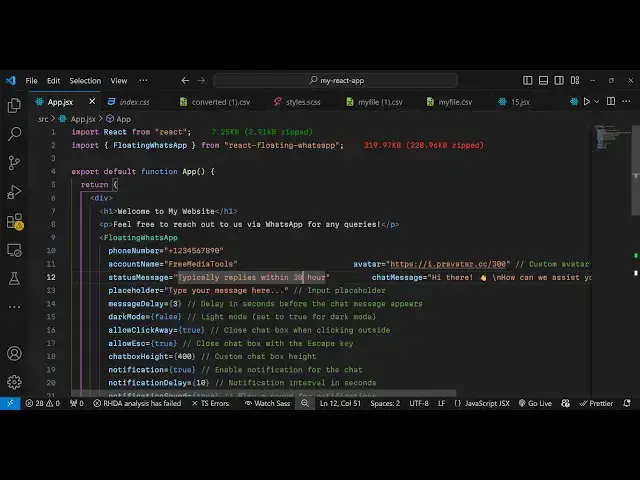
started uh just make a simple functional
1:53
component and now to include this we
1:57
simply use the import statement to First
1:59
of all include the package so we say
2:03
import and floating
2:06
whatsa this is actually the component
2:09
which will be coming from this package
2:11
which is react floating
2:14
WhatsApp so we included this using this
2:17
import statement now to embed this
2:19
inside this functional component we
2:22
simply use this component which is
2:25
floating
2:26
WhatsApp so once you add this it takes
2:29
some
2:32
properties so you will not see anything
2:34
because we do need to pass some
2:36
properties to this component so the very
2:38
first property it takes is the actual
2:41
phone number so here you it you will
2:44
replace your phone
2:48
number in international formats you need
2:51
to include the country code as well so
2:54
91 which is for India you will see you
2:57
will replace your own country code and
2:59
then followed by your 10 digigit
3:02
number and then the second property it
3:05
takes is the account name so here you
3:08
will replace your whatever is your
3:09
company name so I will replace here free
3:12
media
3:13
tools and then we also can simply give a
3:18
simple Avatar image so whatever is your
3:21
profile picture you can replace here the
3:23
URL so I can just replace the sample
3:28
URL and then you can even provide a
3:30
simple status message that this is my
3:33
company this is free media
3:37
tools website a simple short little
3:41
status message so that the user can see
3:43
what you are all about and then you can
3:46
also type a chat message so whenever
3:48
they click the floating chat WhatsApp
3:52
this message will automatically pop in
3:54
so you
3:56
can like this
4:00
how can we
4:03
assist you today something this and then
4:07
you can also give it a placeholder as
4:09
well type your
4:12
message here and now to show the actual
4:17
window we can
4:19
even make the style
4:22
here and give some custom Styles so here
4:25
I will make this position as fixed in
4:28
the top right corner of the screen
4:30
bottom right corner so for this we will
4:32
give it a bottom position of 20
4:35
pixel and a right of also 20 pixel and a
4:40
zed index of 100 1,000 if you refresh
4:45
now what you will actually
4:51
see it is saying that
5:00
let me just paste every all the source
5:02
code will be given in the description so
5:05
this is actually the thing right
5:16
[Music]
5:18
here so you will also hear a specific
5:21
sound whenever you refresh your
5:28
page so you will see uh this message
5:31
will
5:32
come so if you want to change these all
5:35
these options you can
5:40
directly just
5:57
replace so you'll see the name Will will
5:59
be changed so it is very much
6:02
customizable you can customize all these
6:04
things replace your profile picture
6:06
company name this a status message this
6:08
is a message and here the user
6:11
will simply type the message and then
6:14
you can replace your own phone number
6:17
with
6:18
international format so once you replace
6:22
it once they actually type the message
6:26
and click on
6:28
send it will open their own
6:31
C and they will be able to send direct
6:35
message this is actually the plug-in and
6:38
you can even control all these options
6:41
you can change the background color as
6:47
well so all these notification sounds
6:50
are also
6:54
there if you need the dark mode you can
6:56
toggle this to true so now it change to
7:00
dark mode instead of light you will see
7:03
so whatspp has two modes either dark or
7:05
light so you can toggle this with these
7:07
options as well
7:09
so all the customizations you can even
7:12
control the height as well so 400 is
7:14
there so if I change to 800 the height
7:17
will be increased
7:22
so so it's a very handy package react
7:24
floating whatsa so in this tutorial I
7:27
showed you how to add this floating
7:29
WhatsApp right in your website to
7:32
increase visitors on your website so
7:34
that they can directly chat with you
7:36
through WhatsApp inside your react CH
7:38
application so thank you very much for
7:40
watching this video and do check out my
7:43
website as well free mediat tools.com
7:45
which contains thousands of tools
7:48
regarding audio video and image I will
7:50
be seeing you in the next video
#Programming
#Web Services
#Web Design & Development