Up next in 10

Build a React.js Source Code Viewer to Highlight Source Code Using react-syntax-highlighter in JS
Jan 9, 2025

Get the full source code of application here:
https://gist.github.com/gauti123456/8a7afd04cf966baa0564bad1b29986da
Show More Show Less View Video Transcript
0:01
uh Hello friends welcome to this video
0:02
so in this video we will look at how to
0:05
highlight source code inside your react
0:07
CH application using a free syntax
0:10
highlighting library inside specifically
0:12
for react CH and we have you can see on
0:15
your screen we have different languages
0:18
support JavaScript python PHP HTML CSS
0:22
you can select from the dropdown you can
0:25
even change the theme as well and here
0:27
in the text area you can paste the
0:29
source code
0:30
so as you paste the source code you will
0:32
see the line numbers will also show
0:35
and this is actually the theme you can
0:38
change various themes are supported by
0:40
this module so if you want to highlight
0:43
source code syntax highlighting library
0:46
is there in react Chas I will show you
0:48
step by step how to integrate this
0:50
inside in the browser using react Chas
0:54
so here you will paste your code you
0:55
will see the light preview of The Source
0:57
Code with line numbers different themes
1:00
are supported you can change the
1:01
language as well if you want a different
1:04
language
1:05
python Java so you will see all these
1:08
languages are supported Ruby HTML each
1:11
and every
1:12
language so the name of the library is
1:16
react syntax highlighting if you just go
1:19
to npmjs and just search for this
1:22
package
1:24
react syntax highlighter this is
1:27
actually the
1:28
component for react CH and it has got
1:32
almost 2 million
1:34
downloads weekly downloads and this is
1:37
actually the command npmi react syntax
1:40
highlighter and uh you can just see so I
1:43
will show you how to integrate this step
1:46
by step so just go to your command line
1:51
and execute this command uh react syntax
1:57
highlighter and apart from that we are
1:59
also using bootstrap for constructing
2:01
the user interface and you will need
2:03
these two
2:06
packages react syntax highlighter this
2:08
is the first package then bootstrap and
2:10
react bootstrap this is specifically for
2:13
boot react chairs if you want to
2:14
integrate bootstrap so just install
2:17
these packages and uh I've already done
2:20
that so now to get started just make a
2:23
simple app
2:25
component functional component in react
2:28
CH so I will make it
2:33
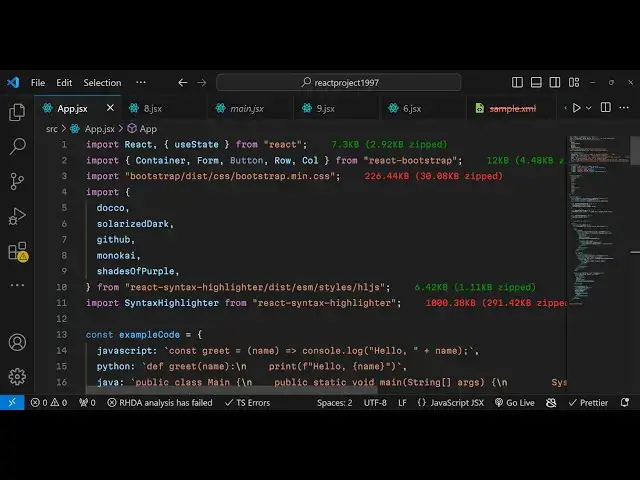
so first of all what you need to do we
2:35
need to import some components from
2:36
bootstrap so I will do it from react
2:40
bootstrap which contains container form
2:42
button BR call you also need to import
2:45
the cdan file of bootstrap so bootstrap
2:48
is not necessary we are just using it
2:50
for building the user interface so if
2:52
you don't want to use it it's not
2:54
mandatory so I've just incl included the
2:57
CSS file or bootstrap so now inside this
3:01
guys we will in the jsx we need to first
3:04
of all declare some variables right here
3:06
at the top so the first thing we need to
3:09
do we need to declare some themes some
3:12
languages with sample code so all the
3:16
source code you will can find in the
3:18
description so what I will do I will
3:20
declare
3:22
a array which will contain different
3:27
languages so with a some some sample
3:30
code so we declared this object here
3:33
example code it has various properties
3:35
JavaScript python Java Ruby C HTML you
3:37
can include more languages we included
3:40
this sample code right here and E for
3:43
each language and after this we need to
3:45
have the variable or array which will
3:49
store different themes so each theme
3:52
will have opt uh two properties first is
3:58
label light doco and actually the value
4:02
so the theme name so which is will be do
4:06
so in this way we have five themes so
4:09
you can have more themes you can read
4:10
the documentation so we have in this way
4:13
you can store this the languages then we
4:16
have the different themes it
4:18
supports and now we need to declare a
4:23
array once again which will store all
4:25
the languages that it will support so I
4:28
will declare this array so you can
4:30
include more languages if you want to
4:32
support so I have just included all the
4:35
major languages JavaScript python Java
4:37
RC HTML CSS PHP typescript Json BH SQL
4:42
XML so
4:43
after you do this you can declare this
4:46
right at the top just make it Global so
4:50
I will simply declare it outside this
4:52
app
4:53
function so you can declare it make this
4:56
as Global variable so that it is
4:58
accessible in all all the locations so
5:00
just make it Global so after this now we
5:03
need to declare some State variables
5:05
which will be required so it'll be first
5:08
of all we having to keep track of which
5:11
language the user has selected for that
5:13
we need to store language set language
5:15
and we'll be using the UST State Hook
5:18
and the initial value will be JavaScript
5:20
it will be selected then we need to keep
5:23
track of which theme the user select so
5:25
for the theme as well we need to have a
5:27
variable for that so use state
5:30
and we will be having doco theme and
5:33
then we will basically keep track of
5:35
which code the user will write in the
5:37
text area and for that also we will have
5:41
example code do JavaScript so here we
5:44
actually are referencing to these
5:46
variables that we declared early on so
5:49
this is example code it's an object so
5:51
we are accessing this value JavaScript
5:54
do syntax and this doco is coming you
5:57
will see this is coming
6:02
here
6:04
so after
6:07
that we will need to declare some jsx so
6:12
right here in the return statement uh we
6:16
will have basically the container class
6:18
or bootstrap container component need to
6:20
wrap everything inside this give it
6:24
basically a class name of my uh
6:28
margin from the white Direction and then
6:30
we will actually have a form element
6:33
form
6:37
group but before that we just need to
6:40
give it a heading uh just
6:45
to class name of text Center and we
6:49
basically say source code
6:52
viewer so if you just refresh the
6:54
application it will look something like
6:56
this
7:08
let me paste it in the main file sorry
7:11
which is app.jsx
7:15
sorry so you will see this heading here
7:18
uh
7:24
appearing so it is saying that doco is
7:27
not
7:28
defined uh
7:31
I think it needs to be
7:34
themes okay themes I
7:46
think uh let me see what is the problem
7:49
here I
7:52
think the
7:57
themes okay this do theme which will be
8:00
we are using right here it will be
8:02
coming from the syntax uh highlighter
8:07
Library so just make
8:09
sure you need to import that so this
8:13
theme so we have various themes
8:15
available which will be coming from this
8:18
react syntax
8:24
highlighter react syntax
8:26
highlighter and inside that we need to
8:29
go go to the disc folder and inside this
8:33
esm we have various
8:35
Styles
8:37
HL
8:39
hjs so from that we need to import the
8:43
different themes one such theme is doco
8:47
we are referencing that so if you
8:51
refresh so it is saying solarized tar is
8:54
not defined so we need to
8:57
basically use uh import all these
9:00
themes that we are using right
9:04
here so one by one we can reference it
9:11
so so now you will see this heading
9:14
right in the center screen this is
9:15
coming because of we have written this
9:19
so after this uh heading we just need to
9:22
have a form where we allow the user to
9:26
submit the code we will have the row
9:32
we will have the
9:37
column and then we will have the form
9:40
here
9:44
uh then we will have the simple
9:49
label we will we will allow the user to
9:53
Simply select
9:55
a pro programming language this will be
9:59
a simple drop- down field and we need to
10:02
give it a control
10:06
ID and a bootstrap class of margin
10:09
bottom
10:11
three so you will see this uh label
10:14
appearing and after this we need to have
10:18
uh the control
10:21
field and this will be
10:25
as the select field and we need to give
10:28
it the value
10:29
the state where you we have declared for
10:38
language so we will have this drop down
10:41
field no choices are there yet for that
10:45
we need also need to attach on chain so
10:48
when we do select any language this
10:50
function will be executed handle
10:52
language change so we just need to
10:56
Define this function right here
11:02
e parameter will be passed we need to
11:05
load all the choices because we have
11:08
declared this array which is languages
11:10
so now we need to Loop through each
11:12
language which is there in this as a
11:14
option for doing this we will actually
11:16
use some jsx inside Cy bracket we will
11:20
reference that
11:23
array and we will map through all the
11:27
choices so each language what we will do
11:31
we will simply create an
11:36
option you will provide a key which will
11:39
be language and the value will be also
11:42
be
11:43
language so inside this option we will
11:46
basically say the actual
11:49
language used this function character
11:52
Zero we need to change it to the
11:54
uppercase uh and
11:57
then you need to
11:59
slice the
12:01
first so it will look something like
12:04
this you'll see all the
12:13
choices so I think this is form
12:22
control uh languages map for each
12:24
language this option key
12:32
me just paste it I think some typo
12:34
mistake has
12:40
happened okay this needs
12:48
to you need to just surround this in the
12:53
form control past it so now you will see
12:56
all the choices appearing perfectly so
12:59
we have different choices
13:01
available this is the simple select
13:04
field for basically selecting which
13:07
language so in similar terms we need to
13:10
do this for we will have another column
13:14
in which we will have the theme
13:17
selection so we will do the same thing
13:20
but this time for selecting the theme so
13:22
we have the same code so but this time
13:25
we have selecting the theme right here
13:27
so the code remains the
13:29
same we are looping through this array
13:32
that we declared for themes if you see
13:35
we have different themes available so we
13:38
have a drop down right here and we are
13:40
basically looping through using the map
13:42
operator we are creating an
13:46
option and uh we actually need to Define
13:49
this function on change so when we do
13:51
select a theme this function will
13:53
execute so we need to Define this
13:56
function again handle theme change e
13:58
parameter will be passed automatically
14:01
so if you refresh now you will see two
14:03
two select Fields one for theme one for
14:07
language and uh now we need to declare
14:11
the text area after
14:14
this so after this row this will be in a
14:18
different
14:23
row so after this row we need to have
14:26
another text area so this will be formed
14:31
group so we just need to give it a
14:34
control ID which will be code and a
14:37
class name of
14:40
margin from the y
14:42
direction we will have basically the
14:45
label form label which will be here the
14:48
user will enter the
14:52
code and then the control field
15:00
so we will need to have this as a text
15:05
area so rows will be
15:08
six the value here will be whatever is
15:12
the
15:13
code will also be binding a onchange
15:16
event handler so whenever you paste any
15:19
source code this function will execute
15:21
handle code change now we need to Define
15:24
this function
15:35
so you will basically see this text area
15:37
and automatically this code is pasted
15:41
because we actually have this U State
15:46
variable which is UST State JavaScript
15:49
so by default the example code do
15:53
JavaScript is loaded so this is actually
15:55
the code that you see right
15:57
here so if you load the application and
16:00
then after this we need to display the
16:04
live preview for doing this just after
16:07
this text area we will display the
16:10
syntax highlighted code in the div area
16:13
we basically give it a bootstrap class
16:17
margin top four just to give some
16:19
spacing from the top and in the edge5 we
16:22
will have the highlighted
16:27
code and this this time we'll be using
16:29
the syntax
16:31
highlighter which will be coming from
16:33
react syntax
16:35
highlighter so by default it looks
16:39
something it doesn't look something we
16:42
do need to provide the actual language
16:45
for
16:46
this so This syntax highlighter if you
16:49
see it is imported directly
16:51
by inside react syntax highlighter
16:55
so this so for this we need to
16:59
surround this actual code so syntax High
17:02
writer so right here we need to in
17:04
double Cy bracket we just need to say
17:06
the actual code so the actual code will
17:09
look something like this if you don't
17:11
pass any options but it does it does
17:13
take some options as well you can pass
17:16
the show line numbers so if you want to
17:19
show the line numbers you can toggle
17:21
this option and now you will also see
17:23
the line numbers appearing in the
17:25
code if you have multiple lines of code
17:28
like let's suppose if I paste this code
17:30
in the text
17:38
area let me
17:41
paste as you can see I can't paste
17:43
anything in the text in the text area
17:45
because we do need to basically write
17:47
those functions first of all and we can
17:51
even directly apply any theme so style
17:54
attribute it takes so we can apply the
17:57
theme and and the
18:00
language it takes so we can directly
18:03
attach the language variable that's all
18:06
so that's all that you need to do right
18:08
here but now we need to come to those
18:10
functions that we need to
18:13
Define these three functions for
18:15
changing the language changing the theme
18:17
and changing the code so these three
18:19
functions will execute so for first of
18:22
all changing the language we just need
18:25
to set the language the hook function e
18:28
do whatever is coming e. target. value
18:32
and also set the code as well which is
18:35
example
18:37
code e. target. it's array so that's for
18:41
square
18:42
brackets and similarly for the theme
18:45
change as well whatever is the theme
18:47
selected we will update the state by
18:50
using the set theme so themes and you
18:54
need to use a find function right here
18:55
you find out which theme is selected by
18:58
user using the
19:01
label T do label triple equal to e. so
19:06
which label that the user has
19:13
selected and then for the code change we
19:16
just need to set the code to whatever e.
19:20
target. Val so that's all that we need
19:22
to do so if you refresh this uh in the
19:25
text area paste your code and you will
19:27
see automatic as you paste the codee the
19:30
highlighting will start and it will show
19:32
the live preview you can change the
19:34
theme as well you will see that as you
19:36
change the drop
19:38
down different tees are
19:42
supported so these are just the handfuls
19:44
of themes that I showed you in this
19:46
example you can read more about it in
19:48
the documentation uh more themes are
19:51
supported so you can change the language
19:53
as well so much more languages are
19:56
supported I just shown you very few
19:59
languages in this example it's a great
20:01
module you can read the documentation
20:03
react syntax
20:04
highlighter
20:08
so you can just see so in this way you
20:12
can highlight uh any sort of code in any
20:14
language with various themes and react
20:17
chairs thank you very much for watching
20:19
this video and please hit that like
20:21
button subscribe the channel and do
20:23
check out my website as well free mediat
20:25
tools.com which contains thousands of
20:27
free tools related to audio video and
20:29
image and I will be seeing you in the
20:32
next video
#Programming
#Other
#Computer Education