Up next in 10

Build a React.js Medium Wysiwyg Mini Text Editor in Browser Using react-medium-editor Library
Jan 9, 2025

Buy the full source code of application here:
Show More Show Less View Video Transcript
0:00
uh hello guys welcome to this video so
0:02
in this video I will show you how to
0:04
integrate this mini visic editor where
0:08
you can perform these slight little
0:10
operations change it to bold underline
0:12
italic so in react CH there is a
0:15
specific package which is available uh
0:18
if you have visited medium.com you have
0:20
visited this editor a lot medium.com is
0:23
a website where people write
0:26
blocks and uh about various topics so in
0:30
inside their website they do offer this
0:32
nice little formatting technique where
0:34
the user can actually underline so these
0:38
are formatting options so when you are
0:41
writing something this mini editor comes
0:44
specifically of medium JS and I will
0:47
show you how to integrate inside reactjs
0:50
so there is a package here which if you
0:53
are writing any sort of blog post or any
0:55
sort of text you can integrate this nice
0:58
little feature where you can add
1:00
hyperlinks you can change it to bold
1:03
hyperlink like
1:05
this so This is actually a mini editor
1:08
you can add it so if you are actually
1:11
adding some text it's a very handy
1:14
editor so actually the package
1:17
responsible for this is if you just go
1:19
to npmjs.com and just search for this
1:22
package react medium editor so this is
1:26
actually the
1:27
package uh this is actually the command
1:31
specifically it's made for reactj
1:33
applications so install this and it's
1:36
almost called 1,400 weekly downloads so
1:39
what I will just show you a very basic
1:41
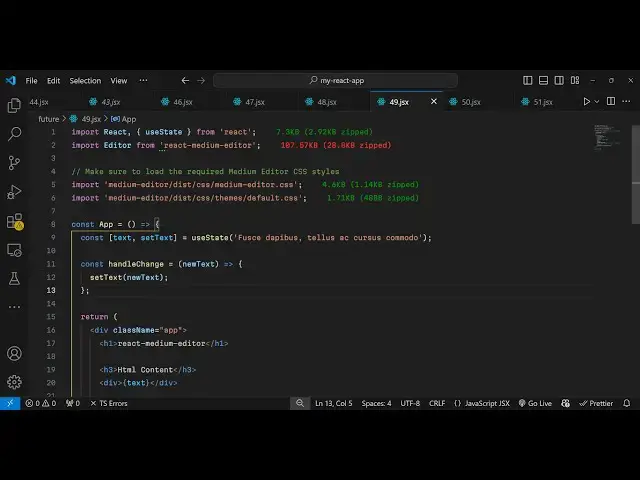
example so first of all you just need
1:44
to uh make a simple functional
1:47
component and at the very top you need
1:49
to import this using the import
1:52
statement so import
1:54
editor and it will be coming
1:57
from this react medium
2:02
editor and then we also need to import
2:05
some CSS files which is there for this
2:07
editor so medium editor disc CSS medium
2:12
editor
2:14
CSS and also we do need to import the
2:18
different themes that it supports I will
2:20
import the basic default
2:23
theme so it has various themes but I
2:25
will import the default theme so you do
2:28
need to import the CSS files as well of
2:31
this editor so now we actually embed
2:35
this editor now for embedding this
2:37
editor we come to the jsx and right here
2:40
we have this H1
2:42
heading just say react medium editor
2:46
demo and then we have this H2 heading
2:49
let's suppose this is your HTML content
2:52
that you are making
2:54
it so here you will be embedding your
2:57
text so I will just create a simple
2:59
State variable inside react using use
3:02
state so that allowing the user to
3:08
Simply so it can be anything this
3:16
text and we are displaying this text
3:19
right here so inside
3:22
our we will have the mini editor where
3:26
we allow the user to edit the text so we
3:30
have this component in this way we can
3:32
embed this and it takes some options
3:34
first is the tag option that it takes is
3:37
the pre tag and the actual text that you
3:40
want to
3:41
display and it also takes an options as
3:44
well options object and here you specify
3:48
which widgets toolbar you want to
3:50
display so toolbar will contain these
3:54
buttons which will contain the button to
3:56
bold the text and change the text to
4:00
italic and then for underline so these
4:02
three buttons will be present in the
4:04
this editor in the toolbar in this way
4:07
you can do this so if you refresh your
4:10
application now go to this and if you
4:12
edit this now you will see these
4:15
controls out there for bold italic
4:17
underline so these text will be present
4:19
and if you change you will see the the
4:23
text will be change it will be bold
4:25
underline
4:27
italic so in this way you can add these
4:29
capabilities it's very good editor
4:32
especially inside medium.com website you
4:35
can directly embed this
4:37
and then we can even have an onchange
4:40
event handler so when you change the
4:42
text this call back function will
4:45
execute we can Define this function as
4:47
handle change so now as
4:51
you change your text you can simply say
4:55
handle
4:57
change new text
5:00
and it's equal to set text we update the
5:04
text something very easily
5:08
so in this way you can add this mini
5:13
editor and the HTML will be updated if
5:16
you see we are adding this italic tag
5:19
underline
5:21
bold so in this way you will get your
5:24
HTML you can copy this and paste it in
5:26
wherever location you are pasting it and
5:29
and uh in this
5:33
way and
5:38
uh so in this way you can do this
5:42
uh and by default if you don't provide
5:45
these
5:47
options it will include more buttons If
5:49
you
5:50
check if I just refresh now you will
5:53
have more buttons as well if you want to
5:55
change to H2 heading it will change to
5:57
H3 this
6:01
you can even put hyperlink as well so if
6:04
you don't want to provide certain
6:06
buttons by default it will include a lot
6:08
of buttons but if you do want to only
6:10
provide these three buttons you can also
6:12
do this as well so this was a tutorial
6:14
guys of how to using this mini editor
6:17
which is offered by medium.com
6:19
specifically for react CH applications
6:21
so thank you very much guys for watching
6:23
this video and do check out my website
6:25
as well freem mediat tools.com uh which
6:29
contains thousands of tools regarding
6:31
audio video and image and I will be
6:34
seeing you in the next video