live_tv
Livestream Starting Soon
00
Hours
:
00
Minutes
:
00
Seconds
Up next in 10


Buy the full source code of application here:
Show More Show Less View Video Transcript
0:00
uh hello guys welcome to this video so
0:02
in this video I will show you yet
0:04
another react CH calendar date picker
0:08
package which allows you to select any
0:11
year any date very efficiently so this
0:14
is actually the package here you will
0:16
see the calendar is showing you can
0:17
simply go to any date and simply tap on
0:21
the date and then the date will be
0:23
selected and displayed right here in
0:25
this format which is the month followed
0:29
by day and then the year so the package
0:33
name is react day
0:37
picker so if you go to npmjs.com and
0:41
just search for this package react day
0:48
picker this is the package here this is
0:50
the
0:52
component and uh the command is very
0:55
simple I've already installed it it's
0:57
almost got 900 60,000 weekly downloads
1:02
it's a very popular package and it is
1:05
customizable easy
1:07
integration and it can be localized to
1:09
any language and time zones and you can
1:12
even customize it by using custom CSS so
1:16
I will show you a very simple example so
1:18
just make a simple functional component
1:21
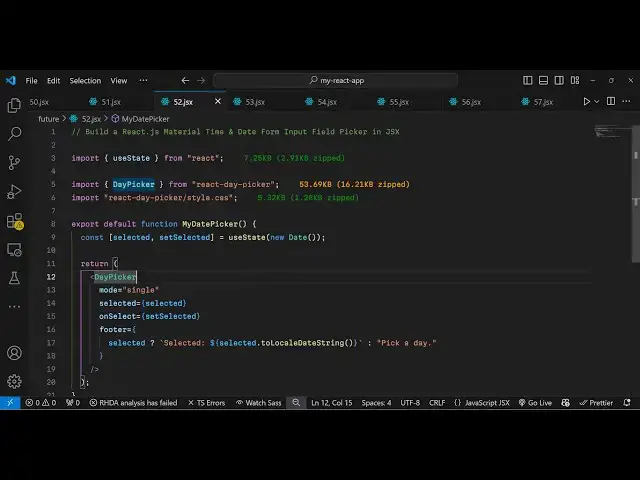
and we will be importing this module
1:24
simply write day picker and it will be
1:27
coming from this react day picker it's
1:30
almost 54
1:31
kiloby and alongside with this we also
1:34
need to import it CSS file as well so
1:37
react
1:38
dcker and it also contains its CSS file
1:42
so you simply say style.
1:45
CSS which is 5.32
1:48
kilobyte so after this we declare a
1:51
state variable just to keep track of
1:53
which date the user will select so right
1:56
here we have have this variable use
1:59
State I will use it so initial value
2:02
will be the current date which we can
2:05
easily get by using the date
2:08
Constructor so wherever you need to
2:10
embed this you go come to the jsx just
2:13
say day picker and it actually takes
2:16
some
2:18
options so the first option it takes is
2:20
the mode so if you want to only accept a
2:23
single date you will say single and then
2:26
once you select the date that date will
2:30
be connected in this call back function
2:32
which is selected so we do need to
2:34
Define this function so we are simply
2:37
calling this variable right here
2:40
selected sorry this is the function we
2:43
need to call which is set selected which
2:46
is the hook function so whenever you
2:48
update the date this function will get
2:52
executed so if you just to try to open
2:55
this application
2:57
uh you will see this calendar dat day
3:00
picker will be embedded very
3:02
successfully and here you can select any
3:05
year any date so once you select the
3:08
date I also want to show this date so
3:11
now to show this date we can simply add
3:14
a footer and write in this footer we
3:17
will have an object and we have this
3:20
back Tex symbol that if the date has
3:22
been selected in that
3:24
case we will just use this variable
3:28
which is selected
3:30
so if the value is selected has some
3:33
value in that case we will show the
3:38
date very
3:42
simply so we using a Turner operator if
3:46
the day selected value is there then we
3:49
are showing this
3:51
uh uh
3:54
Day date so if you pick any
3:58
date so if in this easy
4:03
way you can integrate the calendar and
4:07
the date
4:09
picker very simply so this is the
4:12
overall application so thank you very
4:15
much for watching this video and do
4:17
check out my website as well free mediat
4:20
tools.com uh which contains thousands of
4:23
tools regarding audio video and image
4:26
and I will be seeing you guys in the
4:28
next video
#Programming
#Education
#Educational Software