Up next in 10

Build a React.js Gmail API Example to Authenticate & Display Inbox Messages in Browser Using JS
Jan 9, 2025

Get the full source code of application here:
https://gist.github.com/gauti123456/bffaea9b112facc4a613a113556e7dfd
Show More Show Less View Video Transcript
0:00
uh hello guys welcome to this video so in this video we will look at how to build out a Gmail API example how to
0:08
show your inbox messages inside the table inside react chairs so we have
0:13
this full project inside react chairs we have a demo let me show you we are running this application on Local Host
0:20
we have a login with Google button so as you click this button you will be able to authenticate with Google and login
0:27
with your Gmail account and then we will be fetching all the inbox messages the
0:32
top 30 latest messages you will see the list in this table and it will show you
0:38
the title of the message right here and there are three buttons either you can
0:44
open this message or you can start it or you can delete this delete it into the
0:49
trash so now if I click the open Button you will basically see I it will redirect me to the Gmail it will open
0:56
the message in my Gmail app you can see then I can read this message very
1:01
easily so you can see how easy it is and there is a option here to Star this
1:08
message so if you want to add this message to a star you can click the star message and you will see message start
1:15
successfully so start means that you like this message now it will appear it in the star section so if I check right
1:22
here in this section there will be this message added if you check we have checked this start this message right
1:29
now which is black Black Friday special right now the you can see 12:20
1:34
the current time is there so we start this message so we can easily do this we
1:41
can let's suppose I want to start this message I can simply click this button
1:47
again if I now check there will be another message
1:53
added to the star section
2:03
so you can see in this m in this way No Shave only B you can see this message also added so let's suppose if you want
2:10
to delete a certain message that you don't want and let me delete this message only which is we start this so
2:17
Black Friday special I don't need this message I will simply click delete and now you will see it will be remove from
2:24
this list as well so it will be updated so if I again refresh you will not see
2:30
this message CU this message has been removed and it has been moved to trash you can see the message has been removed
2:36
if I want to check the trash pin here you will see this will remove the this
2:43
message has been moved to trash you will see that so in this way very easily you can delete messages that you don't need
2:50
if I click delete here also delete this message as well and check the trash pin
2:55
you will see two more messages will get added very easily so in this way we are doing it programmatically using react CH
3:01
we communicating with the Gmail API we are doing this uh changes on the Fly
3:06
using the react CH application and you can open any message you can see by
3:12
clicking the open button it will open that message in the message viewer where you can actually see that message so
3:18
this is actual complete application we will be building guys using full authentication plus the Gmail API so all
3:26
the source code will be given in the description so now let's geted started by building this application so let me
3:32
introduce to the modules that we'll be using for this tutorial so there is a certain module that I will be using
3:38
specifically for react CH application if you want to integrate the login functionality there is a dependency
3:45
which is react Google login so we are using this and then we
3:50
are using this as well Gip script so this is a package to load the
3:57
G Google API script and some functions so you need to import this so npmi also
4:04
and for building the user interface we are using this package react bootstrap this is required so now just go to your
4:11
command line just install these packages which is Google API script react Google
4:17
login button and then we need to import react boot strap and the
4:25
bootstrap also the base package so these four packages are required let me show
4:31
you the command in full screen so this is the first package second package third package fourth package so just
4:36
install all these four packages I've already done that and now in the next section we will start building this
4:43
project from scratch so I will see you guys in the next section so now to get
4:49
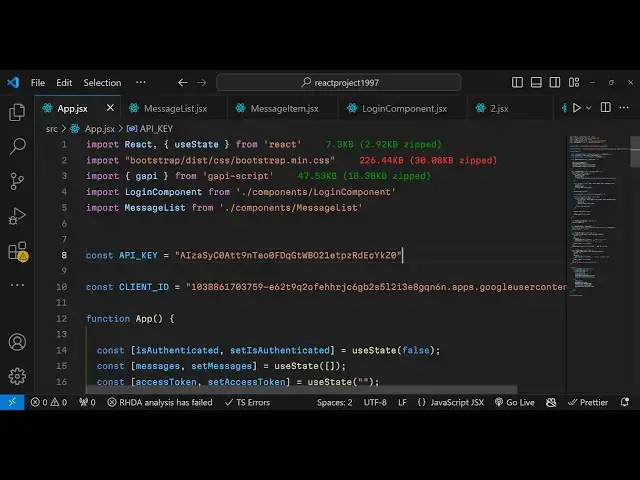
started guys we will start building the project from scratch we have this file app.jsx is currently empty we need to
4:56
initialize a simple functional component so it will let me start the application
5:02
it will refresh and it will show app here so this we are starting it from
5:07
scratch so now we need to actually get two informations we need to declare two Global variables right here first is the
5:14
client ID and the client API key so this API key and this client ID you need to
5:22
get it from Google Cloud console because at any time if you want to communicate
5:27
with the Google apis you need this information so in this way we will be working with Gmail API just you need to
5:34
create account at Google Cloud console and uh then you need to get your API key
5:40
I will simply paste my API key so and for the client ID it's very
5:47
simple when once you create the account you need to go to credentials and then just click the API section it will
5:53
generate for you just for client ID just click this option and select from here web application and then whatever is
6:00
your url This is My URL so just copy this URL and paste it in the first
6:07
redirect URI authorized JavaScript Origins just paste this URL without the traing Slash and now in
6:14
the authorized redirect urri again paste this that's all so click on create it
6:20
will give you your client ID so this will be different for you so
6:25
just paste it this and uh also one more thing you need to do you need to enable the apis so go
6:32
just go to the section and search for the API that you are working with which
6:37
is the Gmail API so you need to enable that API so simply search and just
6:43
enable that API I've already done that so that's why it is so after you do this
6:50
we now need to declare some State variables for our applications so we
6:56
need three variables first is our Boolean parameter which will check
7:03
either the user is authenticated or not then the array which will be storing the messages and third is the access token
7:10
so we have these three variables first is this Boolean parameter second is the messages where we'll be storing it in
7:15
Array initial will be empty array and the third one where we'll be storing the access token which we need to get once
7:22
we are authenticated after declaring these three variables we now need to go to the
7:30
jsx and before that we need to import bootstrap so we need to import the
7:41
CSS so bootstrap main.
7:46
CSS and also we also need the Google API script the package that
7:54
we installed it contains this method you can see we are importing this module
7:59
Google API script and then we are importing this method so after you do this just coming to your
8:06
GSX uh right here we will have a diff section we'll be giving
8:13
a bootstrap class which will be container margin top five these are all
8:20
bootstrap classes and inside H1 tag we will say your Gmail messages
8:30
so here you will say your Gmail messages so after this we after this H1
8:37
tag right here we now need to actually compare in this jsx condition inside cly
8:44
bracket and we'll be simply be using this variable that we declared and we'll be checking if the user is not
8:51
authenticated in that case we need to show the login button and for showing the login button we'll be creating a
8:57
component which I will call that login component and if the user is authenticated in the Turner operator we
9:04
will actually show a simple message that uh you are authenticated that's all this
9:12
is the Turner operator guys so based upon this condition if this value comes out to be false then we show the login
9:18
button if they are authenticated then we show you are authenticated now in the source directory we need to create a
9:25
folder components and right here we need to create a component called as a login
9:32
component jsx so right here we need to import this component so
9:39
we can simply say login component so it will be get imported if you see so now
9:46
inside this login component whenever we are calling this
9:51
we do need to pass some properties to this as props so we need to pass three
9:56
properties first is the so only two properties sorry on success which is a call back function which will get
10:03
executed when whenever you are authenticated and also on failure if any sort of error take place
10:10
then this function will execute which is handle login failure so we just need to initialize both these functions right
10:18
here at the
10:25
top the second one is handle login
10:36
failure so now in these both respective functions this is these are call back
10:42
functions of the API so in this we will'll get the
10:48
response the user response the user profile informations once they are authenticated we can console log this
10:54
and similarly in this failure method we will have the error if any sort of error take place so we just console logging it
11:02
so now right here in the login component we are receiving both these parameters so now receive it it's very
11:09
easy we will destructure it using curly bracket and just on success and on
11:15
failure we have these two methods we are receiving it as props so now in the js6
11:22
we need to import that Google login button you'll be using this it will be
11:27
coming from this package react Google login it's a simple login button and it
11:33
receives two parameters right here let me also pass the client ID as because we
11:40
have declared the client ID at the very top so we can simply pass it as a prop
11:46
which is the client ID so we can receive this client
11:54
ID as well so now the very first first
11:59
parameter is the client ID so we can simply pass it this variable the second
12:05
parameter it takes the button text so simply I will say login with Google the third parameter is a call back function
12:12
so we can attach this call back function that we are receiving it and then the on
12:18
failure so on failure we can attach and then lastly the scope so what
12:24
information you are accessing so we need to access these scopes
12:30
sl/ Gmail for reading the messages so we only need the readon scope and
12:37
also we want the scope for deleting messages as well so for this we need the
12:45
second scope so what I will do I will paste this so we are requesting two scopes for
12:52
reading messages and also for deleting it so you need to just give a space and
12:58
mention the second scope which is for modifying it so we are requesting two
13:03
Scopes so once you do this you will see a login button appearing it is saying
13:09
that the fail to resolve inut does the file
13:15
exist sorry this needs to be Min not MIM just make this change this is
13:24
min so you will actually see a login button appearing
13:30
it is saying that use state is not defined I think we haven't imported use State that's
13:36
why just import the UST State
13:42
hook so you will actually see the login button login with Google if you see so
13:48
if I click this button uh you will be authenticated and uh you will receive
13:54
this object a user information object which will contain the profile information access token and the profile
14:01
information as well about the user you can see given name Google ID image URL
14:06
email address so now we need to get the access token we need to store it in a
14:12
variable so inside our on handle login success so right in this call back
14:19
function you first of all need to set the authenticated user so set is authenticated needs to change from false
14:26
to true then we need to set the access token by using the hook function we can
14:33
set which will be response. access token and then we need to fetch the messages
14:41
so we will make this function custom function where we'll be passing the access token as an argument so now we
14:46
need to make this function which will be responsible for fetching the messages so it will be having a argument
14:55
passed to it which is the access token so right here in this function we will
15:03
fetch the user messages from their Gmail inbox so it will be a asnc function so
15:09
right here we have this Google API SDK and it contains a function load function and here we need
15:16
to load the client and here we need to pass our information it's Asing function our
15:24
client ID and the API key so we can say await Google API
15:29
client in it and we need to initialize the client by passing the API
15:35
key parameter and it stored inside our API
15:40
key and then we need to pass the discovery docs and it will be a simple
15:47
array and it contains which point you need to hit which end point so in this
15:53
case we are hting the Gmail API so you'll be providing Gmail API rest API
15:58
version number one rest so just need to mention that's all that we need to do
16:04
right here after this you make your rest call now to make the rest call we will
16:12
use the this method which is uh Google api. client.
16:21
gmail. users. messages so it will fetch the top 20 messages so here in this
16:28
method it has a method of list and here you need to provide an
16:34
object here the user ID option this needs to be me because we need to show
16:40
fetch our own messages that's why this parameter needs to be me and the second option here is how
16:48
many ma maximum results you want to fetch how many messages I need to fetch 20 messages at a time and then we need
16:56
to provide the access token as well which is stored inside
17:02
this access token variable so you simply passing the access token so after this
17:09
we can console log the response
17:15
coming let me just console log it and just show to you if it is working or not
17:21
and if I click the login with Google button and you will see you are authenticated and you will see this
17:26
object receiving and if you see the object we have the result and it contains 20 messages in
17:34
the Json response so each message will have property such as the thread id id
17:39
using the message ID we can retrieve the information about a particular message such as the title description everything
17:46
now using the message ID we need first of all need to store these messages in a
17:52
messages variable and you can simply say response. result. messages
18:02
and we need to store this inside this variable and then we need to retrieve
18:08
the content of the message and for this we can simply use promise all
18:15
function and we can actually Loop through each message by using the map
18:21
function and async for each message
18:28
we can get the message here so here we can use the method of
18:36
the SDK which is users
18:42
dot users dot messages
18:52
dot dotg get is the method and here you need to pass an object again the user ID
18:58
is me to fetch the own messages and ID here you need to provide the message ID
19:04
we can get this using the particular message and do ID and then again we need to pass the
19:12
access token as well for each request we need to pass the access
19:21
token so after you do this we can return the actual
19:27
message result
19:33
so after you do this we can console log
19:39
the full message and then we can also set by using the set messages function the full
19:47
messages so it will actually contain the information about each message if you now click the login with Google button
20:00
so if you now see you will receive information about each message such as
20:07
payload information label ID is actually whatever you can see the snippet which
20:13
is a title of the message payload contains the information the body of the message headers if you
20:20
see so all sort of information is available to us now we can display it in a table structure in a table like
20:27
structure and uh now for displaying it now coming back
20:33
to the js6 right here we will have a separate
20:38
component for this so instead of this H1 heading we will simply have a component
20:44
which will say message list so I will just need to make a new component in the components folder you can simply say
20:51
message list.
20:56
jsx so in this component messages message list we need to pass some
21:02
properties the first property that we need to pass is the actual messages which is the array variable so you can
21:08
simply directly pass the messages second will be the all these functions for
21:13
opening the message we will Define a function for opening the message then for starting a message for liking a
21:20
particular message we will Define this function as well star message and then for deleting the
21:27
message we will have another function which we will Define here which is delete message so we have defined these
21:34
three functions so let me Define this function right here
21:45
so then we have star message
21:50
function and then we have the delete message
21:57
function so defined these three functions so coming back to the message list component now inside this component
22:04
we need to receive these three four parameters that we are passing so
22:11
message list I think yeah so here we can destructure it
22:17
and we can say messages open message Star
22:24
message and delete message all these parameters we are receiving in
22:31
this component and now we need to return the jsx from this we will be
22:38
having the list group component of
22:45
bootstrap react bootstrap we will have this component list
22:50
group and then we will Loop through each messages so there say array so we can
22:56
simply map it through and for each
23:03
message we will have Define another component here this one I will Define it
23:09
as message item so again Define another component
23:14
here which will be message
23:20
item so in this component message item we will pass the information about a
23:26
particular message we will pass the prop property such as the key which will be the actual message ID the second
23:33
parameter is actually the actual message so it will pass the actual message as
23:38
the second property third property is actually again the call back functions
23:44
which is for opening the message for starting the
23:53
message and then for deleting the message
23:59
so now in this component message item right here we will receive all
24:06
these parameters once again so we can destructure it it's better to split code into
24:13
respective components just to make sure it happens consistently so now we will
24:19
need to actually get some information such as the subject title of the message
24:25
so for destructuring the subject we you can say message. payload do
24:32
headers doind method and you can find actually the subject h.
24:39
name triple equal to subject we need to fetch the subject in this way and then
24:45
we can get the value by question mark. value if the subject is not available then we simply say no
24:54
subject then guys uh after retrieving this we can actually now display
25:01
it so instead of this we can simply have
25:06
a list group item which again will come from react bootstrap
25:13
so we'll give some bootstrap classes for this for aligning it in the center
25:20
position so this tutorial is not about CSS so we have just used bootstrap for this so now in the strong
25:32
tag we will actually embed the subject of the
25:39
message and then we have three buttons appearing side by
25:45
side first again this button will be coming from react bootstrap you will see
25:51
this come buttons so these three buttons which will be there uh let me paste it
25:58
first one for opening the message starting the message and deleting the message let me paste all these three
26:05
buttons so if you see what we have done we have binded an onclick listener so we are having delete message we are passing
26:12
the message ID as argument starting message again we are passing the message ID and then opening message again we are
26:19
passing the message ID as argument so we have these three buttons If you just refresh your application you will see
26:26
the messages will display
26:31
I think some error is there uh message list is not defined I think
26:38
right here I think we are not including the component this needs to be message
26:47
list import that again click
27:01
message item is not defined I think we have an inside this
27:07
again we need to import this component message item it is
27:15
imported just make sure that you import components and after you see now you
27:20
will see the list of messages will display the top 20 latest messages on my Gmail inbox will display I can show you
27:29
if I open my Gmail inbox you can see these are my latest messages update to
27:34
link terms and Service Pro privacy policy you will see the title matches so
27:40
we have the top 20 latest messages and we have these three buttons for opening starting deleting but if I click the
27:47
either of these buttons the messages or the it will not work because we need to Define these messages so right here we
27:54
have defined these three methods for St deleting and opening a message for
28:01
now opening is very easy for opening a message we just need to construct a
28:07
URL all these three functions will receive the message ID as argument so we can simply
28:16
pass message ID so now for opening a Gmail message we
28:24
just need to construct a URL using using the message ID just use
28:30
destructuring uh sorry template string mail.google.com
28:36
SL mail slou slash we just paste
28:45
it so you will see we are at the end we are embedding this message ID and then
28:50
we just need to say window. open you need to open this URL and then in a new
28:57
tab so blank so if you try to now
29:07
refresh if you try to open this message click on open you will see the message will open in our inbox
29:16
automatically so we embedded this message ID right at the bottom on the end side you can read your message now
29:24
we're starting the message it's slightly different need to make a rest call for
29:31
starting a message so just make this async method this star and delete methods just
29:40
make them async so for now actually starting a
29:46
message we just need to say await Google
29:51
API do client gmail. users do messages and we have the modify
29:59
method and right here we need to modify the message user ID again need to pass
30:05
me and ID of the message and then the third object is a resource object and
30:10
here we need to specify the I add label IDs and then we need to Simply pass it
30:17
start we need to start a message so it will add this label to this message and
30:23
at last we just need to pass the access token as well so we are passing our access
30:30
token so yeah just replace the message ID sorry here passing it so access token
30:39
if you see we are passing this access token that we defined in the state variable so we have the access token
30:46
already available so in this way we can start the message and delete process is really
30:53
simple for deleting it we again use the same method modify
31:00
but for deleting we provide a different label ID because we provide one more
31:06
option here which is remove label IDs from inbox so it removes the message from the Inbox and add this to the trash
31:13
so we add this label of trash and remove it inbox again the same options we are
31:19
doing it user id id sorry this is a message ID we need to
31:25
pass lastly we also need to remove it from from the browser so you can simply say set messages whatever we need to
31:32
remove this messages so we can say messages. filter and for this message we need to
31:39
remove this message so we can say message. ID we don't want this message
31:47
so so this needs to be thread ID sorry message
31:52
ID that's all that we need to do guys this is the overall application is
31:58
complete if I click the login with Google button you will get the list of
32:03
20 latest messages you can change that number you can get more messages so now
32:08
if I want to delete this message I can simply click delete so once I click the
32:15
delete button so it is saying that some error
32:22
has been required path parameter ID is missing
32:28
let me see what is the
32:38
problem uh let me see what is the problem here it's a
32:52
ID okay I think we need to call this as ID that's a problem I think or some type
33:00
of mistake has happened let me just paste the
33:08
code so we are actually passing the ID here which is the message ID if you
33:22
see and for deleting purpose again we are filtering it passing it the actual
33:27
ID if you see so we just replace message ID with ID I think this should
33:42
work so now if you see that message has been removed it has been transferred to
33:49
trash if I change my if you refresh you will see I will not see that message if
33:54
I open the trash here that message has been moved to trash you can see update
34:01
to Links terms and privacy policy so in this way you can start a message let's
34:06
suppose this message I want to save it business activity is now Rising I can say start so now you can see message
34:13
start successfully so if I go to the star
34:19
section so you will see business activity so this message has been saved
34:25
so in this way programmatically in react you can communicate with Gmail API to read messages delete messages star
34:32
messages or open the messages very easily so I have shown a complete
34:37
example thank you very much for watching this video all the source code is given in the
34:42
description and do check out my website as well free mediat tools.com which contains thousands of free tools
34:49
regarding audio video and image and I will be seeing you in the next video