live_tv
Livestream Starting Soon
00
Hours
:
00
Minutes
:
00
Seconds
Up next in 10

Build a React.js FFMPEG WASM Video Editor to Compress & Encode Videos in Browser Using TypeScript
Jan 9, 2025

Buy the full source code of application here:
https://procodestore.com/index.php/product/build-a-react-js-ffmpeg-wasm-video-editor-to-compress-encode-videos-in-browser-using-typescript/
Hi Join the official discord server to resolve doubts here:
https://discord.gg/cRnjhk6nzW
Visit my Online Free Media Tool Website
https://freemediatools.com/
Buy Premium Scripts and Apps Here:
https://procodestore.com/
Show More Show Less View Video Transcript
0:00
guys welcome to this video so in this
0:02
video I will actually show you a video
0:05
encoder and video compressor which I
0:07
developed inside react CHS using fmpg
0:11
web assembly library and it is actually
0:14
deployed on my website free mediat
0:16
tools.com you can check out live right
0:18
here the link is given in the
0:20
description you can directly purchase
0:22
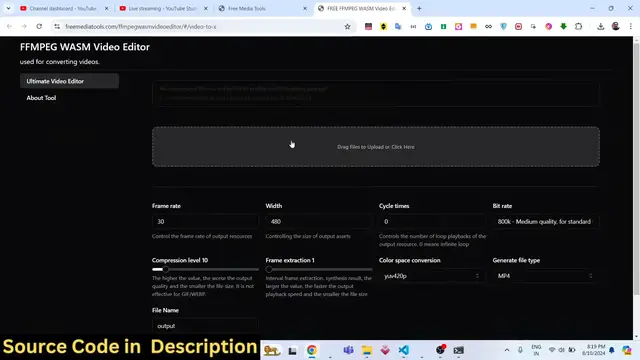
this full project so if you go to my
0:25
website free mediat tools.com the latest
0:29
tool that I added if you drag down you
0:31
will found out this fmpg web assembly
0:33
ultimate video editor if you go to this
0:36
tool you will land on this page it will
0:38
look something like this here you need
0:40
to select your video file so it can have
0:43
any extension Avi GIF Avi GIF and
0:48
MP4 M MKV any extension is supported all
0:54
extensions are supported so you can even
0:56
drag and drop or you can click to
0:59
actually select
1:00
your uh file right here whichever file
1:03
that you want to select so as you select
1:06
right here you will actually see the
1:07
file playing as well so there is a
1:10
built-in video player as
1:13
well so you can turn on the turn off the
1:15
volume so you can go to any location and
1:18
you can see the trimmer is there you can
1:22
select whichever portion of the video
1:25
that you want to apply the effect right
1:27
here let's suppose I want to select this
1:29
portion of the video I need to trim this
1:31
portion you can even make a gif as well
1:34
so there are these options all these
1:36
options you can customize you can change
1:38
the frame rate you can change the width
1:40
of the videos cycle times so all these
1:44
are mentioned right here what this
1:46
options do so it's Advanced video editor
1:48
that I made inside fmpg web assembly
1:51
Library so it covers all aspects if you
1:53
want to encode your video if you need to
1:55
compress it if you need to trim the
1:57
video all operations are supported the
2:00
link is given in the description guys if
2:01
you need the full source code of this
2:03
project it is coded inside react CHS
2:06
using typescript and we have used the
2:08
fmpg web assembly Library so in the
2:10
source directory you will see that
2:12
components all these applications is
2:15
splitted into different components right
2:17
here and if you purchase the source code
2:20
guys you will be redirected to Google
2:22
Drive where you will actually get the
2:23
zip file so you can see that you will
2:25
get this ZIP file you need to extract it
2:27
to actually get this directory structure
2:30
and I'm running this on local server loc
2:33
HTTP Local Host 5173 if you're running
2:36
it for the very first time after you
2:38
purchase it you need to Simply say npmi
2:41
this will actually install all the
2:42
modules which are mentioned in the
2:43
package.json file and it will create a
2:45
node modules folder in the left hand
2:48
side so now after this you just need to
2:50
say npm run Dev this will actually start
2:53
the development server on Local Host
2:56
5173 so we can be visit Local Host 5173
3:01
as well it will also show me the same
3:03
result you will see that now it will
3:07
allow us to actually select your video
3:09
file so now again you can do the same
3:14
thing so whichever portion that you want
3:17
to select you can select using these
3:20
sliders from and to if you need to
3:23
compress any of the video like
3:26
this so I need to trim out this portion
3:31
so now you can just change the frame
3:34
rate the width and the height of the
3:36
video and then if I want to compress
3:39
this portion I can increase this
3:41
compression level to 100% or we can just
3:45
50% so as you increase the slider the
3:48
video size will become low but the
3:49
quality will reduce so depending upon
3:52
you can play with this tool and you can
3:53
also change the bit rate as well of the
3:55
audio as well so bit rate 800k is
3:59
default but you can change the bit rate
4:02
just uh do this so if I just uh let's
4:05
suppose if I want to convert this so all
4:08
these extensions are supported so it's
4:10
mp4 file by default it is selected MP4
4:13
if you want to convert this into a web
4:16
webp file so I will simply say I want to
4:19
convert this into MKV so then you there
4:22
is this you can also select color space
4:25
conversion as well if you have an Nvidia
4:28
GPU you can select this option to
4:31
actually increase the speed and then
4:34
click on this button to actually convert
4:36
and now if you see the file
4:42
name so here is the file name here I
4:47
think you need to Simply include the
4:51
extension as
4:57
well let me see what is the
5:28
so you can see at how
5:33
uh before purchasing it guys you can try
5:36
this tool on my website in the checkout
5:39
page I have given the live
5:41
link before you do
5:44
this you can try out this
5:48
tool so if I want
5:58
to if you need to convert this into a
6:01
gif animation you can even do that as
6:12
well so now you can see the conversion
6:15
is
6:17
uh started and you will also see the
6:20
live progress part as well like this how
6:23
much time is remaining it will also give
6:25
you the command as well of if you want
6:29
to execute fmpg locally as well it will
6:32
also generate a command as well
6:35
so now you can see that it is
6:39
actually your GIF animation is
6:42
downloaded you can see
6:47
that if you want to convert this into
6:49
any other extension and now it will
6:52
again do the same
6:55
task so
7:04
so here you need to give the file name
7:06
so it needs to be zero so just if you
7:10
are facing this error you can just type
7:12
here zero and you will not face any
7:14
error just type zero and you will not
7:17
face any
7:19
error this is actually your file name
7:22
whatever is the file name that you want
7:24
to give you need to give the file name
7:39
so you can see that uh it has you can
7:42
even control the size of the video so
7:46
1280 is the original size you can
7:48
increase the frame rate as well to 60
7:50
frame rate and you can see that my
7:53
compression level is 34 that's why the
7:55
quality was of the video was reduced you
7:58
can change this compression level to
8:00
zero and
8:02
then click on that now the conversion
8:05
will start because the quality will not
8:08
be compromised because compression level
8:10
is zero so now you will see the quality
8:12
of the video if I just change these
8:15
options frame rate to 60 width of the
8:18
video will be 1280 so the quality
8:21
resolution will be 1280 by 7 720 and uh
8:25
we have changed this bit rate from 30 to
8:27
60 so just wait for the con version to
8:29
complete
8:32
so so you can see that we basically trim
8:35
this video using these sliders so you
8:38
can trim any portion in the video by
8:40
using these
8:41
sliders and uh it will Al only trim this
8:44
portion
8:45
out so if you change these options it
8:48
will take a lot more time because
8:51
depending upon which options you select
8:52
a bit rate option or so encoding may
8:56
take some time so it is better that you
8:58
just uh
9:00
let it happen let it
9:02
execute so you can make do other works
9:06
as well by just putting this window so
9:09
when it completes the video will
9:12
automatically download so no need to
9:15
worry about it so you can see the
9:18
project is coded inside typescript and
9:20
react CH it's a complete project and
9:25
uh after you purchase it you will get
9:27
the zip file the link is given guys you
9:29
can go to my website procore.com and
9:32
purchase the full source code of this
9:34
project and we have used fmpg web
9:37
assembly Library if you don't know about
9:42
fmpg web assembly Library it is actually
9:48
a actually a library which allows you to
9:52
execute fmpg directly in your browser so
9:56
using this Library as a base Library for
9:59
this project you can make awesome
10:02
related applications related to fmpg
10:32
you will see this
10:35
uh progress here how much seconds have
10:38
been processed so 17 second have been
10:41
processed so you will also see this nice
10:43
little progress PA which tells you how
10:45
much conversion is done so it works in
10:48
the browser that's the best part you
10:50
don't need to download this inside your
10:52
computer it works in the browser and you
10:54
can deploy this into a real domain name
10:57
if you want to
11:01
so you don't need to download any
11:04
software on your computer it works in
11:05
the browser and it is pretty fast so if
11:09
you need to do some kind of encoding
11:11
compression or trimming path you can use
11:13
this software and uh you can modify the
11:16
code if you get the code you can modify
11:18
it you can extend this application as
11:20
well and you will get to know how I
11:22
coded this so it's a very good you can
11:26
see
11:28
that so that part has been
11:32
trimmed so you can see that so only the
11:36
audio has been trimmed so you can play
11:40
with these uh tools right here guys I
11:42
don't have much knowledge about uh video
11:45
editing so all these encoders are
11:47
available to you frame extraction
11:49
compression level all these things can
11:51
control the size of the output assets as
11:53
well you can control the bit rate as
11:56
well so all these things you can control
11:58
the link is given on my website freem
12:00
mediat tools.com
12:02
and you can try before purchasing it at
12:05
the checkout page I have given this so
12:08
this is the actual tool guys and if you
12:10
want to deploy this it's very simple
12:12
there is a command npm run build this
12:14
will actually create a disc folder right
12:17
inside your root directory it will
12:19
compile all your project assets and you
12:21
can see that it compiled it now you need
12:23
to Simply deploy this or upload this
12:26
into your hosting platform hosting
12:28
folder it can be shared hosting Cloud
12:31
hosting anything so this is overall
12:33
project thank you very much for watching
12:35
this video and I will be seeing you in
12:37
the next one
#Online Media
#Multimedia Software
#Video Sharing