live_tv
Livestream Starting Soon
00
Hours
:
00
Minutes
:
00
Seconds
Up next in 10


Get the full source code of application here:
https://gist.github.com/gauti123456/5b14110f1e5f0f757bd2985b57965b46
Show More Show Less View Video Transcript
0:00
uh hello guys welcome to this video so
0:02
in this video we'll look at how to
0:04
actually convert the Excel file into PDF
0:08
file so Excel file is actually a file
0:12
which contains these let me show you
0:15
application which we'll making here in
0:17
react CH so we allow the user to Simply
0:20
upload an Excel file and we'll be
0:23
converting it to
0:25
PDF and we'll be doing this so This is
0:29
actually the application we have a
0:30
choose file button and the user will
0:33
select Excel file so once they select
0:35
the Excel file will will show this uh
0:38
Excel file with live preview in a table
0:40
like structure and uh we have a download
0:43
PDF button so if I the user clicks the
0:45
download button the PDF file will get
0:49
downloaded you will see so now that
0:52
Excel file that you see has converted to
0:54
PDF and we have this T table structure
0:57
which contain the Excel data we have
1:00
three columns name each country and two
1:02
rows so you can have as many rows as
1:05
possible inside the Excel file so which
1:07
will convert your Excel file into PDF
1:10
you so here you will simply select
1:12
whatever Excel file that you are having
1:15
you will select it then it will show you
1:17
this TBL structure then we have download
1:19
as PDF so once you click this you will
1:22
be able to
1:25
download Excel file
1:32
so now to get started uh we are using
1:34
react shs and then we are using this
1:36
open source PDF Library which is PDF lip
1:40
so with with the help of this Library we
1:42
will carry out the conversion of
1:44
converting an Excel file to PDF it's a
1:47
open source
1:49
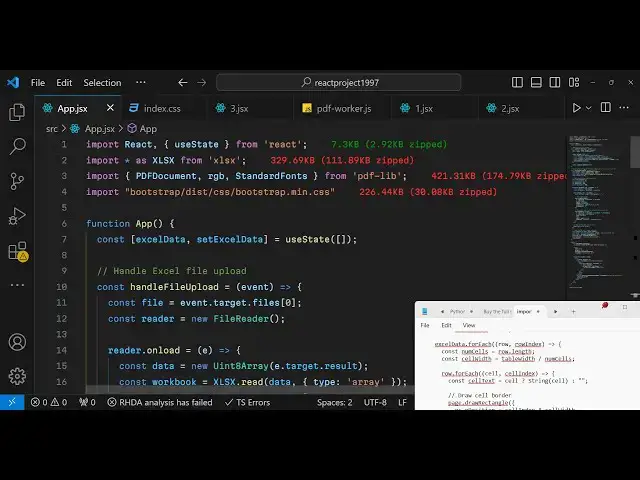
Library so now to get started we do need
1:51
to create a brand new react Chas project
1:53
so I've already created one and then we
1:56
need to Simply install this package
1:57
which is PDF lip we are also using
2:01
bootstrap as well so we'll simply
2:02
install bootstrap as well so just
2:05
install these two packages PDF lip and
2:08
bootstrap so I've already installed
2:11
these two packages so what I will do I
2:12
will start my development server npm
2:15
runev
2:16
so I will write everything from scratch
2:19
so you will have a functional
2:21
component and then you'll be importing
2:24
the bootstrap so it is a import the CDM
2:28
so bootstrap
2:30
main.
2:32
CSS so after you do this
2:36
uh we now need to
2:40
import one other dependency guys which
2:42
is sheet JS you need to import this
2:45
package as well from XLS so XLS package
2:50
basically it's offered by sheetjs
2:51
package which allows you to read the
2:54
Excel file so CGS if you just write it's
2:57
the name of the foundation Library so
3:00
they offer a module which is called as
3:04
exls if you just type this they offer a
3:07
npm module that you can install it by
3:10
using npmi XLS you can install this
3:13
Library it is also called as sheet
3:15
gs.com so it used to actually read the
3:18
content of Excel file I've already
3:20
installed it so now inside your div we
3:25
will simply be having a simple input
3:28
field where we allow the user to
3:33
Simply upload the Excel file so we will
3:37
have this inside this you'll have a
3:40
heading which will simply say
3:44
convert Excel to
3:47
PDF with table
3:51
structure we will have this input field
3:53
which input type file we'll only be
3:56
accepting XLS do XLS
4:00
or XLS file and should be required and
4:04
we'll give it a bootstrap class of form
4:07
control margin bottom
4:10
4 so if you just refresh your
4:12
application you will see this input
4:15
field
4:16
added and uh we will basically give it a
4:19
on change attribute so whenever we
4:21
actually select a file this this
4:25
function will execute handle file upload
4:28
we will make this custom function handle
4:30
file upload we now need to Define this
4:33
function so handle file upload e
4:37
parameter will be automatically be
4:39
passed which is the event parameter so
4:41
whenever you select your Excel file now
4:43
we need to read this Excel file so now
4:46
for reading this the code is pretty
4:48
simple inside this we will get access to
4:52
the file which is e. target.
4:55
files so whatever the file selected by
4:58
the user this file will be there in this
5:00
variable now we'll be using the file
5:02
reader API file reader
5:07
API and inside this we have a function
5:10
that we can simply say which is reader
5:13
do read
5:15
as array buffer and we'll pass the file
5:18
which is selected and for the state
5:20
variable we do need a state variable to
5:23
keep track of which Excel file is
5:24
selected by which Excel file is selected
5:27
so Excel data
5:30
set Excel
5:31
data we will have a UST State
5:35
hook it will be imported and the initial
5:38
value will be Mt so you declared this
5:41
variable State
5:42
variable and uh now inside
5:47
this we will have a event here so this
5:51
file reader API contains a event reader
5:53
onload function so when the file is
5:56
loaded this event will fire and we'll
5:58
read the ACT ual Excel file using this
6:01
Constructor which is uint 8
6:04
array inside this we will pass the
6:07
result e. target.
6:10
result and now to read the Excel file
6:13
use this sheetjs it contains a function
6:15
which is read it will read the actual
6:18
data and the type here will be the
6:22
array then we will read the worksheet so
6:25
workbook actually contains an object
6:27
here which is sheets
6:30
and here inside square brackets you will
6:32
say workbook sheet
6:35
names whatever is the sheet name we will
6:38
get access to it by using this bracket
6:41
and then you'll be reading the data Json
6:45
data from the Excel file there is a
6:48
method inside sheetjs utils and there is
6:52
this method sheet to Json so what does
6:55
method do guys it actually converts all
6:57
the data which is present in the Excel
6:59
file to Json so that we can read this
7:01
data from this
7:03
worksheet and then the second argument
7:06
is the headers you need to pass which is
7:08
uh
7:10
header which is
7:12
one this is actually an object so here
7:15
we passing the header to be
7:17
one and lastly we need to set the Excel
7:20
data so we need to set the Excel
7:23
data to the Json data that we receive
7:26
like this so lastly we are using this
7:28
state function and we are setting this
7:30
Excel variable set Excel data to be Json
7:34
data that we read so now what we can do
7:37
uh we can
7:38
actually convert this Excel data to
7:44
PDF so but before that we need to have a
7:47
download button right here after this
7:52
input tab we will have basically first
7:54
of all check if the Excel data
8:00
do length if it's if it's greater than
8:03
zero then we perfectly know that we can
8:05
show the download button so for showing
8:08
the download
8:09
button first of all we do need to show a
8:13
live preview of the Excel file which is
8:15
selected so Excel
8:18
preview so inside the preview we will
8:21
have a table tag and we will actually be
8:23
giving a class to it of table
8:25
table bordered and
8:29
inside table body tag we will have the
8:32
Excel
8:33
data we will map through to all the row
8:36
row
8:42
index we will have a table row tag
8:47
and we'll give it a key here row
8:53
index and then we'll simply map to the
8:56
row as well cell cell index
9:07
so here in the table data tag we will
9:10
simply give it a key here which
9:12
is cell
9:18
index so in this way now if you select
9:21
your Excel file you will see a live
9:24
preview of the Excel file whichever you
9:27
select in a tabular structure so that
9:29
you perfectly know which Excel file that
9:31
you're converting so after that we will
9:33
actually show a download button so that
9:35
the user can download the PDF file so
9:38
after this table we will have a button
9:41
which will simply say download as
9:44
PDF give it a on on click attribute so
9:48
when we click this button we'll be
9:49
executing this function handle download
9:52
PDF we give it a bootstrap class of BTN
9:56
BTN primary margin
10:01
now we need to actually make this
10:03
function handle download
10:10
PDF so inside this function we will make
10:13
this function as uh
10:16
async I think we do need to make this
10:19
function
10:20
async just make it async function and
10:23
then inside this you will be
10:25
instantiating a new instance of
10:29
await PDF
10:32
document so here it PDF document will be
10:36
imported here from the PDF lib Library
10:39
automatically so this will actually
10:41
create a new it contains a function
10:43
create it will create a new PDF document
10:45
and after that we just need to embed a
10:47
new page so PDF doc add page it's method
10:51
available in this library to add a new
10:52
page in the PDF document so here we need
10:55
to provide the x coordinate 600 and y
10:57
coordinate is 800
10:59
after we add the page we need to specify
11:02
the font settings for font settings we
11:05
have a function which is embed font and
11:08
inside this we have some standard fonts
11:11
which are available inside PDF lip this
11:13
will be imported from PDF flip and it
11:16
contains some standard fonts that you
11:18
can use one such font is
11:22
helvetica you can use this font and then
11:24
we need to set the font size to be 10
11:28
and here we need to set the
11:29
table
11:31
position settings how is the positioning
11:35
and dimensions for doing that we just
11:38
need to declare some variables here
11:40
which is cell padding to be five cell
11:45
height to be around 20
11:48
and X position to be set to 50
11:54
and Y
11:57
position to be 7
12:01
50 and the
12:07
table withd to be
12:10
500 and whatever their Excel data you'll
12:13
be using a for each
12:21
Loop and here we will simply say number
12:25
of
12:26
cells you will say Road length so
12:28
whatever how many rows are there in the
12:30
Excel file so we'll be calculating the
12:32
length of it and storing it in Num cells
12:34
variable and then for the total cell
12:37
width we will calculate it by dividing
12:39
the table total width of the table by
12:42
number of cells it's a simple math
12:45
formula and then we will Loop through
12:47
each row for doing this we will use the
12:50
for each Loop for each
12:53
row we will have cell cell index
13:00
and here we will whatever is a cell text
13:03
we will say whatever said turn the the
13:06
operator we'll convert the type cost to
13:09
string so that we can convert this to a
13:11
string
13:14
value similarly in order to draw this in
13:18
the PDF we will use this function which
13:21
is page and it contains of these
13:24
functions that you can draw rectangle
13:26
page do draw rectangle and here you need
13:28
to specify the X
13:31
position X position plus cell
13:34
index multiplied by cell withd so we
13:37
actually calculated this math formula
13:39
guys we just need to copy it and the Y
13:42
Position will be the Y position which is
13:44
there width will be the cell
13:48
width and the height will be the cell
13:54
height so after that we also give it a
13:57
border color as well you can give all
13:59
these settings RGB uh
14:03
0.75
14:11
0.75
14:17
75 this black color will be given and
14:20
just you
14:21
can see a live preview so border width
14:24
will be
14:25
one these are all the settings you can
14:28
control and uh after you do this we have
14:32
another page in order to draw the actual
14:35
text inside this we will use this you
14:38
draw the cell text and then again these
14:42
positions x coordinate y could size
14:46
color everything so we'll be copying
14:50
this so the color of the text will be
14:53
white color the background color that
14:55
you see is black these are the standard
14:58
settings you can control everything if
14:59
you want to change the background color
15:01
text color you can change these values
15:03
accordingly so after you do this we just
15:06
need to move to the next row position
15:08
for moving it we need to calculate the Y
15:11
position and we will
15:14
subtracting minus is equal to cell
15:19
height so this is all in the loop
15:21
because if you see we are running this
15:23
Loop here for each Loop so every time we
15:25
calculate the these settings for each
15:27
row so this is inside this for each Loop
15:31
this is the outer loop this is the inner
15:33
loop this is all running in this Loop
15:36
here so it will it will run until all
15:39
the positions have been calculated and
15:42
drawn after this Loop is ended now we
15:45
can simply uh save the PDF document for
15:47
saving it and downloading it in an
15:50
attachment we will convert use this
15:53
function PDF doc save save a function is
15:56
there and now we need to download this
15:59
so for that we will instantiate a new
16:02
blob instance pass the PDF bytes and
16:06
then the type parameter which will be
16:08
application SL
16:11
PDF and then you'll be downloading it in
16:13
the browser using the link tag creating
16:16
this element dynamically and then
16:19
setting the URL which is url. create
16:22
object URL
16:30
and here you need to pass CL and you
16:32
will set the file name link. down
16:34
whatever file name that you want to set
16:36
z. PDF then dynamically will clicking it
16:40
link. click that's all that you need to
16:42
do guys for this application so if you
16:44
try to test this application choose your
16:47
Excel
16:50
file so once you select click on the
16:52
download
16:55
button uh I think some error has taken
16:58
place it is saying RGB is not defined so
17:01
do need to import this
17:07
guys it is part of the PDF lib Library
17:11
so simply import
17:21
that so click on the download
17:26
button assignment to con
17:30
variable
17:32
uh just make sure the Y position
17:35
variable is not constant
17:38
just change from cons to
17:43
let don't be constant just change these
17:46
to
17:49
let so the variables whose values will
17:52
change in the later on in the program
17:54
just Chang it from cons to
17:57
let so I have changed it once again
18:00
rerun the program this time it will
18:02
work select that click on download and
18:06
you see the PDF file has been downloaded
18:08
and all your Excel file if you see uh I
18:13
think I made a mistake guys typo
18:16
mistake so what I will do I will copy
18:19
this code if you need the full source
18:21
code guys the link is given in the
18:23
description so you can check out
18:31
I think it was just a typo mistake which
18:33
was happening so I will import the
18:45
bootstrap so now select the Excel file
18:49
click on
18:50
download so you will now see it will
18:53
convert all your Excel data into the PDF
18:57
document and uh
18:59
the Excel file can be it totally depends
19:02
upon you how much size in the Excel file
19:05
it has if it has a lot of roles then it
19:11
can now it's have lot of roles let's
19:14
suppose and now it will look something
19:16
like this so it can handle as much rows
19:19
as possible so you need to have an Excel
19:21
file and then it will convert this into
19:23
PDF so this was the tutorial guys thank
19:25
you very much for watching it and uh if
19:28
you like this this video please hit that
19:29
like button and also check out my
19:31
website free mediat tools.com which
19:33
contains audio tools video and image so
19:36
free tools are available so check out
19:38
this website as well so I will be seeing
19:40
you in the next video
#Programming