Up next in 10

Build a Canvas API Example to Merge Multiple Images in Horizontal & Vertical Direction Using JS
Jan 9, 2025

Get the full source code of application here:
https://gist.github.com/gauti123456/dbff1153c672ae4dbfcbd41fe9b051d4
Show More Show Less View Video Transcript
0:00
uh hello guys in this video we will be developing a image merger kind of a web
0:06
application which allows you to actually select one or multiple image files and
0:13
it can either merge the image files in a horizontal direction or it can merge it in the vertical Direction so you can see
0:20
we have a radio button out there either you can select horizontal or vertical this is the direction of merging
0:27
concatenation joining the multiple imag so we have developed this interface using Tailwind CSS so we allow the user
0:34
to Simply select the image files either you can select PNG jpg all extensions are
0:43
supported so let me take an example here let me select these two
0:49
images and then if I select the direction here if I want to merge it
0:54
horizontally I will select that and click this button and now you will see
0:59
that the output will be shown right here below these two images are successfully merged into a single image so now you
1:06
can download This by clicking the download button and you will actually open the image you will see that both
1:13
these images are now merged into a single image in a horizontal
1:18
Direction alongside the x-axis so if you want to do the reversal
1:23
here if you want to join it vertically you will select the radio button of vertical and click on merge images and
1:29
now the light preview changes so now the images are showing in a vertical Direction Still this is a same image
1:36
it's contains in a single image but uh the direction has been changed but now
1:42
if you open the the image output image you will actually see the direction the images are appearing in a vertical
1:49
Direction alongside with the Y AIS so you can take as many images as example
1:56
so sometimes we want to join multiple images into a single image just to save
2:02
some space so you can take as many images as you want so it is recommended that you take
2:09
images with same dimensions to get the clear result so as you can see we have
2:16
selected five images you can select as many images and now you can
2:24
see all these five images has been merged into a single image so if you try
2:29
to open this the size obviously will be larger but you you can see that all the
2:35
five images content is merged into a single image and same goes with the vertical as
2:43
well you can see that so this kind of images are used in tap typically in
2:49
making cages Gallery so you can just see here so we will be using the basic
2:57
canvas API which is available for every browser in JavaScript we will not be using any third party library for
3:04
building this we'll be using HTML CSS and JavaScript and for building the UI
3:09
we'll be using Tailwind CSS so let's start building this so just create a single index.html file and just make an
3:18
interface and just give it a title image merger web app in
3:25
JavaScript and for Tailwind CSS we do need to include the CDM so just after the title just copy paste the CDN
3:34
link and inside your body you need to give some Tailwind classes to actually
3:39
change the background color to BG gray the shade is 100 padding will be
3:47
four and then inside this we will have a d tag which will be responsible for
3:53
aligning the content we will be giving all these classes of Tailwind B G
4:01
white padding will be six and it will be rounded it will also
4:07
have Shadow as well inside this we will have an heading
4:14
right here which will say image merger we give it a class here as well
4:21
text to excel font will be
4:26
bold so if you try to open this now you will actually see a card like structure
4:32
in the middle of the screen and we have contain a heading right here image merger and after this we will allow the
4:39
user to have a form we give it an ID here so that we
4:45
can Target in JavaScript image merger form give it a class as well margin
4:50
bottom four and then a div tag so here you'll
4:56
be give it a label right here we will
5:02
simply say here select images so we will allow the user to Simply
5:08
select images from a input field it will be a block element text color will be
5:16
gray text will be small font
5:22
bold so after this uh label we will have this input field of type five
5:30
and we will only be accepting images files so we'll simply say image/ star and it is
5:38
required and give it an ID here of image files so that we can Target in
5:48
JavaScript so if you refresh now you will see this one and just give it a
5:54
Tailwind class margin top two just to give some
6:05
spacing so now it is looking good so after this we will have a button to
6:11
actually submit the form but also we will also be having a
6:18
radio button for selecting the direction of
6:23
margin so we will have two options either horizontal or vertical
6:33
so it will simply say merged Direction so we will have two
6:40
choices either the user can merge the images in a horizontal
6:50
direction or they can select vertical Direction
7:04
so all the source code will be given in the description so I'm just uh copy pasting this HTML for these
7:13
choices just to save some time right here let me paste
7:19
it so now you have two radio buttons uh uh at one moment of time you can only
7:25
select one so either you can select horizontal or vertical
7:30
so the main thing is that the type parameter here is Radio we have given a
7:35
class of it Tailwind class form radio and we have given this name parameter if
7:43
you see this merg direction to both these input Fields radio buttons so
7:49
you'll be targeting it in the JavaScript whenever you want to get the value what
7:54
the user has selected either horizontal or vertical by default horizontal will be checked when you load the application
8:01
for the very first time so I think this is all the HTML which is
8:07
needed and just after this we will have a button as well to submit the form so
8:13
just have a button the label of the button will be merg images and button
8:19
type will be of submit to submit the form
8:24
and the background color of the button will be BG blue 500
8:30
when we hover onto the button it changes to 700 shade text color will be white 4
8:38
volt padding by 2 PX 4 and uh it will
8:44
also be rounded if you refresh now you will see this button as well so the UI
8:50
is complete so now we come to the JavaScript part so we will write the
8:56
JavaScript code in a different file so let me create a file
9:02
script.js so right here we will
9:09
select the element the form here image merger we have given that ID in the HTML
9:17
we will be binding an event listener to it so when the form submits this event this call back function will execute and
9:24
uh first of all it will prevent the auto submission of the form by invoking E do driven default then we need to get the
9:31
merge Direction which the user has selected so for that we can use cery
9:40
selector and we have given the name parameter to it so now to Target this inside JavaScript we write input square
9:48
brackets then the name parameter right here so we have given this name parameter which is merged Direction and
9:56
we need to get the value which which is checked so you'll write here colon
10:01
checked and then Dash value so this will actually get the value of the radio
10:07
button either horizontal or vertical this is the actual selector you can
10:12
pause the video Just You have given this name parameter merge Direction underscore checked underscore value or
10:21
dot value so after getting
10:27
this we will get the images which is selected by the user by using we have
10:34
given an ID here of image files to get the files selected we will
10:41
use the dot files property so here we are using vanilla
10:46
JavaScript we haven't used jQuery at all so this is all
10:52
JavaScript and here we'll be comparing if this selected image files length is
10:58
uh smaller than to so user must at least select two files to actually merged so
11:04
if they selected only a single file then we will say to the user that please select at least two
11:17
images and we will simply return from the program that's all we will not
11:22
execute the rest of the code so if the images are greater than
11:27
two in that case we will call a function which will we will be making this custom
11:33
function and we will be passing this array from image files we will be creating an
11:40
array from this image files and we will be passing it as an argument to this custom function now we need to Define
11:47
this custom function load images it will take this files as an
11:53
argument it will return return a promise so write
11:59
after this we can handle the Promise by dot then you'll get the images returned and
12:10
uh we can just console log it for now now we need to basically return a
12:17
promise from this function because we are using dot then so right here we'll be making a variable of promises files
12:25
start we'll use the map operator in uh JavaScript and for each file which is
12:32
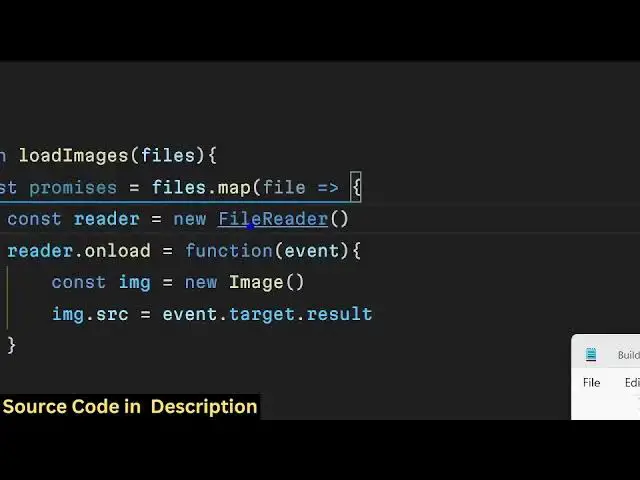
selected by the user we will actually read that file first of all by using the file reader
12:39
API file reader API will read the file and it contains a uh event called
12:46
as onload and uh we will instantiate a new
12:52
image Constructor and you'll simply say image. source is equal to event. Target do
12:59
result event. target. result typically return Returns the base 64 code of this
13:05
image because we are making a new Constructor of this image Constructor file reader API
13:11
uses Canvas 2 Data URL function which Returns the base 64 code of the image in
13:18
this way we read the images in memory whenever we make applications related to
13:24
images this is a very common way of reading images and then we we have this
13:30
onload function of every image and here we can resolve the
13:36
Promise by passing this image if any sort of error take place
13:41
then we can reject the promise like this and just outside this we need to
13:48
call this uh most important function which is read as data URL which will
13:54
return the base 64 code of the image file
14:01
so this is really important and after this outside
14:10
this uh I think const
14:25
promises I think some brackets are creating uh
14:32
file return new promise resolve reject okay we forgot to return a
14:40
promise from this function just after this line we do need to say return
14:46
because we are returning promises from this so we simply say return new promise either this promise can resolve or it
14:53
can reject like this
14:59
so just wrap this
15:17
code uh now is it is looking good you can see we are using resolve and reject
15:23
because we are passing it it is returning a new promise just outside this statement we will simply say return
15:31
this promise we call the all function
15:36
and pass this promises that we have this
15:41
variable that we are passing it so now we will get these images if
15:49
you check your console if I select a bunch of images
16:02
uh as you can see we can only select a single file because we haven't given that attribute of multiple just attach
16:09
this attribute of multiple so that we can select multiple images so if you
16:14
select all these images and click that button of merge
16:21
images you will actually see this uh images will be returned to
16:27
us all these images will be successfully read and it will be returned to us this
16:33
is actually the base 64 code that I I was talking about so first of all how
16:38
this program executes let me just understand you first of all this function takes place this if condition
16:45
take place if the images are greater than two then we call this function custom function then actually all the
16:53
files which are selected by the user comes into this function we actually read file one file at time and we read
17:00
it using file reader API then we read the base 64 code by using this function
17:05
read as data URL and then we pass this as a promise and we handle this Promise
17:11
by dot then and console log these images which are coming which are five images
17:17
for each image we are getting this base 64 code if you closely look in the
17:23
current Source directory you can see so now after we successfully read
17:29
the files we can now merge it so for merging it we will create a
17:37
variable which is merged image and call a custom function
17:44
merged images you will pass these images as argument and
17:54
merged a second argument that we need to pass here here which will be the merged Direction
18:03
so we will be passing both of these values as arguments to this
18:10
function so now we need to actually make this function just out uh
18:18
below that merged
18:25
image uh I call this as merged images
18:34
so it takes the files and the merge Direction has two
18:42
arguments so here you'll be using the canvas API first of all we do need to get the canvas so we will create a new
18:50
element by using Create element function in JavaScript canvas dynamically then we
18:57
will be setting the content context in order to get the context we use the get context
19:03
function we need to get the 2D context then we need to Simply select a
19:10
if condition we need to check the merge direction if the merge direction is
19:15
equal to horizontal then in that case we need to
19:21
merge the images in the horizontal direction we need to calculate the width for that we simply use the reduce
19:27
function of JavaScript high level function so here we actually take this two parameters sum
19:35
and image and for
19:41
each so here we actually for each image we calculate the
19:48
width we introduce a new variable right here sum if you see we
19:56
actually sum Plus whatever is the width of the image and uh then we pass zero right
20:05
here this is just a mathematical formula which is used to actually uh merge
20:12
images in a horizontal Direction you just need to write it and then we have
20:19
calculate the height as well the maximum height this you can control we are using
20:25
the math. max function and then we use this uh dot dot dot operator to
20:33
actually uh merge all these images so dot dot dot is the operator which is
20:39
used to copy all the elements in an array and then we use the map
20:45
operator and we will be for each
20:51
image the height will be the same so we will simply say image. height because
20:57
for merging images in the horizontal Direction height will not change only the width will change so that's why we
21:04
calculated the width and the height will remain the same so that's
21:10
why after this we can simply say canvas. width is equal to Total width and
21:17
canvas. height is equal to Max
21:27
height so so after this we do need to also calculate the offset X offset
21:36
declare it to zero and for each image we use the for each
21:44
Loop we will the context we will draw the image on the
21:50
canvas pass it the first parameter and we will have this offset zero and then
21:57
we will offset we will increment this
22:02
value by the width of the image like this so by default the offset value is
22:09
zero but we are looping through all the images and we use the draw image
22:14
function of the canvas API to actually draw this image on onto the canvas here
22:20
offset is zero but now we actually incrementing the offset value by the width of the image so whatever is the
22:27
width we increment that offset value so in this way we merge images in
22:33
the horizontal Direction by use of this offset variable so after this we have the ls if
22:43
condition and this one if the merg direction is equal to Vertical
22:50
so all the things will remain the same but we will change this time to calculate the height the width will
22:56
remain the same in case of vertical Direction so for that we will calculate
23:02
the height total
23:08
height and we will again use the same formula image. reduce and sum
23:18
image so you can just see we are using the same formula that we did to actually
23:24
merge images in horizontal Direction this time we are calculating the height so that's why image. height zero the
23:32
width will remain the same so max width math do Max dot dot dot images do
23:41
map and for each image the width will remain the same so
23:47
image.
23:53
width image. width
24:06
so after that we need to set the canvas width and canvas height similarly that will uh set this uh earlier canvas width
24:16
is equal to Max width and canvas height is equal
24:21
to Total height and then again we'll be introducing a offset variable we will
24:29
set it to zero and then again we'll be looping through all the images which needs to be merged by using the for each
24:36
Loop for each image we will be drawing this image by
24:43
using the draw image function image zero and uh just call this as y offset
24:51
because this is this offset variable will be working in the y direction vertical Direction that's why y offset
24:59
and that we call this an X offset because it's there in the x-axis
25:05
horizontal so after you do this just use this variable y offset and once again
25:12
we'll be increasing the offset variable whatever is the height of the image so
25:19
plus is equal to image do height so same formula you can go observe right here
25:26
here we are working with width and here we are working with height so
25:32
depending upon whether you are there in the horizontal direction or vertical Direction This is simple mathematics so
25:39
after you do this you need to download the image as an attachment so first of all we do need
25:46
to return the base 64 code of the image again we'll be using the same function
25:53
canvas to data URL so this Returns the base 64 code of the
26:00
image and as a PNG image so you can even do jpg here also but we will be sticking
26:06
to the PNG image so this returns a base 64
26:12
code and right here where we are calling this function we will get this value now
26:19
we need to Simply display this image display the merged output image for that we will once again create
26:27
another function display merged image and we will get this code paste 64
26:34
code and we'll pass it as an argument and now we need to make this
26:44
function right here let me Define it right
26:53
here and for uh actually displaying this this image in
26:58
the output we do need to make some changes in the HTML we do need to have a
27:05
image tack just below this button just below the
27:12
form so you'll have a div we'll give it an ID here so that we can Target in
27:18
JavaScript image
27:23
preview give it a class of hidden by default it will not be shown to the user whenever you load the page for the very
27:29
first time I have a H2 heading right here which will be
27:36
merged image
27:43
preview text large phone
27:49
B and then after that you will have image tag you'll give it an ID here of
27:55
preview
28:01
image class of preview
28:07
image after this you will have a anchor tag which will be useful to download the
28:12
image you give it an ID to this also download button give it a class here BG blue
28:27
500 text will be
28:35
wi it will be rounded margin top 4 and
28:40
it will be hidden by default it will not be shown and we'll also be giving an attribute to it of uh download because
28:49
it's a download button so we given this attribute of download the label will
28:55
simply be saying
29:00
download merged image so here this download attribute
29:08
you can also provide a default file name so you can simply say out
29:14
merged image.png this will be the default file name given whenever you click the
29:21
download button that's all in the HTML and coming back to the JavaScript we do
29:26
need to show the image for showing it we need to get
29:32
references so preview image document. get element by ID
29:38
preview image and the download
29:51
button so after getting this both the references we do need to manipulate the
29:56
source parameter just make it merged image and then
30:04
for when the onload function uh when the image is loaded
30:11
successfully then we need to show the download button for
30:18
that we need to remove the hidden parameter first of all attribute that we
30:26
given you can simply say class list do
30:38
remove then we also need to download button href merged
30:45
image and also download button class list.
30:52
remove hidden so now the download button will be shown to the user
30:58
that's all this completes the application if I reload the application choose
31:04
uh these three files select the direction
31:09
vertical click on this button you will see uh on script line number 57 it is
31:18
saying that uh images is not defined
31:30
uh let me check uh line number
31:41
57 okay okay we call this as files you can see we are calling it as files just
31:47
rename this to images so just make this
31:54
change and then select images these four images in the horizontal Direction and
32:00
now you will see that the output is shown to the in the merged image preview section all these four Images have been
32:07
successfully merged into a single image if you click the download button your image will be downloaded and now you can
32:13
see the output image all these four Images are merged in a single
32:18
image and same goes with the vertical as well click on merge and you will see it
32:25
will be merged in the vertical Direction
32:30
all the source code is given in the description of this video and do check out my website as well guys free mediat
32:36
tools.com uh you will find a lot more tools I also deployed this tool merge
32:42
images you can try this tool online by visiting this website horizontal vertical alongside
32:50
thousands of more tools are there free tools you can try so keep visiting this website for
32:59
more tools I will update tools on a regular basis on this website so free
33:05
media tools and thank you very much for watching this video and I will be seeing you in the next one
#Arts & Entertainment
#Computers & Electronics
#Hobbies & Leisure