0:00
Uh hello guys uh welcome to this video.
0:02
So in this video I'll show you I built
0:04
out a Adobe Acrobat PDF editor clone
0:08
directly in the browser using the latest
0:13
So we are running this application on
0:15
local host. So it's entirely built
0:18
inside the Angular framework. If I show
0:21
you the package for JSON file, we using
0:23
the latest version of angular which is
0:26
at the time of recording this video is
0:28
21 and we are also using Tailwind and
0:33
this is for building this we are using
0:35
Mosilla PDFJS and PDF lib library. We
0:39
have included the CDN here as you can
0:42
see. So it's actually divided into
0:45
various components are right here. So
0:48
I've given the link you can directly
0:50
purchase the full source code. So let me
0:52
show you the actual PDF editor. Right
0:54
here you simply select a PDF file that
0:58
you want to edit. After that the pages
1:00
will show the live preview. After you
1:02
select the PDF file you will be able to
1:04
read the PDF file. It has all the
1:06
controls out there. You can go to any
1:11
You can zoom in zoom out everything. And
1:13
now we on the left hand side you will
1:15
see the option. So if you want to edit
1:18
you simp simply click the pencil icon
1:21
and quite a number of options will
1:23
appear. So this option is the let's
1:27
suppose you want to digitally sign
1:30
you can basically digitally sign your
1:33
and just embed the signature just adjust
1:36
the size and place it accordingly.
1:39
You can come to the next page. Come to
1:41
the first page. And this in this page if
1:44
you want to add something you simply
1:46
click and add your text
1:54
Again you select the location just input
1:57
the text and that text will be added.
2:03
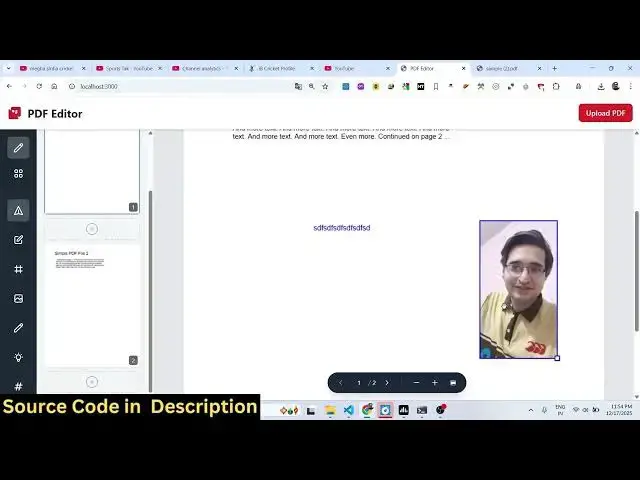
And then we also have the option to add
2:07
You can place the image accordingly.
2:11
And then if you want to highlight
2:13
something, you basically can draw
2:15
something here using your pencil. It's
2:18
very easy. As you can see, you can
2:22
I come to the next page here.
2:26
Again, we do the same thing. We can
2:31
And if you want to embed a watermark,
2:34
you basically have the watermark tool
2:36
that you will simply say and this option
2:41
and here you can adjust it. It's so I
2:44
put my channel name coding section. Here
2:47
you can adjust the font. Here you can
2:52
adjust the size here in real time. As
2:54
you can see the watermark is added. You
2:56
can even adjust the color of the
3:02
You can adjust the opacity as well.
3:09
So after doing this you will see the
3:11
watermark is successfully added
3:14
in both the pages. And now you can
3:20
after that if you want also want to add
3:23
page numbers you can even do that as
3:26
Just select any design and automatically
3:30
that page number will be added for you.
3:32
This is the first page on the right hand
3:34
side. As you can see, this is a quite a
3:37
good application guys. It will save you
3:39
a lot of time. After that modifying, you
3:42
can click the download button.
3:45
So everything will be saved here. You
3:47
will see that the watermark is also
3:50
added. digital signature is also text
3:52
images highlighting everything is saved.
3:56
So I think this is a great application
3:59
if you are interested in purchasing it.
4:02
The link is given in the description. Uh
4:06
as I showed you it can do anything.
4:10
It's entirely developed in angular as I
4:13
showed you the latest version we are
4:18
It's a readym made application. You can
4:20
actually add features on top of this
4:22
application. It will save you a lot of
4:24
time. If you're looking forward for a
4:27
PDF editor project in Angular,
4:29
definitely purchase it. The link is
4:31
given in the description. You will
4:33
automatically get the code from Google
4:35
Drive. So definitely check out