Up next in 10

Build a Adobe Acrobat PDF Canvas Editor Clone in Browser Using PDF-LIB in HTML5 & Javascript
Jan 9, 2025

Buy the full source code of the application here:
https://procodestore.com/index.php/product/build-a-adobe-acrobat-pdf-canvas-editor-clone-in-browser-using-pdf-lib-in-html5-javascript/
Hi Join the official discord server to resolve doubts here:
https://discord.gg/cRnjhk6nzW
Visit my Online Free Media Tool Website
https://freemediatools.com/
Buy Premium Scripts and Apps Here:
https://procodestore.com/
Show More Show Less View Video Transcript
0:00
uh hello guys welcome to this uh video
0:02
so in this video I will talk about a new
0:05
application that I developed in browser
0:07
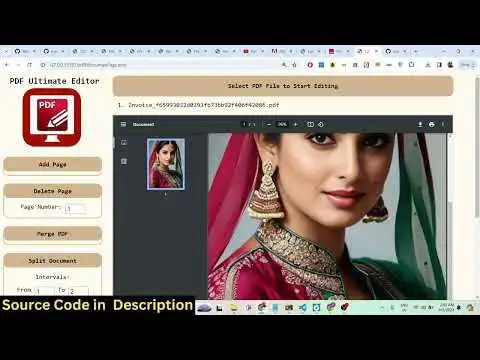
which is a complete ultimate PDF editor
0:11
inside browser and I built this inside
0:14
HTML CSS and JavaScript and it it
0:17
basically does everything that you can
0:20
offer in a PDF editor such as Adobe
0:22
Acrobat so in a PID software it has all
0:25
the features that is there for a editing
0:27
your PDF files so this is actual
0:29
interface that I developed in HTML CSS
0:32
and here you will actually need to
0:33
select your PDF file whichever PDF file
0:35
that you want to select let me select my
0:37
PDF document here as I select the PDF
0:40
document guys you will see that you will
0:41
be able to see your PDF document in a
0:43
nice little controls out there you will
0:46
be able to zoom in and you can zoom out
0:51
zoom in all these controls are there
0:52
this this is page number one and now you
0:55
can perform all these operations you can
0:57
if you want to add a new page in the
0:59
existing PDF document there is a button
1:01
out there in the left hand side menu
1:03
right here if you click this button a
1:05
brand new page will be added so if I go
1:08
navigate to the second page you will see
1:10
the second page will be added right here
1:11
it is currently empty and now there are
1:14
two pages in The PDF document let's
1:16
suppose I want to delete a existing page
1:18
in the PDF document I can provide a page
1:21
number whichever page number I want to
1:22
delete let's suppose I want to delete
1:24
the second page that I added I can
1:26
simply select the second page and click
1:29
on delete page and now you will see that
1:31
that PDF will be that page will be
1:34
deleted again if I click add page now
1:38
there are two pages in The PDF document
1:40
again click add three now there are
1:42
three pages out there and now you can
1:44
simply click uh this download PDF button
1:48
to actually uh download the PDF file and
1:50
now if you open this PDF file you will
1:52
see there are three pages in The PDF
1:54
file first is the actual page second is
1:57
empty third is empty so now there are
2:00
more operations which are available
2:02
let's suppose you have to merge
2:05
something merge PDF multiple documents
2:07
you can basically select multiple PDF
2:09
documents that you want to merge let's
2:11
suppose I open these three documents
2:14
first I open this again if I want
2:18
to open this one so there are two
2:21
documents out there guys two documents
2:22
that I selected and now if I click on
2:25
merge PDF so it will actually merge all
2:27
the documents that I selected and now it
2:30
will create this output file which
2:31
contains two pages these are two
2:33
different documents merged into a single
2:36
PDF file and now I can click on download
2:38
to actually download the output file
2:40
which contains the two pages right here
2:42
so you can easily add pages you can
2:44
remove pages or you can merge multiple
2:46
PDF files as well straight in the
2:49
browser and guys it is happening right
2:52
in the client side code there is no
2:54
serers s side code involved in it it is
2:56
entirely coded in HTML CSS and
2:58
JavaScript it's a a very nice
3:00
application if you need this source code
3:02
guys the link is given in the
3:03
description of the video you can
3:04
directly purchase the full source code
3:07
the link is given after you purchase the
3:09
source code you will actually get the
3:11
zip file from Google
3:13
Drive let me show you basically you will
3:15
actually get the zip file right
3:18
here after you purchase you will get
3:21
this from Google Drive there will be
3:23
this directory structure which will
3:24
contain the actual HTML code this
3:27
JavaScript code and the actual CSS code
3:30
let me show you more functionalities of
3:31
this awesome little software that I
3:33
developed guys let's suppose you want to
3:35
split a particular PDF document which
3:38
contains a lot of pages let's
3:40
suppose I download a PDF document which
3:44
contains a lot of
3:47
pages uh let's suppose I download this
3:50
PDF document which contains four pages
3:53
so this is 1 2 3 4 I basically download
3:56
on my machine let me download this
4:02
and select that PDF document that
4:06
I so guys if if your password if you
4:10
basically select the PDF document which
4:12
has some password then it will not
4:14
accept so you need to have the PDF
4:17
document in uh not having password so I
4:22
will let me select sample PDF document
4:25
which contains uh which is not encrypted
4:28
let me select this file
4:30
now you will see it basically contains
4:32
10 pages I can simply download this on
4:35
my machine sample PDF so if I
4:41
basically now guys you will see the PDF
4:44
file will be shown right here it
4:46
contains 10 pages and now I can perform
4:48
some operations right here let's suppose
4:51
I want to delete a individual page in
4:53
the this document let's suppose I want
4:55
to delete this eighth page I can
4:57
basically I mentioned I want to delete
4:59
Del the eth page as I click that now you
5:03
will see there will be only nine pages
5:04
available in the PDF document we
5:06
successfully deleted the eighth page and
5:09
let's suppose I want to split the PDF
5:11
document from page numbers you can
5:13
mention here so I only want uh page
5:16
numbers you can basically select here 3
5:19
to five so I can basically provide a
5:21
range here from third page number to the
5:24
fifth page number I need to split this
5:26
PDF document so I can simply click this
5:29
button split PDF document and now guys
5:31
you will see that it will only contain
5:33
three pages this is the third page
5:35
fourth page and this is the actual fifth
5:38
page so now it has created that you can
5:41
basically download it will basically
5:43
fasten your PDF editing SK skills guys
5:47
you don't need any third party software
5:49
you can actually use this application
5:50
you can deploy this application into
5:53
your own hosting plan you can buy the
5:56
source code from me and you can directly
5:59
uh deploy this on your own website you
6:01
can earn a lot of money using
6:02
advertisements people will come to your
6:04
website and use this awesome tool to
6:07
actually perform these editing
6:08
operations and let's suppose you want to
6:11
add page numbers guys you can even do
6:13
this
6:14
also let's suppose inside your PDF
6:17
document there is no pagination
6:19
available if you want to add page
6:20
numbers you can even do that also
6:25
so let's suppose I have this so there is
6:28
no page number available so I can even
6:32
add pagination as well let's suppose you
6:34
want to begin with first page so I just
6:37
click a button and now as you basically
6:40
see the page numbers will be
6:44
added if you just see
6:48
here you will basically see the page
6:51
numbers will be added in the right here
6:52
at the bottom of the screen if you see
6:55
the page numbers is successfully added
6:57
so you can basically
7:00
you can see at the bottom side at the
7:02
center of the bottom the page number is
7:05
added this is the first page this is the
7:07
second page let's suppose if you have a
7:08
large ebook available if you want to add
7:11
page numbers you can simply click a
7:12
simple button to actually add it will
7:15
automatically add all the pages page
7:17
numbers to you and let's suppose if you
7:19
have a PDF
7:22
document if you add want to add a
7:26
watermark at a specific page number you
7:28
can even do that also also there is a
7:30
button out there add picture you can
7:32
specify the page number I want to add at
7:35
fifth page I want to add a picture so I
7:37
can what we can do I can simply select
7:40
this picture and this picture will
7:42
automatically add added in the fifth
7:44
page you will see that so at the fifth
7:47
page the picture has automatically been
7:49
added and now you can simply download
7:51
this PDF document and now if you see at
7:54
the fifth page my PD basically image has
7:57
taken full width full height
8:00
of the page automatically formatting
8:02
looks good and now you can see it
8:04
basically eases the process out guys it
8:06
is awesome PDF editor that I developed
8:10
and actually I used a open- source
8:12
Library called as PDF lip which is
8:15
actually a JavaScript client site or
8:17
server s side generation PDF generation
8:19
Library which makes a job way more
8:21
easier you can read their documentation
8:24
it's a purely JavaScript based library
8:27
and I just make make you make make use
8:29
of this library to basically uh
8:32
accomplish all these operations into a
8:34
single application where you can
8:36
actually perform all the operations you
8:37
can add pages you can delete pages merch
8:40
PDF document split all these operations
8:43
you can perform in a single app and it
8:45
makes the job way more easier so it's a
8:48
complete web application guys and let me
8:51
just show you some of the code structure
8:53
that I built for this app and I will be
8:56
doing
8:57
it the HTML codes just for your
9:00
reference I will just explain you how
9:03
the code functions so it is entirely
9:06
based in JavaScript
9:09
code HTML CSS and JavaScript code if you
9:13
just refresh now nothing will be there
9:15
if you see that so what I will do is
9:17
that I will code this step by step with
9:23
you this is actual body here so what I
9:26
will do is
9:28
that
9:30
so basically inside you have da ID
9:36
rapper you basically have the aide tag
9:39
so there will be a side menu and inside
9:41
this side menu we will actually have
9:44
our heading which will be saying PDF
9:48
ultimate
9:50
editor so if you just refresh there will
9:53
be this heading right here after this we
9:56
will actually show the
9:57
logo this is all these assets are
10:00
available guys in the project directory
10:03
you will get after you make the payment
10:05
the link is
10:06
given and please hit that like button
10:09
guys if you haven't hit this like button
10:10
please share the video and subscribe the
10:12
channel as
10:14
well this is actual logo you can use
10:17
your own logo as well after this so what
10:20
we need to do after this
10:23
image we will have this
10:26
class we will add a button to actually
10:29
add a page so when we click this button
10:32
we will actually call the method add
10:34
page which will actually add the page
10:36
for us so you will see there is a button
10:38
out there
10:41
which after this guys what we need to do
10:44
we will basically have another the same
10:47
class we actually coded all these
10:49
classes in the CSS code guys so that's
10:51
why you are seeing automatically they
10:53
are aligned properly one more button we
10:56
will have which is responsible for
10:59
deleting a specific page so we will
11:01
simply call this method remove page and
11:06
uh after here we need to specify which
11:09
page number we need to delete so we will
11:11
say page number and here we will specify
11:13
input type text we'll give it an ID page
11:17
delete and the value will be initial
11:20
value will be one so if you just refresh
11:22
there will be this input field
11:28
added
11:44
and in this way we will simply have one
11:48
more
11:49
button for basically merging the PDF
11:53
document if you see this
11:58
button
12:05
so I just want you to explain you guys
12:07
basically how this structure
12:10
works so what I will do is that uh this
12:14
is actual HTML code which is responsible
12:16
so very
12:23
simple you can see that we have various
12:25
buttons add page delete page merge PDF
12:28
and when you click this button you will
12:30
be able to select your PDF uh document
12:34
it will show you in the if frame so here
12:36
we are actually using iframe to actually
12:38
show the PDF document in a viewer you
12:41
will see so we are actually using the
12:44
iframe
12:46
tag to actually we have given the PDF
12:48
class to it and here we having this
12:51
input class so we are only accepting the
12:55
PDF files and when the when the user
12:58
clicks this button we will actually show
13:01
a popup window to the user where they
13:03
can select the PDF document and then we
13:05
display it after here we have this
13:09
function which is download PDF so once
13:12
you click this button your PDF file will
13:15
be downloaded and for this specific
13:17
purpose guys we are actually using this
13:20
package which is download JS which is
13:22
specific open-source package in
13:25
JavaScript which allows you to download
13:27
any file in as an attachment so
13:29
download. JS this is actual library that
13:32
we using to download the file as an
13:35
attachment so quite a few open source
13:38
libraries guys we are using for this
13:41
project ultimate PDF editor and this is
13:44
for the split document we calling this
13:47
function adding numbers we are calling
13:49
this for the pagination we need just
13:52
need to provide whichever page number
13:53
you need to start the pagination and
13:56
then automatically it will add the
13:57
pagination for you
14:00
and then for the image as well you need
14:03
to as you click add picture it will add
14:07
the picture here you will see that
14:09
automatically and uh like
14:13
this just add a new page it will add a
14:16
new page you will see
14:19
that if you want to merge a particular
14:22
PDF document here so if you
14:25
select click on merge so that PDF file
14:28
will get merged automatically so just
14:32
need to select
14:39
here so two files have been selected
14:42
click on merge so now you will see there
14:45
will be containing 12 pages so
14:49
automatically all the files that you
14:50
select automatically will get merged
14:53
automatically and uh you can even add
14:55
pagination click on this button and all
14:57
the pages will now contain pag Nation
15:00
this is the first page this is second
15:02
page this is third page this is fourth
15:05
page and after that you can even split
15:09
the document let's suppose I
15:11
want four four page number to eight page
15:14
number click on split now it will only
15:17
contain that
15:19
fourth fifth 6th 7th 8th
15:26
so if you want to Let's suppose I want
15:29
to delete this first page number first
15:32
page I don't need this so I can click
15:34
delete that page will be deleted so you
15:37
can basically see guys it's a very
15:39
awesome application uh I have given the
15:42
link in the description if you are
15:43
interested you can purchase the full
15:45
source code after you purchase you will
15:47
actually get a zip file from Google
15:49
Drive and you can actually uh download
15:53
that after you make the payment so you
15:55
will actually get your JavaScript CSS
15:57
HTML code and you will able to learn a
16:01
lot of things how you I actually coded
16:03
this application using PDF lib Library
16:07
which an open source PDF processing
16:09
Library so thank you very much guys for
16:11
watching this video If you like this
16:13
video then please hit that like button
16:14
subscribe the channel and I will be
16:16
seeing you in the next video
#Other
#Open Source
#Other