0:00
uh Hello friends welcome to this video
0:02
so in this video I will show you how to
0:04
integrate the prism syntax highlighter
0:07
inside your angular application so if
0:08
you want to display source code with
0:11
various themes so a prism is actually a
0:16
library syntax highlighting Library if
0:18
you want to display source code inside
0:20
your application so it's a JavaScript
0:22
package so inside angular we have a
0:26
package which allows you to render this
0:28
with various themes so one by one let me
0:31
show you you can see that it will have
0:37
there you can see the themes will be
0:39
changed on the right hand side you can
0:41
see the demo here so we have various
0:43
themes here you can change it one by one
0:54
that so in this way you can do this
1:04
so now to get started here uh we need to
1:08
I have written a step by-step blog post
1:10
on my website the link is given in the
1:11
description with full source code so I
1:15
will just delete everything
1:17
here and start from scratch so first of
1:24
do you need to go to your app. module.
1:28
typescript file and right here you need
1:31
to add the import statement to actually
1:33
import this module so we will import
1:41
prism module and which will be coming
1:44
from this package which is at the
1:54
prism so you just need to add this
1:56
import line and then inside your import
2:03
modu and then after that you need to
2:06
open this app do component. HTML file
2:10
and you just need to render
2:14
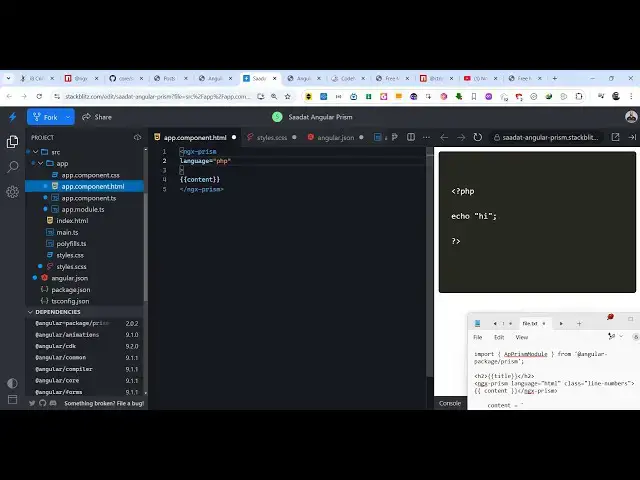
wherever you need to render this so we
2:16
use this directive which is ngx
2:20
prism and in between these tags you
2:23
display the source code and it actually
2:25
takes some properties here what language
2:30
so I will say HTML language and inside
2:35
this in double quy bracket you will
2:37
display your content so right in this
2:40
typescript file we need to now inside
2:43
this you just need to mention the
2:45
content variable so inside your backtick
2:48
symbol you will write your HTML
2:54
code so in this way guys you can see the
2:57
syntax highlighting will start and you
3:00
can write here valid HTML code right
3:18
here so in this way guys you can do the
3:21
syntax highlighting it's very easy the
3:24
configuration part inside your angular
3:26
application you configure this package
3:36
code this is for HTML
3:40
and inside we have styles. SAS file we
3:43
are including all these CSS files so
3:47
this is the different theme Here prism
3:50
ocadia so prism supports multiple themes
3:53
right here and if you want to change the
3:56
language here so you will change this
3:58
language let's suppose I want to display
4:01
the JavaScript code so now what happens
4:04
if you go to your you now need to write
4:07
the JavaScript code so I will say
4:16
so so in this way you can highlight any
4:21
language you just need to change the
4:27
JavaScript or if I write here
4:30
PHP so now I need to highlight the PHP
4:42
write so you can highlight any language
4:44
guys it just need very simple process
4:48
I've showed you step by step how to
4:49
integrate this module inside your
4:51
angular application so thank you very
4:53
much guys for watching this video and
4:55
also check out my website as well free
5:00
uh which contains thousands of tools
5:02
regarding audio video and MH and I will
5:05
be seeing you guys in the next video