0:00
uh hello guys welcome to this video so
0:02
in this video I will show you how to
0:04
toggle the screencast mode inside vs
0:07
code uh which is cool little effect that
0:09
you can add while recording a video or
0:12
doing a tutorial so there is a shortcut
0:14
key you can do control shift p if you
0:19
keyboard so this command pallet will
0:22
show you can even right click and you
0:26
will see this option will come right
0:31
and just search for this screencast mode
0:35
this option will come right
0:38
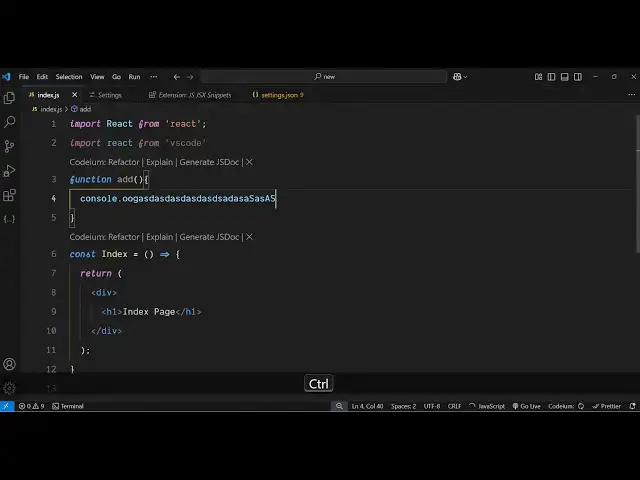
here and as soon as you activate the
0:40
screencast mode so now what correctors
0:42
you type right here the correctors will
0:44
show right here this is a cool little
0:47
effect so whatever you are typing right
0:50
here it is showing it in the black
0:51
background in a white
0:53
color so it actually makes it easy for
0:57
the user to see which characters for
1:00
so let's suppose if I want to show you a
1:02
keyboard shortcut then you will able to
1:05
see which keyboard shortcut that I'm ty
1:07
control shift p so now if you want to
1:10
customize it because by default it
1:13
appears in this position if you want to
1:15
change the phone size you can easily do
1:17
this if you want to turn this off again
1:19
control shift V and just toggle this so
1:22
now it will be turned off so it's very
1:25
easy to toggle this on and off and now
1:31
turn this on again and just go to
1:36
settings and inside your vs code
1:38
settings just search for this uh
1:43
screencast and just go to this and here
1:45
you can control the phone size here by
1:49
default it set to 56 and you can change
1:53
25 whatever phone size you want you can
1:55
see that you can adjust the size here
1:59
and then there is a setting right here
2:01
which is this vertical
2:03
offset so by default it's 20 because
2:06
that's why it is appearing at right here
2:12
center if you want to make it right at
2:16
the bottom here you can just turn this
2:18
to zero so as soon as you turn this to
2:21
zero now it will appear right at the
2:24
bottom here so you can see that
2:28
so so now what I you're typing it is
2:31
appearing it right here at the bottom so
2:34
you can just adjust it let's suppose I
2:36
give it a five here so now it appears
2:42
upwards so in this way guys you can
2:47
effect screencast mode inside vs code
2:51
while coding or recording a video
2:54
so so it is a nice feature in BS
3:00
simple way going to settings
3:03
screencast and toggling off and
3:12
on so you can see that Mouse
3:15
indicator all these settings are
3:19
there screencast mode option for
3:22
customizing the keyboard overlay and
3:24
screencast mode so all these option go
3:26
to settings and just type here
3:27
screencast and you can actually adjust
3:32
settings so thank you very much guys for
3:34
watching this video and also visit my
3:38
website freem mediat tools.com which
3:40
contains thousands of tools regarding
3:42
audio video and image and I will be
3:44
seeing you in the next video