0:00
uh hello guys welcome to this video so
0:02
in this video I will show you a vs code
0:04
extension which automatically translate
0:07
your uh comments which are there inside
0:10
your source code so there is an
0:11
extension out there which you can
0:13
directly install which is called as
0:15
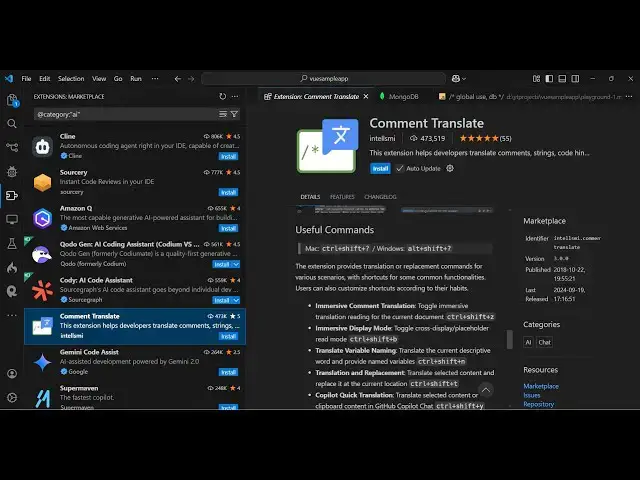
comment translate so if you go to
0:17
extensions just type this it's a very
0:20
famous extension almost having 474 th000
0:24
installs so it allows you to directly
0:28
allow developers to translate comments
0:30
it can be strings code hints inside
0:33
there so if you are having comments for
0:36
from different languages just install
0:38
this extension activate this and now go
0:41
to the file here so I just created a
0:44
sample file where I have comments in
0:46
different languages nationalities you
0:48
will see Chinese Hindi Spanish so what
0:52
do you need to do you hover onto
0:56
this and as you hover onto this this
0:59
comment Translate window will open and
1:02
here as soon as you click this it will
1:04
translate this Spanish comment to
1:07
English you can see this is a comment in
1:09
Spanish this section shows the header
1:11
similarly this is a Chinese one click on
1:15
this button and here's the Chinese
1:17
comment this section displays the title
1:21
again just hover onto this click this
1:24
this is the comment in
1:27
French and if you want to change this
1:29
from from Google Translate to any other
1:32
you can actually click this section
1:37
here either you can use Google Translate
1:40
or Bing translate you can change this
1:43
but by default it uses Google translate
1:45
which is more than enough and just click
1:47
this and it will change this comment to
1:50
German to English this is now you can
1:55
comment just hover onto this and just
1:58
click on this button so you can see that
2:00
so in this way guys you can actually
2:03
translate all your comments which are
2:05
there from different languages it's very
2:12
extension you can see how easy it is and
2:15
also fast is as well so there is a
2:17
shortcut key if you want to change the
2:19
base Language by default it's English
2:22
but if you are on a different country
2:24
you can press the shortcut key control
2:26
shift p and just say comment transl
2:30
and you can even change the translate
2:33
Source or translate Target Language by
2:37
default it's English but you can even
2:39
change this to any other language let's
2:41
suppose I change to my native language
2:43
which is Hindi so now what happens if
2:50
this so now it will change this comment
2:53
from English to Hindi you can see that
2:55
so it's very easy guys if you are
2:57
belonging to a different country just
2:59
change the a target language and it will
3:02
convert those comments from one language
3:04
to another control shift p this is a
3:07
shortcut key and here you just say
3:16
translate change target language so I
3:19
will once again change to
3:31
so I use this extension daily guys
3:34
because I work with comments of
3:36
different languages so it's very good
3:37
extension you should definitely install
3:40
this comment translat it's completely
3:42
free which integrates Google translate
3:44
Bing translate to translate your
3:46
comments so thank you very much guys for
3:48
watching this video and also check out
3:50
my website as well freem mediat
3:52
tools.com uh which contains thousands of
3:55
tools regarding audio video and image
3:57
and I will be seeing you in the next