0:00
uh hello guys welcome to this video so
0:02
in this video I will show you a very
0:04
popular extension inside vs code which
0:07
allows you to directly see the
0:10
definition of CSS classes without
0:13
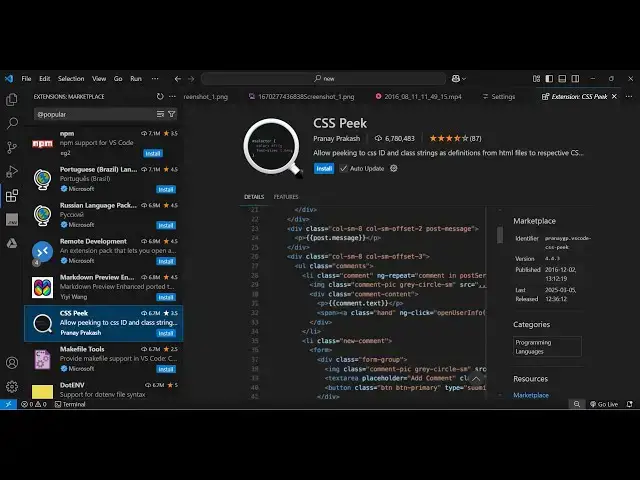
leaving the HTML so this is actually the
0:15
extension CSS Peak and it's got almost 6
0:20
installs so just install this
0:25
extension and as soon as it installs it
0:28
will be globally installed inside your
0:31
code so let me just open the zoomit tool
0:34
so that I can zoom on particular
0:37
elements so once it is installed you
0:39
will see now you can use this directly
0:42
inside your this is my index. HTML
0:46
file we have the CSS file as well so
0:49
what this extension does if you have a
0:52
set of classes inside your HTML so this
0:56
is a custom class here you can see that
0:59
this is a custom class which actually in
1:03
the CSS we are styling
1:12
a color options class here you can see
1:15
we have style this in the CSS so what
1:17
this extension does if you just hover
1:20
onto this and just press the control key
1:22
on the keyboard you will see it will
1:24
change into this uh underline you can
1:27
click this so it will say click to show
1:29
two definition so once you click it
1:32
automatically without leaving the HTML
1:34
the CSS classes the CSS definition will
1:37
come and you will be able to directly
1:41
CSS change it right in the HTML so this
1:46
is actually the magic of this extension
1:48
just hover onto this and just press the
1:50
control key on the keyboard and then you
1:53
can see it will change into underline
1:55
and then you can directly see the CSS of
1:58
this element without leaving the HTML
2:01
and you can change any CSS
2:13
values so you can see I Chang
2:24
this I change the height to Let's
2:28
1500 so if I go to this you will see the
2:31
height is successfully changed to 1500
2:34
so we can directly peek on any HTML
2:36
element having a class just press the
2:39
control key and then you will be able to
2:45
that so it will save you a lot of time
2:48
because you don't need to manually go to
2:50
CSS and find out the class where it is
2:55
directly ID same goes for ID as well so
2:58
hover onto the ID and press the control
3:03
any you can see this is the JavaScript
3:06
it will navigate to the JavaScript code
3:08
here so this is specifically for CSS if
3:11
you have a CSS class it will directly
3:14
it can see that so this is actually the
3:17
nice little CSS Peak extension which is
3:23
used which will save you a lot of time
3:26
you don't need to manually go to CSS
3:29
classes it will open it inside this live
3:32
preview instantly it will open the CSS
3:34
for the HTML element just need to press
3:37
the control key as you hover onto any
3:39
class just place your mouse here and
3:42
just press the control key and then it
3:45
will actually show the CSS directly
3:47
right here so simply install this
3:49
extension guys and just enable it I
3:51
personally use this extension a lot so 6
3:54
million installs are there so thank you
3:56
very much for watching this video and
3:57
also check out my website free media
3:59
tools.com which contains thousands of
4:02
tools regarding audio video and image
4:05
and I will be seeing you in the next