Up next in 10

This RandomLabs Slate AI Coding Agent is INSANE Builds Full Stack Coding Apps in Terminal For FREE
Apr 6, 2026

Watch My Visual Studio Code IDE Setup Video For Fonts,Themes & Extensions
https://youtu.be/Bon8Pm1gbX8
Hi Join the official discord server to resolve doubts here:
https://discord.gg/cRnjhk6nzW
Visit my Online Free Media Tool Website
https://freemediatools.com/
Buy Premium Scripts and Apps Here:
https://procodestore.com/
Show More Show Less View Video Transcript
0:02
Hello guys in this live stream I will
0:04
actually show you a AI coding agent
0:07
which can build out your full stack
0:09
coding application.
0:11
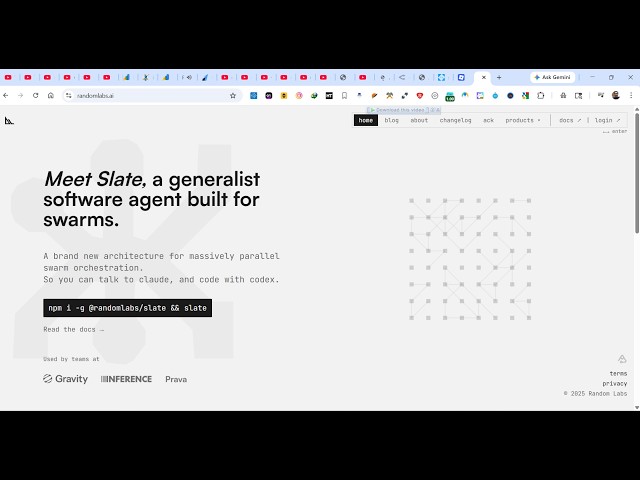
So it's developed by this random labs
0:14
slate as you type directly on Google
0:16
the very first website which comes
0:18
through this is an AI coding agent
0:21
similar to cloud code
0:23
chat GPT.
0:25
So once you simply go to this
0:27
this is a website random labs.ai
0:30
So it's this late coding agent here.
0:34
If you have node JS installed you can
0:36
directly install this. The command is
0:39
given.
0:40
NPMI dash G for globally installing
0:42
this. So
0:44
just go to the terminal
0:46
just paste this command.
0:51
So
0:53
once you press enter this AI agent will
0:56
directly install inside your system.
1:05
So it's similar to cloud code codex all
1:08
the base
1:11
coding
1:12
agents which are there.
1:14
So the thing is that it's completely
1:16
free to try. So once it get installed
1:18
you will get this notification that it
1:20
has installed.
1:21
After that you simply type slate
1:24
as you see.
1:28
So it has its own documentation you can
1:30
read the documentation. So once it
1:32
actually starts you will actually see
1:34
this welcome to slate and from here you
1:38
can simply type whatever application you
1:40
want to develop.
1:41
So
1:44
please enter to start the
1:46
authentication.
1:49
So you just need to paste this code.
1:53
So
1:57
it will open this device here. So you
2:00
just need to paste the same code which
2:02
is there.
2:04
You can start with your Google account
2:07
as well. So simply sign up using your
2:09
Google account if you're doing it for
2:11
the very first time.
2:20
Just grant the permission device
2:22
activate. Once it is all connected you
2:24
will get this notification.
2:28
So
2:29
if you want to terminal background you
2:31
can set either dark or light so I will
2:33
stick to dark.
2:37
So
2:39
now you can select different AI models
2:42
sonnet cloud sonnet opus GPT everything.
2:47
So you can see that.
2:52
And from here you can
2:54
create a file here.
3:00
If you want to actually create
3:03
open it in a new directory whatever you
3:05
do.
3:07
Let's suppose you create a new directory
3:09
wherever you need to do this. So
3:20
let me just open a new directory and
3:22
show to you.
3:24
So right here if you want to create this
3:26
files you open command line and simply
3:29
type the extension slate.
3:32
So now this agent will directly open
3:34
right here.
3:36
So right here you simply create the file
3:38
for you.
3:40
So automatically that file will be
3:42
created as you see.
3:44
And now here you can simply tell what
3:46
sort of application you want to develop.
3:48
I will say build image to PDF web app
3:51
in browser.
3:52
Exactly now the AI will process this
3:54
request.
3:57
And it will create the necessary
3:59
application for you.
4:03
It will automatically search
4:05
what sort of technologies it want to use
4:09
and it will actually create the full
4:12
stack coding application for you.
4:15
So I find this coding agent to be really
4:18
awesome. You don't need to pay anything.
4:22
You can start it for free.
4:25
Simply install this and now you can see
4:27
the agent is running in the background
4:29
it's converting. It's creating a
4:31
complete full stack image to PDF
4:33
converter web application as a single
4:37
HTML file.
4:42
So it's actually investigating it and
4:45
then creating the actual application for
4:47
you.
5:04
So you can click on help docs to
5:06
actually check out all the commands
5:08
which are there. So
5:12
this is really awesome website
5:15
as you see random labs.ai.
5:20
So it has their documentation as well
5:22
which is available.
5:43
So when it is completed you will get a
5:45
notification that the file has been
5:47
created and then you can run that file.
5:53
So it first of all creates this
5:55
slate.json file config file.
6:10
So in this easy way you can use this you
6:13
can see that which is simply need to
6:15
grant permission.
6:16
So to create the file so automatically
6:19
now this file has been created as you
6:20
see.
6:22
This index.html file has been created.
6:26
So it just took 1 minute 51 second to
6:30
create a full stack coding application.
6:31
So it actually provide you with the
6:33
description as well
6:35
what application it has created.
6:38
And you can even ask follow up question
6:40
as well. So you can now simply see the
6:42
result.
6:44
Run this in the browser. So you can just
6:46
see a professional looking coding
6:48
application has been generated using
6:49
this AI platform. So from here you
6:52
simply select a bunch of images.
6:57
So select options here click on convert
7:00
to PDF. So
7:02
you can see that. So it's a working
7:04
application.
7:07
So definitely use this slate coding
7:10
agent guys it's completely free. You
7:12
don't need to pay anything. The setup is
7:15
also very easy.
7:16
Simply install it and start using it.