Up next in 10

This ForgeCode.dev AI Coding CLI Builder & Agent is INSANE to Build Full Stack Apps in Terminal
Apr 10, 2026

Watch My Visual Studio Code IDE Setup Video For Fonts,Themes & Extensions
https://youtu.be/Bon8Pm1gbX8
Hi Join the official discord server to resolve doubts here:
https://discord.gg/cRnjhk6nzW
Visit my Online Free Media Tool Website
https://freemediatools.com/
Buy Premium Scripts and Apps Here:
https://procodestore.com/
Show More Show Less View Video Transcript
0:01
Hello guys, in this live stream I will
0:03
show you yet another AI coding builder
0:06
which builds out full stack coding
0:08
application with the help of AI. It's
0:11
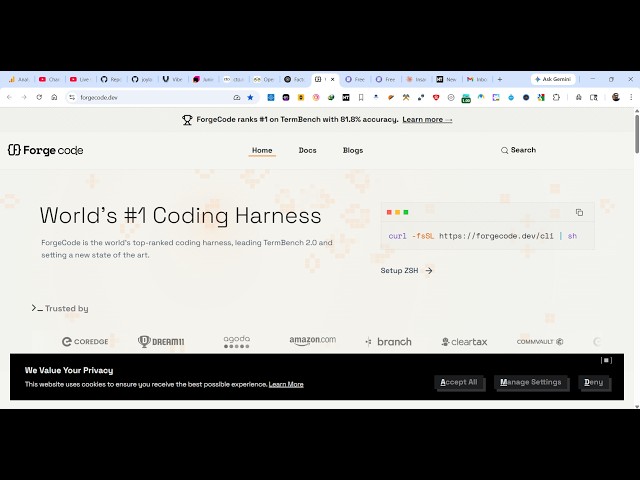
called as forced code
0:13
.dev.
0:14
If you simply search on Google
0:17
this will be the AI coding editor
0:20
which lets you build out coding
0:22
application. So, once you go to this,
0:24
it's actually available on the CLI.
0:26
It's claiming to be world's number one
0:29
coding AI agent.
0:31
The command is simple. Copy the command
0:33
to clipboard.
0:36
And once you install this, it will
0:38
directly
0:39
create your coding applications directly
0:41
in the command line. So,
0:43
for this you just need to
0:46
open your PowerShell or terminal.
0:50
Simply execute this command. Curl
0:57
So, once you enter it, I think for this,
1:00
if you're running Windows, you need to
1:01
open PowerShell
1:03
and execute this command.
1:12
Let's see how to install it on the
1:20
installation. This
1:24
Okay.
1:25
If you are specifically on Windows, you
1:27
do need to open WSL, which is Windows
1:30
Subsystem for Linux.
1:32
So, this software is only applicable for
1:34
Mac, Linux, and Android. For Windows,
1:37
you do need to
1:39
have WSL.
1:42
Which is Windows Subsystem Linux. So,
1:44
from here
1:46
if you open this
1:58
So, you have actually once you log in,
2:00
you have access to different AI
2:02
providers. You simply paste the API key
2:05
and connect each of the LLM provider.
2:08
So, you paste the command right here.
2:11
So, now it will install this
2:13
forced code dev CLI.
2:16
It's downloading it. So, you will get
2:18
this notification that it is
2:19
successfully installed.
2:23
So, now you simply type forge.
2:26
So, from here after it will you need to
2:29
select the provider. If you're running
2:31
locally, Ollama, you will select. All
2:34
the AI providers are there as you see
2:35
that.
2:36
You simply select your provider and then
2:39
after selecting that provider you need
2:42
to paste the API key.
2:45
So, is it that simple?
2:51
So,
2:54
you can also
3:01
You write forge and then you select your
3:03
provider.
3:05
So,
3:13
So, at this moment of time, I don't have
3:16
any API key.
3:18
So,
3:19
some providers do provide you with the
3:25
free access.
3:28
So, if you're hosting your own provider,
3:30
you will select Ollama and then you will
3:32
simply type the Ollama URL locally
3:34
hosting if you are
3:36
having your AI provider locally hosting.
3:39
So,
3:43
So, you can actually open router, you
3:45
can select right from here.
3:47
And open router does provide you with a
3:50
free access
3:52
API key.
3:56
So, it's a very famous website.
3:59
So, once you log in onto this
4:02
I think I already have logged in.
4:15
So, this does provide you with free
4:17
access.
4:19
So,
4:23
you can create the API key from here.
4:29
And simply copy this API key.
4:33
Enter it.
4:35
So, now open router configured
4:37
successfully. From here you select your
4:38
model, whatever model you want to use.
4:52
So, after selecting that model, now you
4:54
can actually ask anything
4:57
from here.
5:00
Just need to select the correct model
5:03
from here.
5:07
So, in this easy way, you can use this
5:09
AI provider directly.