Up next in 10

This Factory.ai AI IDE & CLI Coding Builder & Agent is INSANE to Build Full Stack Apps From Prompt
Apr 10, 2026

Watch My Visual Studio Code IDE Setup Video For Fonts,Themes & Extensions
https://youtu.be/Bon8Pm1gbX8
Hi Join the official discord server to resolve doubts here:
https://discord.gg/cRnjhk6nzW
Visit my Online Free Media Tool Website
https://freemediatools.com/
Buy Premium Scripts and Apps Here:
https://procodestore.com/
Show More Show Less View Video Transcript
0:01
Uh hello guys in this uh live stream I
0:03
will actually show you a really good AI
0:06
coding IDE and agent which allows you to
0:09
actually build out full stack coding
0:11
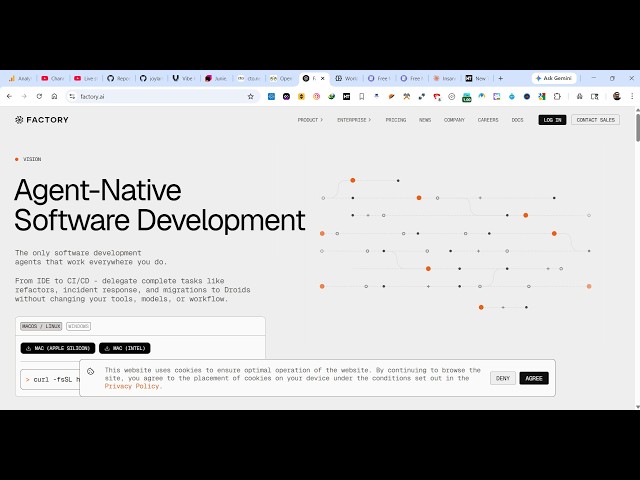
application. So this is called as
0:13
factory.ai. If you simply go to Google
0:16
just type this the very first link which
0:19
appears this is the website. So it's an
0:22
all-in-one AI coding agent kind of a
0:24
website. So once you land on this you
0:26
will see that uh it has its own IDE as
0:29
well. So for Mac operating system or
0:32
Linux you can directly download this
0:34
from here. Uh if you are running Windows
0:38
you run this command inside the CLI to
0:40
install this. So directly open your
0:44
command line and uh just paste this.
0:48
I'm running Windows. So as you see I am
0:52
I think I need to open PowerShell for
0:55
executing this.
0:59
So just execute this command. It will
1:01
try to install the factory CLI inside
1:04
your machine. So once it get installed
1:07
you will see it is now downloading
1:08
factory CLI for Windows 64-bit computer.
1:13
So,
1:14
so once it get installed, you will be
1:16
able to directly code full stack coding
1:19
applications directly inside your
1:21
machine. So, it has a variety of
1:24
products as you see inside the product
1:26
section. Uh so, this is their terminal
1:28
IDE section right here.
1:31
It's a complete IDE. It also have a
1:35
desktop web uh web version as well. So
1:38
if you click on that
1:41
you can actually download this for
1:44
Apple, Mac and for Windows or you can
1:47
directly open it in the browser as well.
1:49
So from here you can simply login. So
1:52
now to get started you simply can login
1:55
with your Google account.
1:58
So just grant the permissions. So once
2:00
it gets completed you will be redirected
2:03
to the dashboard area. So right here you
2:06
specify your name everything after that
2:12
you basically get 10 million free
2:14
credits. So
2:20
so for this you need to add a payment
2:22
method. So once it completes uh you will
2:25
basically see you can use your own API
2:28
keys install the CLI and connect your
2:31
LLM provider such as OpenAI entropic to
2:34
use Droid locally at no cost. So so
2:38
these commands are given. I am already
2:41
installing this. So they also have uh
2:45
different plans as well.
2:51
So from here you can set your API keys
2:53
as well. So click on create API key.
2:58
So I think
3:01
now you can see it is successfully
3:03
installed here factory CLI. So once you
3:07
go to this
3:15
you can see that. So
3:18
this is the web version that you can see
3:21
right here. So right in the chat prompt
3:22
you specify what sort of application you
3:25
want to generate. So it is connecting to
3:27
your local machine.
3:30
So
3:32
first of all you from here you can
3:34
select the model as well. So once it get
3:37
installed you simply type I think it's
3:40
installed now. So you simply type your
3:45
once it installed.
3:48
Let me just factory
3:52
AI
3:54
just type this.
3:59
So in the documentation once it get
4:02
installed you simply check the docs
4:04
here.
4:06
So welcome to factory. So once it get
4:09
installed simply click CLI version. So
4:13
you just need to type here Droid. So
4:15
just go to your project directory
4:17
wherever you are developing the project.
4:19
Uh so I will simply go to this right
4:23
here. Open your command line. So once it
4:25
get installed simply try.
4:28
So now that terminal agent will open
4:31
directly right here.
4:40
So now you can see the agent is now
4:42
opening a droid.
4:45
So from here you can directly you can
4:47
see welcome to factory CLI.
4:50
Uh so first of all you need to login. So
4:53
it's asking you to first of all login.
4:55
Please enter it. It will automatically
4:58
authenticate yourself. Uh just confirm
5:00
this. So device activation is done now.
5:03
So now you are activated. So right here
5:06
you specify you are using you can see
5:09
we're using OPUS 4.6 coding AI model. So
5:12
simply say hi the AI model will respond
5:16
to you.
5:18
So credit limit reached use limits to
5:21
manage your
5:24
So for right here you need first of all
5:29
if all these commands are there
5:33
you can clear out everything you just
5:35
type account.
5:38
So it will directly open your account to
5:40
actually connect your GitHub account
5:42
directly. You can even connect your
5:43
GitHub account from here.
5:47
And first of all in the API key
5:49
sections. So API keys require active
5:52
paid subscription. So for that you need
5:55
to activate paid plan. So you can edit
5:59
your payment method as well. From here
6:00
you can add uh credit card from here
6:04
from stripe directly. After adding that
6:08
you can activate your paid plan. So the
6:10
paid plan start with $20 per month which
6:13
gives you around 20 million factory
6:15
stand uh standard credits. So it's a CLI
6:19
tool. Once you activate your
6:20
subscription, you will be able to use
6:22
the CLI version. So
6:26
I guide you step by step how to install
6:29
this. So
6:36
so you can see that in this easy way. So
6:39
again you have
6:49
connected to IDE extension.
6:54
It also have a VS code extension as
6:56
well. You can directly install that
6:58
extension in VS code as well directly.
7:01
So definitely uh install this. It's
7:05
actually a paid subscription kind of a
7:07
CLI. You do need to pay to actually
7:09
activate it.