Up next in 10

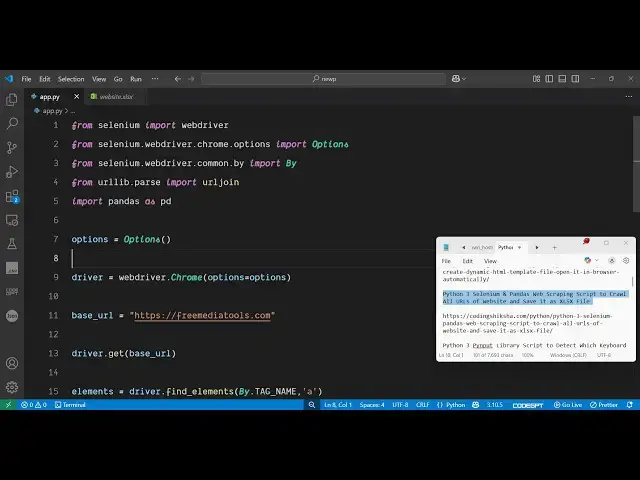
Python 3 Selenium & Pandas Web Scraping Script to Crawl All URLs of Website and Save it as XLSX File
Jun 3, 2025

Get the full source code of application here:
https://codingshiksha.com/python/python-3-selenium-pandas-web-scraping-script-to-crawl-all-urls-of-website-and-save-it-as-xlsx-file/
Show More Show Less View Video Transcript
0:00
uh hello guys welcome to this video so
0:02
in this video I will show you a very uh
0:05
popular tool that you can develop inside
0:07
Selenium inside Python so what this tool
0:10
will do it will open the website and
0:12
extract all the URLs which are there
0:15
inside the
0:16
website and save it inside the Excel
0:19
file so so let me just execute the
0:26
application and uh let me just make
0:29
remove this argument of headless so that
0:32
you can see the browser opening as well
0:34
so if I execute this application you
0:36
will see it will open the website
0:40
freemediatools.com automatically and
0:43
then it will extract all the URLs and
0:46
save it inside Excel file and you will
0:48
see all the URLs are simply saved and a
0:52
new file has been created this is your
0:54
Excel file if I try to open this
0:56
file so you will see it has extracted
0:59
all the URLs and saved it inside this
1:02
Excel file inside the sheet so a total
1:05
of 371 URLs have been successfully
1:07
extracted in a matter of uh seconds you
1:10
will see if I try to open this so this
1:14
is an a very nice little tool because if
1:17
you want to extract all the URLs of a
1:19
certain website you can plug the website
1:21
and then it will automatically extract
1:24
all the URLs and save it inside this
1:26
Excel file so you can
1:29
see it has extracted all these
1:35
URLs so now let me show you the actual
1:38
script here uh I have given the full
1:40
script in the description of the video
1:42
so for this we are using a package very
1:45
popular package inside Python which is
1:48
selenium library which is a very popular
1:51
automation library if you want to
1:53
control your browser you can simply
1:55
install this package here pip install
1:58
selenium i've already installed it so
2:01
just create a simple app py file so I
2:05
will just create this script step by
2:08
step
2:09
so the first step you need to do you
2:12
need to require all the necessary
2:13
packages so we simply say here from
2:16
selenium we need to import the web
2:20
driver and then from selenium dot
2:24
webdriver
2:26
dot chrome
2:28
dot options from this we need to import
2:32
the
2:33
options and then from selenium dot
2:36
webdriver
2:38
dopby we need to import
2:41
by and then from url lib dot parse from
2:46
this we just need to say we need to
2:49
import URL join and then lastly from
2:53
pandas
2:55
library we need to import pandas as pd
2:59
so pandas again is a very popular
3:00
package for data extract extraction so
3:04
just also install this library as well
3:07
by executing this command pip install
3:10
pandas
3:11
so after importing all these packages
3:14
now we just need
3:15
to
3:19
actually specify the URL where you not
3:23
need to extract the keywords or the URLs
3:26
so just create a variable here base URL
3:29
and just specify the website here so I
3:31
will just specify the website
3:34
freemediatools.com and then it will open
3:37
this website by using this function
3:39
driver.get get and then passing this
3:41
base
3:43
URL
3:45
so then it needs to extract all the URLs
3:51
from this website so you can easily do
3:53
this inside Selenium using this function
3:56
find
3:57
elements and here we will pass by we
4:00
need to extract the elements by tag name
4:04
and in this case we need to extract all
4:06
the anchor elements so here we are
4:08
specifying the second argument as anchor
4:11
so it will extract all the a tags and
4:14
then it we need to store these a tags
4:17
inside a set in Python so we created
4:21
this variable for element then we'll use
4:25
this for
4:26
loop and then we'll be loop looping
4:29
through each element it contains this
4:32
function get attribute you will be only
4:35
be getting this href
4:39
attribute and if the href is found out
4:42
then we just need to store
4:45
it as a full URL so use the URL join
4:50
function
4:52
and base URL and then
4:56
href and then we will add this
4:58
URL to this URLs array that's all
5:04
and then we simply quit the selenium
5:07
application by calling this quit
5:09
function
5:10
driver.quit and then we save this data
5:13
inside the Excel file for this we use
5:15
the pandas library it contains this
5:17
function which is a data frame and here
5:20
we specify all the list of URLs that you
5:23
need to ex export this
5:25
inside the Excel file so here we specify
5:30
the columns here
5:31
which it will only contain a single
5:34
column which will hold all the URLs for
5:37
us and then we can export this to an
5:40
Excel file using this Excel function of
5:45
pandas and we can call this and here we
5:47
can specify the file name so I can
5:50
simply give any any file name right
5:53
here and the second argument index is
5:57
equal to
5:58
false so this is actually the overall
6:01
script here and then lastly we can print
6:03
out a message that all website urls
6:08
extracted and saved to this so this is
6:12
the overall script here uh if
6:14
I delete this here once again run the
6:21
script so now you will see it is saying
6:24
that uh driver is not defined did you
6:26
mean web driver
6:29
uh on line number nine it is saying
6:34
uh just make sure that you have uh
6:37
defined
6:40
this okay sorry we haven't defined this
6:43
so we just need to create this driver
6:45
variable and right here we just need to
6:47
say webd driver dot
6:50
crow and here we just need to specify
6:53
the options which we imported the
6:58
options and then we just need to create
7:00
a options variable right here and just
7:03
do this that's all so just add this code
7:08
and again try to execute this you will
7:11
see now it will again open the browser
7:14
go to the website and then automatically
7:18
close and extract all the URLs and
7:20
create this Excel
7:23
file so you will see it will extract all
7:27
the URLs 371
7:32
URLs so it uh just went to this website
7:37
freemediatools.com it basically
7:38
extracted all the anchor tags which are
7:40
there on the website and saved it inside
7:42
an Excel file using pandas so this is
7:45
actually a web automation script using
7:48
selenium that you can prepare inside
7:50
Python to actually get all the URLs from
7:54
a particular website so thank you very
7:56
much for watching this and also check
7:58
out my website freemediattoolsh.com
8:02
uh which contains thousands of tools
#Software
#Scripting Languages