Up next in 10

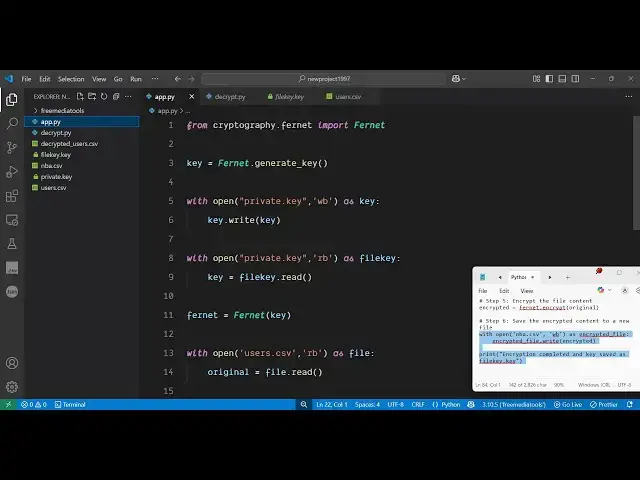
Python 3 Cryptography Module to Encrypt & Decrypt Files Using Private Key in Terminal
Jun 3, 2025

Get the full source code of application here:
https://codingshiksha.com/python/python-3-cryptography-module-to-encrypt-decrypt-files-using-private-key-in-terminal/
Show More Show Less View Video Transcript
0:00
uh hello guys uh welcome to this video
0:02
So in this video I will show you how to
0:04
encrypt and decrypt files inside Python
0:08
right in the terminal itself using this
0:11
cryptography module which is provided by
0:14
Python right here which is this
0:16
cryptography module is built in inside
0:19
the latest version of Python which is
0:21
three So you can actually encrypt any
0:24
file It can be image It can be CSV It
0:27
can be JSON file It can be any sort of
0:30
file Let me define a CSV file here Uh
0:34
users dot CSV commaepparated value file
0:38
So we have some data inside this file
0:41
Let me define some data right here So we
0:45
have this a set of users are there Users
0:47
dot CSV So now I just need to encrypt
0:50
this file to hide the data so that the
0:54
other people can't see the data So we
0:58
actually just uh written the script
1:01
which takes reads this file here We can
1:04
see we are passing this file which is
1:06
users C csv So we are reading this
1:12
uh I think this is this one is used for
1:17
decryptting it I will show you both the
1:20
scripts Let me first of all show the
1:22
script for encrypting the file So let me
1:25
paste this encrypt encryption script So
1:28
as you can see we are providing this uh
1:31
users dot CSV file which is actually the
1:34
original CSV file and we are encrypting
1:36
it So if I execute this Python script
1:40
here on the left hand side you first of
1:43
all need to install this module So if
1:46
you're running it for the very first
1:47
time So just install this module PIP
1:51
install
1:52
cryptography This is actually the third
1:54
party module you need to install
1:58
So so once it is installed you can run
2:01
this Python script
2:05
So you'll see the encryption is
2:07
completed and the key is saved So it
2:10
will it also creates a private key first
2:12
of all to encrypt the file It it creates
2:16
this unique key This is actually your
2:18
private key which is created and then it
2:21
creates the encryption file So you can
2:26
see now the data is now hidden You can't
2:28
understand you can all the data has been
2:31
garbage You will see this was the
2:34
original file This was now the encrypted
2:36
file It is encrypted using this private
2:39
key that is created first And now I will
2:43
show you the dis
2:46
decryption script here which will
2:49
actually use this private key which is
2:52
created This will be for
2:56
decrypt So now this will be
2:59
the decryption script So it will
3:02
actually use this uh private key that is
3:06
already there now to get the original
3:09
file
3:12
So it is
3:14
actually reading this encrypted file
3:17
right here which is you can see we are
3:19
reading this encrypted file and creating
3:22
this decrypted users.csv file So if I
3:25
execute
3:27
this decryption
3:29
script
3:34
decrypt so you will see the decryption
3:36
has been complete file saved as
3:38
decrypted users dotcsv So you can see we
3:41
got the original data original CSV file
3:45
from that encryption
3:48
So in this way you can use this module
3:50
of cryptography inside Python to
3:53
actually encrypt and decrypt files from
3:56
using this private key So both the
4:00
scripts I have given in the description
4:02
of the video So now let me show you step
4:04
by step how to use this So first of all
4:09
I will show you for encryption So both
4:12
the scripts are pretty much the same
4:16
There is some kind of difference So
4:18
first of all you require this module
4:21
from
4:22
cryptography It contains this fernet We
4:25
need to import this fernet
4:27
class The step one is to create that
4:30
private key private encryption key that
4:33
we can easily create this using this
4:35
function generate
4:37
key After creating that key we need to
4:40
save it So we can save this key as let's
4:43
suppose private dot
4:46
key in
4:48
write binary mode
4:57
and like this after saving that we can
5:01
simply read the original file that needs
5:04
to be encrypted We will load this
5:07
key that we created which is private key
5:12
in read binary
5:23
mode So we'll read this and store it
5:26
inside the key variable and then we'll
5:28
be initializing this encryption format
5:32
and passing this key
5:34
Step four we will read the file that
5:37
needs to be encrypted again using the
5:40
open
5:41
function users CSV And then here we will
5:46
read
5:54
this and then we'll be creating that
5:56
encrypted
5:58
file for dot encrypt It contains this
6:02
encrypt function and we'll be passing
6:04
this original that's all And then again
6:08
we will save this encrypted
6:11
file It's a very systematic script You
6:14
can see lastly we'll be saving
6:18
that encryption complete and
6:22
save
6:29
So so I've given both the scripts guys
6:32
in the description of the video This is
6:33
actually your
6:35
uh decryption script This was the
6:37
encryption script Thank you very much
6:39
for watching this video and also check
6:42
out my website freemediattools.com
6:45
uh which contains thousands of tubes
#Software
#Scripting Languages