Up next in 10

Microsoft’s AI Toolkit for VS Code This FREE Extension DESTROYS Cursor & Claude For Coding!🔥
Jul 24, 2025

Get the full source code of application here:
Show More Show Less View Video Transcript
0:00
Uh hello guys, welcome to this video. So
0:02
in this video, I'll show you a VS code
0:04
extension which is specifically designed
0:06
by Microsoft for
0:09
basically all the AI toolkit operations
0:12
such as autocomplete, suggesting code.
0:14
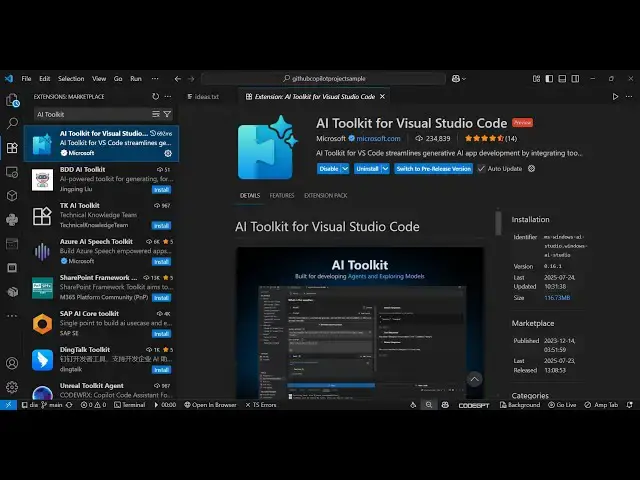
So go to the extensions tab in VS Code.
0:16
Simply type for this extension AI
0:18
toolkit for VS Code and this extension
0:21
will come. It's used by almost 234,000
0:25
installs.
0:26
So it's official extension as you can
0:29
see. Simply click the install button. So
0:32
after you install this,
0:35
you will be able to perform all these
0:37
things
0:39
right in the VS code.
0:42
So as you can see
0:46
it has all this documentation which is
0:48
given right inside Visual Studio Code
0:52
website. So once you install this you
0:54
will see in the sidebar section this
0:57
option will get added AI toolkit. Simply
1:01
activate this and uh now you simply need
1:05
to select which model that you want to
1:08
use.
1:12
So if you have a local model,
1:15
you can even add that as well by simply
1:18
clicking on that and selecting
1:22
models from Onama.
1:24
So if this is not installed, you need to
1:26
install it first of all.
1:32
So as you can see
1:37
you simply click on that and
1:46
AI toolkit
1:48
you can add your own AI models right
1:50
here and simply we have the different
1:53
tools right here playground this is one
1:56
tool so you will see this chat window
1:58
appearing and uh it's similar to GitHub
2:01
C-pilot, cursor and claw tools. You
2:04
basically have the chat window and here
2:07
you can write any sort of thing. Write a
2:09
python function to encode the input
2:11
text. So now it will use the deepsek
2:15
free model of to generate this.
2:19
So as you can see it is generating the
2:21
code here completely free for you.
2:27
So right in VS code you can add more
2:29
models as well. Just search for the free
2:32
models
2:33
and simply click on this add model
2:36
button. To add this model to add this
2:40
you need to enter the API key because
2:41
this is the paid model. So you simply
2:44
enter the API click and press enter or
2:47
you can try this on playground as well.
2:50
So
2:51
this is the ultimate tool here for AI
2:54
development in VS code. It's developed
2:57
specifically by Microsoft and uh it
3:00
makes the job way more easier. The
3:02
second tool is agent builder. So this
3:05
also
3:07
you can select whatever AI model you
3:10
want to do and just you write the prompt
3:12
here.
3:18
So as you can see build
3:24
there is the third tool here which is
3:26
bulk run. So here you can run multiple
3:28
files as well.
3:33
We also have the evaluation tool as
3:36
well. So so now to just get started
3:39
simply click the playground button and
3:41
simply here
3:44
it will automatically write the code for
3:46
you. So you must see
3:51
and this is I think it's unlimited you
3:53
can do
3:59
so you can basically write any sort of
4:01
build image to PDF web app
4:05
create a science table file in
4:13
so you write the prompt here and
4:15
depending upon on the prompt here. It
4:17
will try to
4:40
So, it gives you step-by-step
4:42
instructions.
4:50
So as you can see so this is the
4:54
package here AI toolkit for VS code
4:57
definitely install it it's developed by
5:00
Microsoft
5:01
similar to GitHub copilot claude and
5:07
cursor and also check out my website
5:10
freemediatools.com
5:12
uh which contains Thousands of tools.
#Programming
#Software