0:00
uh hello guys welcome to this video so
0:02
in this video I will show you extension
0:04
which will save you a lot of time
0:07
because it will show you the console log
0:09
output directly in vs code rather than
0:11
opening a browser and seeing that output
0:14
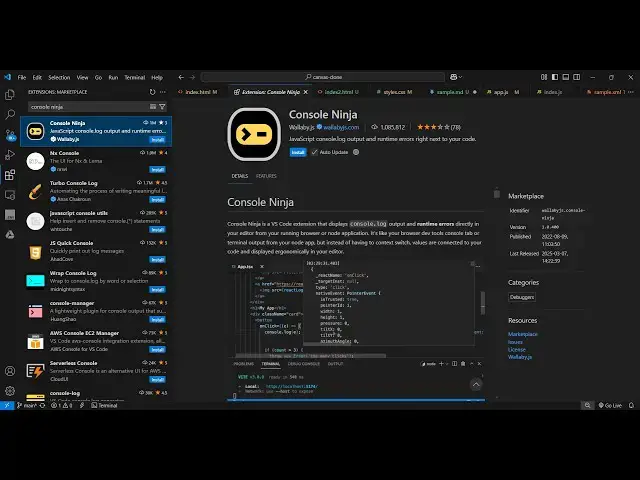
there is extension right here which is
0:16
called as console ninja if you go to
0:18
extensions tab just type this extension
0:21
console ninja so this is a fairly
0:25
extension if you just type this this is
0:28
actually developed by this w.
0:31
JS it's almost got 1 million
0:35
installs so this is actually the company
0:38
which developed this Wu js. comom so it
0:40
actually shows the output side by side
0:44
of console lock statement so for
0:46
activating simply click the install
0:51
just activate this extension
0:55
so personally it saves us a lot of time
0:58
as well it does offer a pro version as
1:00
well but let me show you the free
1:02
version so let's suppose you have a
1:04
Javascript file right here and
1:07
you have a bunch of console log
1:10
statements so now we have three
1:12
variables XY Z and I want to check the
1:16
output here so I just write simple
1:24
statement and now to activate this you
1:27
first of all go to command prompt and
1:30
just type here console ninja and here
1:32
you need to activate this extension
1:35
activate the license right here for my
1:39
case I think we need to check if it is
1:41
offering the free license so
1:46
we for activating is first of all you
1:49
need to submit a email address for
1:52
activating the free version so let me
1:54
provide my email address so just provide
1:56
your email address to just click submit
2:03
will so you just need to select this
2:09
version and as soon as you do
2:15
this you just need to confirm they will
2:52
ninja so yeah so console ninja show
2:56
output so you will basically see console
3:02
log this will show you the log messages
3:21
side but I think it's a pro extension
3:24
you need to first of all
3:33
you'll see it basically shows the
3:35
console log output side by
3:40
side it comes with two license types
3:43
community and the pro license
3:48
I I can't use the free version you can
3:51
see I'm writing this console log but I'm
3:53
not seeing the output
4:22
output just need to activate license
4:41
this is actually the website here consol
4:43
ninja.com Pro and Community Edition
4:45
basically comes with the console
4:51
log you'll see it basically shows the
5:11
this is actually the extension you can
5:13
try it on your system as well if it is
5:16
working you can comment right here if it
5:19
is working or not working as you can see
5:21
for my system it is not working free for
5:23
the free version and I think I need to
5:26
activate the pro version to work
5:30
so thank you very much for watching this
5:31
video and also check out my website free
5:34
mediat tools.com which contains
5:35
thousands of tools regarding audio video
5:37
and image and I will be seeing you in