Up next in 10

Imagemagick Command to Merge & Combine Multiple Images into One Mini Collage in Terminal
Jun 3, 2025

Buy the full source code of application here:
Show More Show Less View Video Transcript
0:00
uh hello guys welcome to this video So
0:02
in this video I will show you a image
0:04
processing library image magic command
0:07
to actually merge or stack multiple
0:10
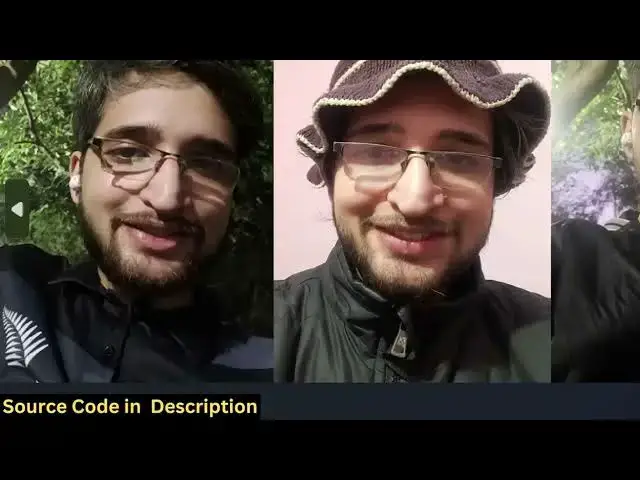
images and create a collage so that you
0:12
can post on social media So we have
0:14
these five images If you see if I want
0:17
to merge these images in horizontal or
0:19
vertical direction then I can actually
0:21
use this library image magic So go to
0:23
their official website and download this
0:25
library It's available for Linux Mac and
0:28
Windows machine So once you download
0:31
this just open a simple command line
0:33
window and just execute this command
0:36
which is magic You can access image
0:38
magic by simply typing magic and then
0:41
simply the image name which is 1 JPG
0:45
will see we are simply referencing it
0:48
After that the second image that I want
0:50
to uh merge 2
0:53
JPG So you can specify all these images
0:57
and then after that we specify this flag
1:01
which is plus append So this will
1:04
actually append all your images in the
1:05
horizontal direction merge it and then
1:08
the output file
1:11
in So as soon as you do this guys you
1:14
will see it will create a output jpg
1:16
file and all your images are being
1:19
stacked
1:21
You can see all these five images is
1:24
actually converted into a single image
1:26
Merge it in the horizontal direction So
1:29
as you can see this is first second
1:32
third fourth fifth So very easily guys
1:36
you can create a mini collage in the
1:39
horizontal direction So if you want to
1:42
append this in the vertical direction So
1:44
once you change this plus to minus So
1:47
just change this uh plus to minus and
1:53
then now if you see it will basically
1:56
append this in the vertical direction So
2:00
you have seen this guys on the social
2:02
media on Instagram whenever people share
2:04
their photographs they share like this
2:07
you can easily create this effect merge
2:09
all your images multiple images into a
2:12
single image really easily And now there
2:15
is also a third command that you can
2:17
directly use which
2:21
is you can specify this option which is
2:26
geometry and then + 2 +
2:35
2 So you can see that so it will
2:41
create like this This is also a
2:46
command If you want to rename all your
2:48
images you can do that as well So but
2:50
these two commands that I already showed
2:52
you guys which actually merges your
2:55
images in horizontal or vertical
2:56
direction to create a collage you can do
2:59
this And uh thank you very much for
3:02
watching this video and also check out
3:04
my website freemediatools.com
3:06
uh which contains thousands of tools
#Online Image Galleries
#Photographic & Digital Arts
#Online Goodies
#Clip Art & Animated GIFs
#Photo & Video Sharing
#Photo & Image Sharing