Up next in 10


Watch My Visual Studio Code IDE Setup Video For Fonts,Themes & Extensions
https://youtu.be/Bon8Pm1gbX8
Hi Join the official discord server to resolve doubts here:
https://discord.gg/cRnjhk6nzW
Visit my Online Free Media Tool Website
https://freemediatools.com/
Buy Premium Scripts and Apps Here:
https://procodestore.com/
Show More Show Less View Video Transcript
0:02
Hello guys, in this live stream I will
0:04
show you a new tool, new AI coding tool
0:08
which is released here. It's called as
0:10
Trey AI.
0:12
So, I tested this Trey AI tool that this
0:14
all everyone is talking about. So, it's
0:17
actually a coding ID
0:19
similar to Cursor, Wenser and Codex
0:23
and Cloud Code.
0:24
So, if you simply write here t r a e a i
0:28
So, it's an ultimate AI coding for
0:31
software development. It has its own web
0:34
version as well where you can also try
0:36
out online. And also it has its own IDE
0:39
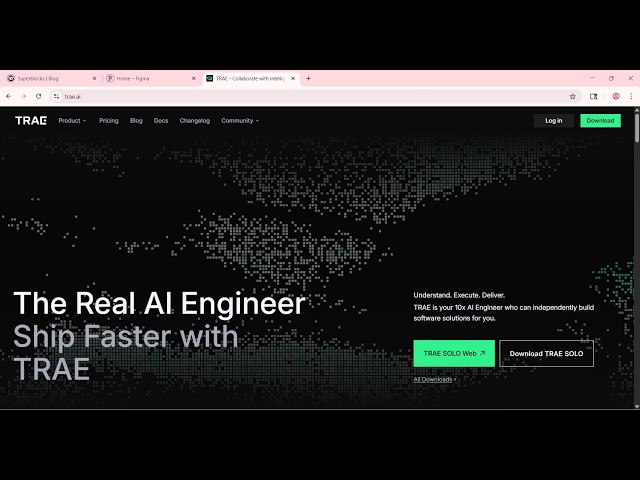
as well. So, if you visit this, this is
0:41
their official website.
0:43
And they have a variety of products
0:44
here.
0:45
It's actually having a AI native IDE
0:48
which you can directly installed it
0:49
inside your local machine as a desktop
0:52
app. It also have a solo version as well
0:55
where you can try this online.
0:57
It has also its plugin as well. So, once
0:59
you will do this
1:01
So, you have the option for downloading
1:04
this desktop app.
1:06
So, it's completely free. So, once you
1:08
download this, you can choose your
1:09
operating system.
1:12
So, from here you can download this.
1:14
Click on the download button.
1:16
And
1:18
the download will start here.
1:21
As you see, it has started. It's just
1:23
232 megabytes. So, you will see that.
1:26
This is a setup file.
1:29
And the solo version is only available
1:31
on the Linux version or Mac. Win for
1:34
Windows, it is coming soon.
1:37
So, you can enter your email address and
1:39
join the wait list.
1:41
So, this is the thing about this. You
1:43
can even try out the web version as
1:45
well. So, by clicking the
1:49
They also offer the web version.
1:51
So, inside this you have the chat
1:53
prompt. You specify what sort of
1:55
application you want to generate.
1:58
So, now to get started, you can actually
2:00
get started by logging inside your
2:02
Google account.
2:04
It hardly take 2 minutes for
2:05
authentication.
2:09
So, once the authentication complete,
2:11
you will actually be redirected to the
2:13
dashboard area.
2:17
So,
2:22
now you can see that early access.
2:29
So, right here you specify what sort of
2:31
project you want to develop. So,
2:41
So, I specify I want to build out a
2:43
image to PDF project.
2:47
So, yeah. So, if you you will get this
2:50
warning that it is only available in
2:52
beta version. So, redeem your code to
2:54
get access.
2:56
So, if you have the code, you can type
2:58
this. It is not publicly released. So,
3:00
that's why you will get this warning.
3:02
Instead, what you can do, you can
3:04
download the setup
3:06
for the desktop version. Simply install
3:08
that AI native IDE.
3:12
So, just accept the agreement there.
3:16
Install this.
3:18
So, once the setup completes,
3:21
this IDE will be directly installed
3:23
inside your
3:24
machine like Cloud Code, Codex and
3:27
Wenser, all those AI native AI IDEs.
3:31
So, it's similar to this and
3:35
it's completely free to try. If I show
3:38
you the actual
3:40
billing of this,
3:44
it does offer you a free plan as well.
3:46
So,
3:48
in the free plan, you will actually get
3:50
all these things.
3:55
You also get a free trial without
3:57
credit card. Just add the credit card
3:59
and you get 7 days free trial for free
4:02
then and then $10
4:41
So, once it completes, you will
4:43
be able to launch this IDE directly
4:45
inside your machine.
4:49
So, I personally tried this. It actually
4:51
allows you to build out quite a number
4:53
of applications.
5:00
Just click the finish button now and
5:02
after that,
5:04
the IDE will be launched here and you
5:06
will be able to
5:18
I think the IDE has been launched.
5:22
So, the interface looks something like
5:24
this.
5:28
It's similar to VS Code. So, directly
5:30
you see the code right here. And on the
5:32
right hand side, you see the chat
5:34
prompt.
5:35
So, just follow these steps to
5:42
So, now you can see that
5:44
first of all, you need to log in to get
5:46
started.
5:48
As soon as you do this,
5:52
it will redirect you to
5:54
log in here. So,
5:57
simply complete the steps.
6:14
So, simply you can see logging into
6:17
So,
6:18
just automatically it will log in you.
6:21
So, now you see this.
6:22
You are a 7-day free pro trial
6:25
available. So, if you want to try this,
6:28
you simply click on claim now button.
6:31
And inside the chat prompt, you specify
6:33
what sort of
6:34
application you want to develop. As you
6:37
click the claim now button,
6:38
you can actually claim the free trial.
6:41
So,
6:43
you click on this free trial to activate
6:46
this.
6:49
And you just need to add credit card
6:52
information
6:53
to just get the free trial. So, you can
6:56
see that subscription details free for 7
6:58
days and then after that, $10
7:01
will be
7:03
>> [snorts]
7:03
>> cut.
7:05
So, if you have the promo name, you can
7:07
even do that. So, credit card, you see.
7:09
Just add this
7:11
and start the free trial.
7:13
This is really easy.
7:15
And then after that, you simply type
7:17
what sort of
7:19
Unfortunately, I don't think so without
7:22
adding that credit card, you will get
7:24
the free trial.
7:26
But the thing is very simple. After
7:28
activating that, you simply type the
7:30
prompt, whatever application you want to
7:32
develop. You can even attach images
7:36
as well.
7:37
These are the auto mode.
7:40
It automatically selects the best model.
7:43
If you want to select any other model,
7:45
you can do that. So, you will see that
7:47
Gemini,
7:49
MiniMax, Gemini K2 GPT,
7:51
Deep Seek, all the models are available.
7:54
You can individually select as well. Or
7:57
you can also add your own model as well.
7:59
So, through Ollama
8:01
or API key. From here, you choose the
8:03
provider.
8:05
All the providers are there. So, let's
8:07
suppose you want to choose Anthropic.
8:10
Choose the model.
8:12
And then fill out fill out the API key
8:15
and add your model.
8:16
Very simple. So,
8:26
So, now as you send out this request,
8:29
automatically you will see that
8:31
it will try to build out your
8:33
application. It will try the structure
8:35
step by step.
8:38
It can be started for completely free as
8:40
I showed you. I didn't add the credit
8:42
card information. Still it's it is
8:44
creating this.
8:45
So, it is completely free. From here,
8:47
you select the model, whatever model you
8:49
want to use.
8:51
And you can see that step by step it's
8:53
creating the application for you.
8:57
So, once it completes,
8:59
>> [snorts]
8:59
>> you will get a notification.
9:01
So,
9:02
it's a really good alternative to tools
9:05
like Cloud Code. So, you will see
9:06
automatically it changes.
9:09
You can see it changes were done. So,
9:11
need to keep those changes.
9:16
So, now it is creating that CSS.
9:33
So, [snorts] automatically now it is
9:36
on the next step
9:38
implementing the CSS styling for the web
9:40
page interface.
9:42
So, it's really fast as well. It
9:44
actually generate the code in a very
9:47
fast speed.
9:50
It's called as the Trey solo version.
10:05
>> So, it has different agents here. This
10:07
is a builder agent and this is solo
10:10
coder solo builder
10:12
which is solo only.
10:14
This is a chat agent. So, you can even
10:16
create your own agent as well. Smart
10:18
generate agent. Please describe what
10:21
this agent should do.
10:27
So, it creates this file here style.css.
10:29
So,
10:31
can click on keep.
10:33
Now, it moves to the next task.
10:42
In the meantime, you can actually see
10:44
what it is generating. Simply open this
10:46
file in the
10:48
browser.
10:54
So, it actually generated this UI for
10:56
you. Completely responsive image to PDF
10:59
converter.
11:06
So, in the similar way,
11:08
it will complete all the steps and you
11:10
will get a fully functional application.
11:12
So, definitely try out this editor try
11:15
AI IDE.
11:17
It's very useful.