Up next in 10

How to Integrate Google Search Directly in VSCode IDE Editor to Google Search Automatically
Jul 12, 2025

Get the full source code of application here:
Show More Show Less View Video Transcript
0:00
Uh hello guys, welcome to this video. So
0:02
in this video, I'll show you a very
0:04
simple VS code extension uh which allows
0:06
you to integrate Google search directly
0:09
inside the code editor. So if you face
0:11
any sort of issues regarding your source
0:13
code, you can simply select whatever
0:15
text whatever error that you are facing
0:17
and simply right click and it it will
0:20
add this option right in the context
0:22
menu right here. You will see Google
0:24
this. So it will open automatically the
0:28
Google browser just typing whatever text
0:31
that you selected automatically it will
0:34
make a simple Google search related to
0:36
your issue. So this will save you a lot
0:38
of time. So simply go to the extension
0:41
and simply type here Google this
0:46
and this extension will come right here.
0:48
If you see
0:53
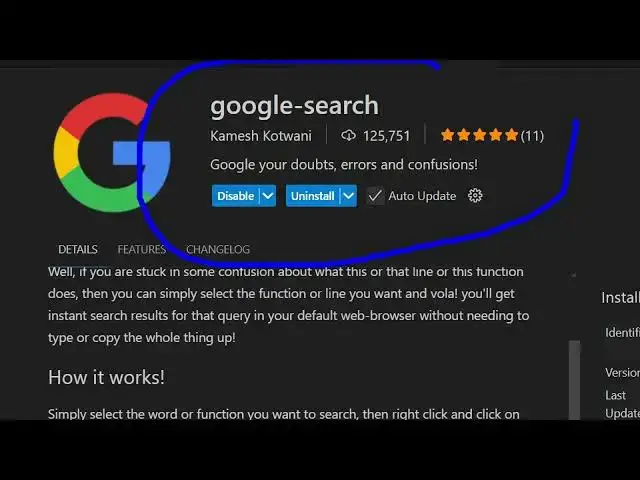
this is the extension Google search and
0:56
it's got almost 125 in,000 installs.
1:01
So it
1:03
simply click the install button to
1:05
activate this extension. So the working
1:08
of this extension is very simple. Once
1:10
you activate the extension, go to your
1:12
editor and go to any file. If you are
1:17
facing any sort of issue, select
1:19
whichever code that you are facing
1:21
issue, simply select that and right
1:24
click and you will see this option
1:27
appearing which in the context menu
1:29
which is Google this. So this will
1:31
directly open google.com with that query
1:34
automatically filled in. So,
1:37
so you don't need to manually go to
1:39
Google type that. So, this will save a
1:42
lot of time. So, you can do this with
1:44
any file. It can be JavaScript file
1:46
here. Simply select the text and right
1:49
click and then Google this. So,
1:53
it also works I think with the terminal
1:57
as well. So if you face any sort of
1:58
issue,
2:05
so it can be any file inside your visual
2:08
studio code editor.
2:11
So just need to select the text here.
2:14
You can select it using your mouse.
2:16
Simply select and then right click and
2:18
you will see this option appear in
2:20
Google this. So so the process is very
2:24
simple.
2:27
So you can see that. So definitely use
2:30
this extension. Just simply install and
2:32
activate this. And also check out my
2:35
website freemediatools.com
2:37
uh which contains thousands of tools.
#Internet Software
#Development Tools