Up next in 10


Get the full source code of application here:
Show More Show Less View Video Transcript
0:00
Uh hello guys, welcome to this video. So
0:02
in this video, I'll show you how to
0:04
install and activate Microsoft Excel
0:07
style theme inside your VS code editor.
0:09
So if you go to extensions uh just type
0:12
this Excel
0:16
theme in the search bar and you will see
0:19
this uh extension comes right here. It's
0:22
a Microsoft Excel theme for VS Code
0:25
developers. So if you need this theme
0:28
simply click the install button. So once
0:30
you install this these two themes will
0:33
be there for you. Excel theme this is a
0:35
dark theme this is a light theme.
0:38
So if you prefer the light theme here
0:40
you can see it looks something like
0:41
this. The syntax highlighting the all
0:43
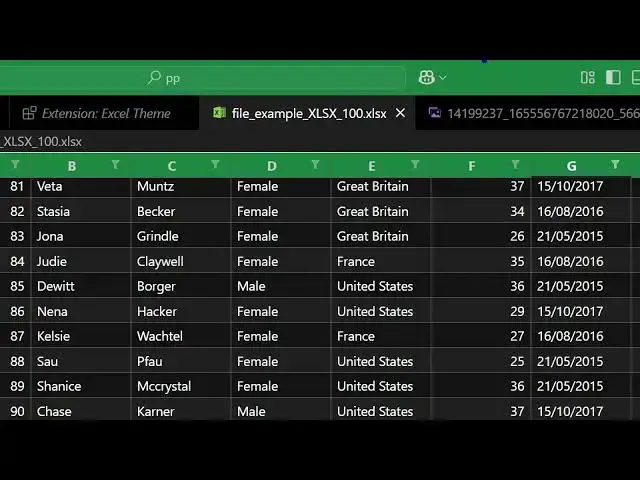
these things and you can see your Excel
0:47
files directly like like this. I
0:50
personally like the dark theme. So you
0:52
can see now all this
0:55
theme contains the features of Excel.
0:57
This is your green color which actually
1:00
represents the Microsoft Excel
1:03
green sheet and alongside you actually
1:06
writing your code. So green highlighting
1:08
everything.
1:10
So if you like this theme guys you can
1:13
simply activate this by activate this
1:16
extension.
1:18
It has two themes, either the dark theme
1:21
and the light theme. You can toggle
1:22
between which theme you like.
1:25
So, thank you very much for watching
1:27
this video and also check out my website
1:29
freemediatools.com
1:31
uh which contains thousands of tools.
#Programming
#Business & Productivity Software