Up next in 10

How to Find BIOS Version, Motherboard Manufacturer, and Model, Processor Number in Windows
Jul 5, 2025

Get the full source code of application here:
Show More Show Less View Video Transcript
0:00
Uh hello guys, welcome to this video. In
0:02
this video, I'll show you how to find
0:03
out the BIOS version, motherboard,
0:06
manufacturer, and model, process number
0:08
of your Windows machine. So for this,
0:10
you just need to go to the start menu
0:12
and just write here system information.
0:15
Just search for this and this will come
0:19
right here. If you see system
0:22
information
0:23
and just search for it and simply click
0:26
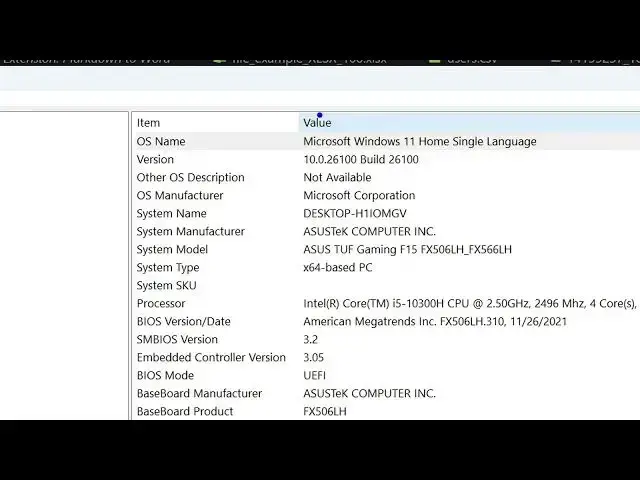
it. After that it will give you a full
0:30
little summary about your computer which
0:32
operating system it is using which is
0:34
Microsoft Windows 11 home single
0:36
language also it tells you the current
0:39
version number this is your operating
0:41
system manufacturer system name system
0:45
manufacturer also which is which company
0:47
of laptop you're using which model you
0:50
are using these are important
0:52
information if you're looking forwards
0:54
for some kind of information. So all
0:56
such information is provided here. Just
0:58
go to system information and which
1:00
processor you are using. You can see
1:02
Intel i5 processor. This is the BIOS
1:05
information, the number, everything is
1:08
given right here. So just go to the
1:10
start menu and just type your system
1:12
information and you will get this
1:14
information. Everything right here. So
1:17
in this easy way you can get all this
1:18
information and thank you very much for
1:20
watching this video and also check out
1:22
my website freemediattools.com
1:24
uh which contains thousands of tools.
#Computer Hardware
#Computer Components