Up next in 10


Get the full source code of application here:
Show More Show Less View Video Transcript
0:00
Uh hello guys, welcome to this videos.
0:02
In this video, I'll show you how to
0:03
enable virtualization inside your
0:06
Windows 11. Virtualization is a very
0:09
important concept. If you want to run
0:11
multiple applications, multiple
0:13
operating system in a single computer,
0:15
then you can enable virtualization. So
0:17
the thing by which we can do that is you
0:20
go to the start menu and simply type
0:22
here turn Windows features on or off. So
0:26
it is located inside your control panel.
0:29
So this will look something like this.
0:30
Turn Windows features on and off. You
0:33
can even go to control panel and then
0:35
you actually go to this option which is
0:38
turn windows features on or off. So if
0:43
you see it is located inside your
0:45
program. So just go to the program
0:47
section and right here you will find out
0:49
this feature turn windows features on or
0:52
off. Simply click this and after that a
0:55
let'sit list of features will come right
0:57
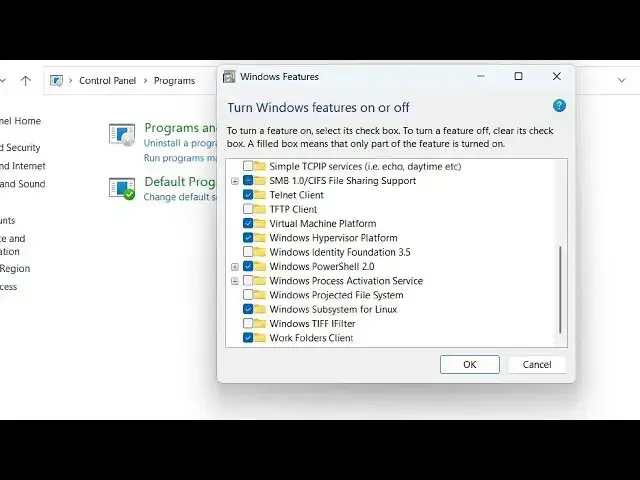
here. And the features that we need to
1:00
enable is this one which is virtual
1:02
machine platform.
1:04
So if the if this is not ticked simply
1:07
tick this and also you need to enable
1:08
this Windows hypervisor platform. So
1:11
these are the two features you need to
1:12
enable in order to uh
1:16
just enable virtualization inside your
1:18
Windows 11. So just enable these two
1:21
features
1:23
and then click on okay. And uh after
1:26
that some things will happen. It will
1:29
enable the progress bar will show. After
1:32
that you just need to restart your
1:34
computer to make the changes taken
1:37
place. So after you restart your
1:38
computer you will find out that
1:40
virtualization has been successfully
1:43
enabled. In some computers, in some
1:45
laptops, you do need to go to the BIOS
1:48
settings as well because in my case, uh
1:51
I didn't have to go to BIOS settings,
1:54
but in some cases, you do need to go to
1:56
BIOS settings as well to enable some
1:58
kind of virtualization. But in my case,
2:01
the virtualization was enabled. So, just
2:03
go to this turn on features and just
2:06
enable these two features, which is
2:08
Windows
2:10
hypervisor platform and virtual machine
2:12
platform. Just take these two options
2:14
and then automatically virtualization is
2:16
enabled.
2:18
Also check out my website which is
2:20
freemediattools.com
2:21
uh which contains uh thousands of tools.
#Software
#Operating Systems