Up next in 10


Get the full source code of application here:
Show More Show Less View Video Transcript
0:00
Uh hello guys, welcome to this video. So
0:02
in this video, I'll show you how to
0:03
block targeted or personalized ads which
0:06
are shown to you inside websites inside
0:09
Google Chrome. So it's very simple. You
0:11
go to the top right section, click these
0:14
three dots and right here go to settings
0:16
option and right here there will be this
0:18
section called as privacy and security.
0:20
Simply click this option and right here
0:23
there is an section here of add privacy.
0:26
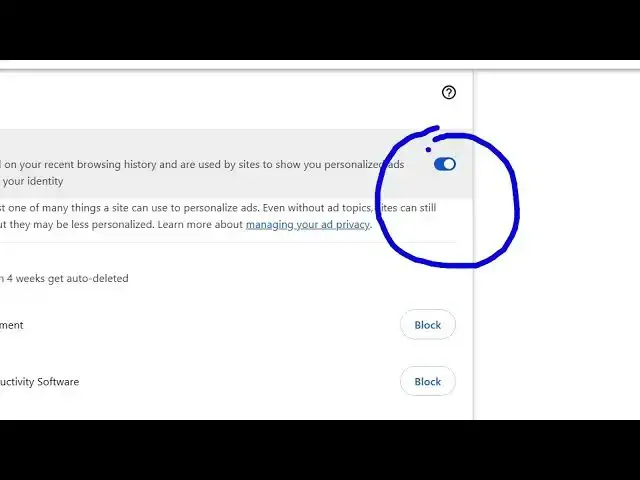
So it customizes the info used by sites
0:28
to show you ads. So here you will
0:31
control which topics you are browsing.
0:34
So here you can this setting is
0:36
typically on. So if you don't want ads
0:39
related to whatever you are watching
0:41
inside the browsing history you can
0:42
toggle this option off. By default it's
0:45
turned on. So you can so now no more ads
0:50
will be shown to you based upon your
0:52
browsing history. Secondly, site
0:54
suggested ads based upon the activity on
0:56
a site. This this setting is also on.
0:58
You can even toggle this as well
1:03
like this. And the third option ad
1:05
measurement sites and advertisers can
1:07
understand how it's performed. This
1:08
setting is also on. So you can basically
1:11
toggle all these three settings off like
1:13
this. And now you have blocked uh
1:17
targeted ads which are delivered to you
1:20
in which when you visit website. So in
1:22
this easy way this is an option in
1:24
Google Chrome browser. So please hit
1:26
that like button, subscribe the channel
1:28
and also check out my website
1:30
freemediatools.com
1:32
uh which contains thousands of tools.
#Software
#Internet & Telecom
#Web Services