Up next in 10

How to Download Files From Internet to Google Drive Using Google Apps Script Example
Dec 21, 2025

Buy the full source code of application here
https://buy.stripe.com/aEU03kfbHbsY0Ra4Iy
Show More Show Less View Video Transcript
0:00
Uh hello friends, today in this tutorial
0:02
I will be telling you that how to
0:04
download any sort of file from the
0:06
internet to your Google drive using
0:08
Google app script. So basically this is
0:11
a very general task that every person do
0:13
that they download images from internet
0:15
to Google drive. So I will be automating
0:17
this process using Google app script. So
0:20
first of all you need to go to this link
0:22
which is script.google.com.
0:28
So you need to create a new project for
0:30
that. So just click on new project and
0:33
then you will be redirected to the
0:34
script editor. So here you will be
0:36
writing the code for doing that. So I
0:40
will be making a new function here. So
0:42
let me just zoom in so that you can see
0:45
function download file.
0:48
So inside this function we will be
0:50
writing the logic in order to download
0:52
the file from the internet and save it
0:55
to your Google drive. And I have made a
0:58
folder here called as the images. So
1:00
just make a empty folder from here. Just
1:02
click on new and create a folder.
1:06
And now first of all inside this uh
1:08
function we just need to declare some
1:10
variables. First will be the file name
1:13
which will be empty for now. So just
1:17
declare it empty. And the second
1:20
variable will be file size. So it will
1:22
be holding the size of the file which we
1:24
will be downloading. So these are two
1:26
variables and now we will be making a
1:29
simple HTTP request to the internet for
1:32
fetching the resource. So this will be
1:35
URL fetch class. URL fetch app class and
1:39
there inside there is a method which is
1:42
dot fetch. So inside this you need to
1:44
provide the URL.
1:48
So in my case I will be downloading this
1:50
image here profile. JPG. So in your case
1:54
it it may be different. So just uh copy
1:56
paste the URL and right here
2:00
inside double quotes paste the URL. So
2:03
this is the URL of the photo. And now it
2:06
will return the response and it will
2:08
store it inside this result variable.
2:10
And now we just need to uh also check
2:13
for the response code. So we can just
2:17
get it by response dot get response
2:20
code. So it it returns a response code
2:23
depending upon whether the request is
2:25
successful or not.
2:28
So if it is equal to 200 then we know
2:31
that uh it is successful. So we will be
2:33
writing if condition here for checking
2:35
it. So if the response code is equal to
2:38
200.
2:40
So in that case we will process it. So
2:43
the very first thing that we need to do
2:44
here is that we just need to create a
2:46
blob object here. So file blob
2:50
and we can just convert it by response
2:54
dot get blob. So you just need to write
2:58
here get blob.
3:02
So response dot getblo. So just wait
3:05
here
3:10
get blob.
3:15
So this uh function will be creating
3:17
this blob object and after creating this
3:20
we will be having to create another
3:22
variable which will hold the folder ID.
3:25
So here first of all we will be writing
3:27
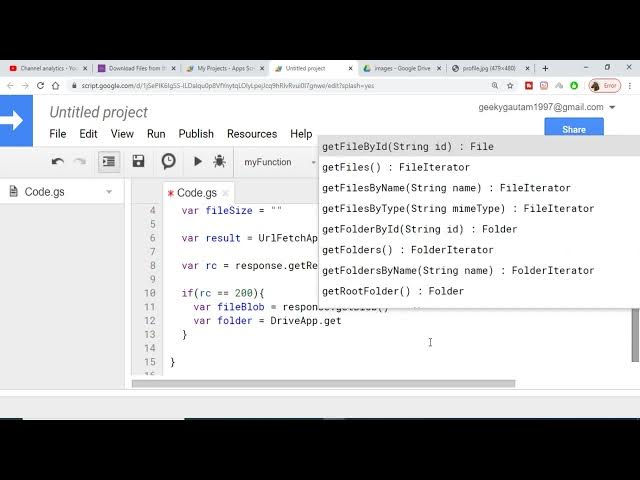
here drive app
3:30
dot get folder by id. So we will be
3:33
selecting this method. So we will be
3:35
selecting the folder uh of its ID. We
3:39
will be providing the folder ID here. In
3:41
order to get the folder ID is very easy.
3:43
Right click it and get the sharable link
3:46
and it is copy paste it. So here you
3:49
will see that after the ID is equal to
3:51
this is the folder ID. So just copy this
3:54
ID and paste it here.
3:57
And this will return the folder for us.
4:00
And uh now in the if condition we will
4:02
check that if it is not equal to null.
4:06
So here we will just check if folder is
4:09
not equal to null.
4:12
So in that case it it just means that we
4:15
have got the folder and now we just need
4:17
to save this file onto our Google drive.
4:21
In order to save the file first of all
4:22
we will create it by
4:25
folder dot create file. So we will use
4:29
the create file method.
4:32
So and we will pass the blob object that
4:34
we have created which is stored inside
4:37
file blob. So after creating the file in
4:40
the Google drive we will get the file
4:43
name and store it inside the variable
4:46
that we have constructed file name. So
4:48
file dot get name. So basically it will
4:51
get the name of the file which has
4:53
created and in order to get the size
4:56
file size it is very simple file dot get
4:59
size.
5:02
So after getting the name and the size
5:04
we can just uh create a object and log
5:08
into the screen. So just after this if
5:10
condition we can just create a new
5:12
object of file info and this will
5:15
contain three values. First will be the
5:17
response code RC colon.
5:22
So this needs to be surrounded in single
5:24
quotes. So just write here single
5:25
quotes.
5:32
RC and the second property will be the
5:35
actual file name. So here we I I will
5:38
write here file name. So this will be
5:40
file name
5:43
and the third property will be the file
5:45
size. So here we will write the file
5:47
size
5:50
colon the file size which it holds. And
5:54
now lastly we just need to print it on
5:56
the console. And now we will be using a
5:59
logger class which is available
6:03
logger.log.
6:04
This is a method which is available. And
6:07
we will pass here file info. That's it.
6:10
So this is a code necessary for saving
6:13
the file to the Google drive. And now in
6:16
order to run this we will click the run
6:18
button.
6:20
It is saying that first of all save the
6:22
project. Let me just name as download.
6:25
Click on okay. And then it will say that
6:28
select the function. So let me just
6:31
first of all save the file here.
6:34
Save. Saving the file code
6:40
and click on run button. So you will you
6:42
have to provide the permissions first of
6:44
all if you run the project. So I will
6:46
provide the permissions. So sign in with
6:49
my account here. So click on advanced
6:51
and uh go to download. So just do this
6:55
stuff and allow the permissions. You can
6:58
see that allow it
7:03
after you can see that running this
7:04
function download file. So it is saying
7:07
that response is not defined on line 8.
7:11
Oh sorry we have called it as result. So
7:14
that is the error here. So just change
7:17
this to result. Now it will be okay
7:19
again. Run this.
7:22
So again I have named this as response.
7:26
So I think that what can I do here is
7:28
that I can just change this result to
7:30
response one change here. Click on the
7:34
run button again
7:37
and hopefully it will download the file
7:39
from the internet. You can see that the
7:40
process is complete. Let me just check
7:42
here. You will see that this images
7:46
folder has got a image here profile.
7:48
JPG. And now if I check my log here by
7:50
going to view logs you will see that the
7:54
response code was 200 file name was
7:56
profile.jpg and the file size was this
7:59
much these much of bytes. So in this way
8:02
guys you can just download any sort of
8:04
image from the internet. Let me download
8:07
one other image for just reference here.
8:10
Let me go to my website coding
8:13
and take one other image for example.
8:19
And let me just download this image.
8:27
Let me just right click, copy image
8:29
address. And now I will change this to
8:32
this is I just need to make this change
8:34
here.
8:42
And uh I will be running this function
8:45
once again. And now you will see that
8:47
the second image will be downloaded and
8:49
populated inside this folder. So just
8:52
wait it is downloading.
8:57
So you will see that guys this photo has
8:58
been downloaded. You can see that jpg
9:02
and again if I check the logs folder by
9:05
going to logs here you will see that
9:07
this time the response code is 200 and
9:09
file name has changed and the file size
9:11
is greater than. You can see that. So in
9:13
this way guys very easily you can just
9:15
download any sort of image file from the
9:17
internet and save it automatically to
9:20
your Google drive without having to
9:22
interact with any kind of API. You just
9:24
need to write this code that I have
9:26
shown to you in this video. So thanks
9:28
very much for watching this video. If
9:30
you like this video then please hit the
9:31
like button and also don't forget to
9:33
subscribe the channel and tapping the
9:35
notification bell icon and I will be
9:37
seeing you in the next video. Until
9:39
then, thank you very