Up next in 10

How to Deploy Vue 3 Vite Project to Netlify With Domain Online For Free For Beginners
Mar 2, 2025

Watch My Visual Studio Code IDE Setup Video For Fonts,Themes & Extensions
https://youtu.be/Bon8Pm1gbX8
Hi Join the official discord server to resolve doubts here:
https://discord.gg/cRnjhk6nzW
Visit my Online Free Media Tool Website
https://freemediatools.com/
Buy Premium Scripts and Apps Here:
https://procodestore.com/
Show More Show Less View Video Transcript
0:00
uh hello guys welcome to this video so
0:02
in this video I will show you how to
0:04
deploy uh view3 application to
0:07
netlify.com netlify is a great platform
0:10
for deploying your front end application
0:13
or backend applications as well
0:16
so I will show you the manual way so
0:20
first of all we will create a basic
0:23
views project so I'm am there inside the
0:28
command line so let me just
0:31
make execute this command npm create
0:37
vat add theate latest and I will just
0:41
give it a simple
0:44
name so this is a command here we using
0:47
V to actually create this project npm
0:50
create V atate latest and just the name
0:53
of the project and then Das Das template
0:56
view so what it this will do it will
0:58
actually ask you to create select your
1:01
framework uh we will just select the
1:03
view framework and then we'll use the
1:06
typescript and now just need to go to
1:10
the folder so view sample app and then
1:16
install the modules here and
1:19
PMI so I'm just starting it from scratch
1:22
so just showing you all the steps so
1:25
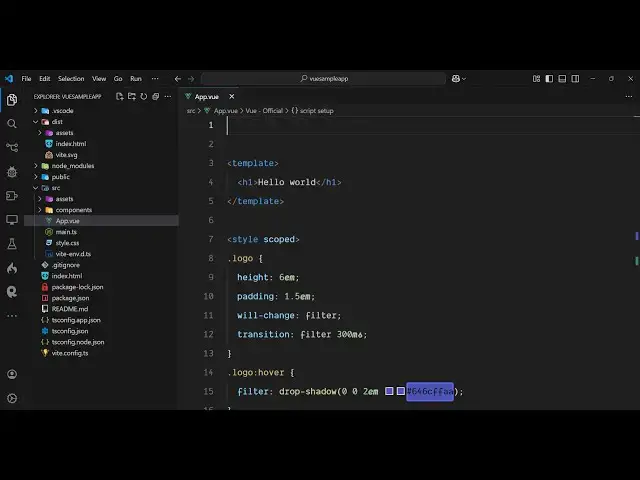
just open it fold project in the vs code
1:29
so this is your simple vew js3
1:32
application and in typescript so we have
1:35
the sample app. view file
1:39
and we are using the latest version of
1:42
UJS which is at the time of recording
1:44
this video is
1:47
35.13 so
1:50
now we if you want to deploy this
1:54
application we first of all run this
1:57
project locally here so npm run this
2:00
will start the local development server
2:02
so if you visit Local Host
2:05
5173 you will see the application is
2:07
perfectly working and uh now to deploy
2:11
this website we need to build this
2:13
project here so there is a command to
2:15
build this project npm run build so just
2:18
execute this command on the command line
2:21
so npm run build so this will create a
2:25
disc folder you will see on the left
2:27
hand
2:28
side so we now just need to upload this
2:32
disc folder for deployment right here so
2:34
just go to the netlify
2:36
dashboard and uh right here you need to
2:40
select that disc folder so simply select
2:44
go to the
2:49
location so just select this entire disc
2:52
folder click on upload and upload this
2:55
entire folder so it will give you a
2:58
notification once the upload is complete
3:01
so now if you see the app is
3:02
successfully deployed it has given the
3:05
notification
3:10
so it has given a this URL
3:14
here so if you visit this URL you can
3:17
see the app is successfully deployed you
3:19
can see the app is perfectly working so
3:21
if you make some kind of changes right
3:23
here so if I let's
3:25
suppose uh in the template here
3:30
I replace this with a Hello World
3:34
message so simply delete
3:39
this so again we just need to run the
3:42
npm Run build command so it will build
3:45
this entire project with those modified
3:47
changes so once again you just need to
3:49
repeat this process go to that uh deploy
3:53
section and right here need to update
3:56
your s so again browse that disc folder
3:59
click on
4:00
upload so it will redeploy the project
4:03
with the modified changes so now the
4:06
project is deployed so if you refresh
4:09
now you will see the project is updated
4:12
hello world so in this easy way guys you
4:16
can simply deploy the view3 application
4:19
and if you want to change the name of
4:21
the website you can go to the site
4:23
configuration and just click this button
4:25
change site
4:27
name and here you can give a customize
4:29
name let's
4:30
suppose geeki
4:33
goam and click on save
4:36
so if the name is available then the app
4:39
will be deployed so if you see the name
4:42
is
4:42
[Music]
4:43
changed netlify DOA so this is your
4:46
customized name so this is the very
4:49
standard way of uh deploying your
4:52
application to netlify you simply build
4:55
the project and then simply upload this
4:57
dis directory
5:01
so this was a tutorial so thank you very
5:03
much for watching this video and also
5:06
visit my website free medat tools.com uh
5:09
which contains thousands of tools
5:10
regarding audio video and image and I
5:13
will be seeing you in the next video
#Web Design & Development
#Development Tools
#Other