Up next in 10


Get the full source code of application here:
Show More Show Less View Video Transcript
0:00
Uh hello guys, welcome to this video. So
0:02
in this video, I'll show you a command
0:04
how to create a folder or directory
0:06
inside your Windows using on the
0:09
terminal itself. So if for some reason
0:11
you can't right click and create a new
0:14
folder from here, you can just use your
0:16
terminal. Just go to the location where
0:19
you need to create a folder. Let me want
0:22
to create a folder here. So just open
0:24
your command line here
0:27
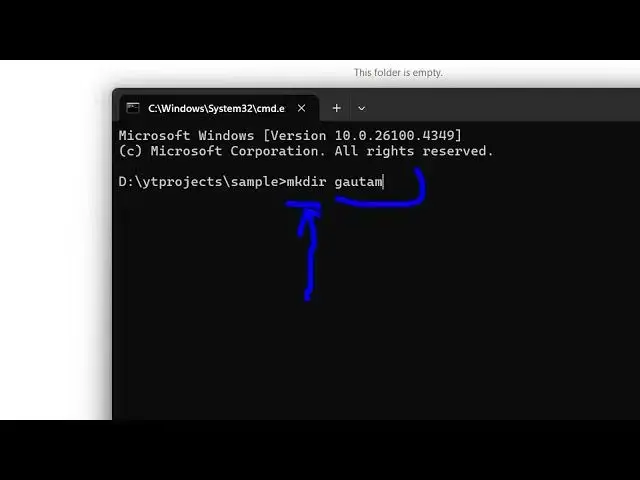
and right here there is a command here
0:29
which is make directory mkdir.
0:33
Simply type this command and then
0:35
followed by your folder folder name. So
0:37
let's suppose I want to create a folder
0:40
name as this one.
0:43
So mkdir it's also called as make
0:46
directory and space whatever is your
0:48
folder name and just enter it. And now
0:51
you will see it will create this empty
0:53
folder with this name. You can create as
0:55
many folders as you want just using
0:58
these commands. So if for some reason
1:00
you can't create it from here, you can
1:02
use your terminal to create new folders
1:05
really easily. So this will fix your
1:07
issue inside Windows directly. Use this
1:10
command on the terminal mkdir followed
1:13
by the folder name. So you can see that.
1:16
So, thank you very much for watching
1:18
this video and also check out my website
1:20
freemediattools.com
1:22
uh which contains thousands
#Software
#Software Utilities