Up next in 10


Get the full source code of application here:
Show More Show Less View Video Transcript
0:00
Uh hello guys, welcome to this video. In
0:02
this video, I'll show you how to check
0:03
the XAMP Apache control panel version
0:06
number directly in the terminal. So,
0:08
XAMP as you all know it's a software
0:10
which runs PHP and MySQL.
0:13
So, it is actually in Windows actually
0:16
you need to go to this button right
0:19
here, help button and right here it will
0:22
exactly tell you which version you're
0:24
using right here.
0:27
So on other platforms this is the
0:30
command you so go to the terminal and
0:33
simply execute this command exam-
0:35
version and after that it will tell you
0:37
the exact version you're using but on
0:40
Windows you just need to launch this
0:42
software and simply go to the help
0:45
section.
0:46
Uh right here you it also tells you
0:49
right in the ki itself this is the
0:52
version number you're using which is
0:53
3.3.0. zero.
0:57
So in this easy way you can keep track
1:00
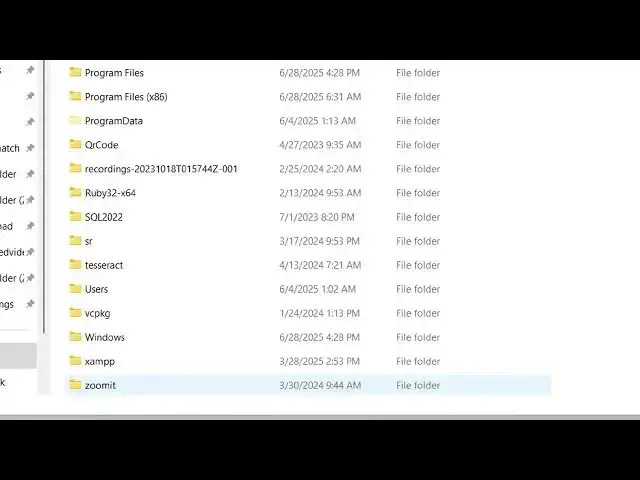
and the location it al by default it is
1:04
stored inside your C directory and it
1:06
creates this folder called as exam and
1:09
here all the exam related files are
1:11
stored. So this is inside your HD docs
1:14
folder you actually create
1:18
and you start this Apache server. Simply
1:20
click the start button
1:23
and then you access it by simply typing
1:26
it local host here and then your actual
1:30
exam welcome page open. So in this easy
1:32
way you can keep track of exam the
1:36
version number and location as well.
1:38
Also check out my website
1:40
freemediatols.com
1:41
uh which contains thousands of tools.
#Programming
#Software