Up next in 10

👉 Google Chrome Extension – One Click YouTube Video Screenshot Tool No Extra Software
Aug 20, 2025

Get the full source code of application here:
Show More Show Less View Video Transcript
0:00
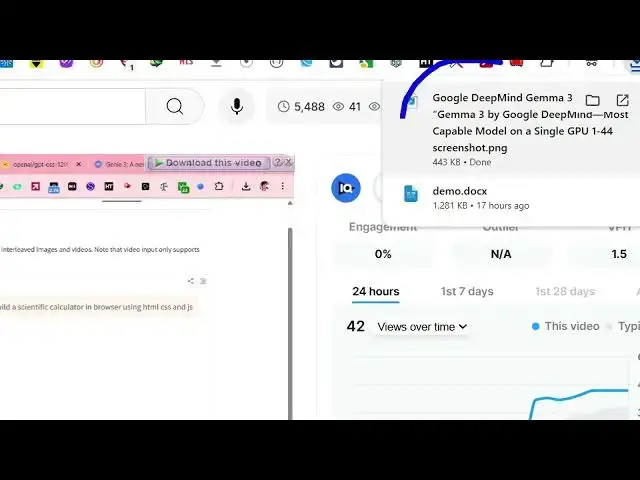
Uh hey guys, welcome to this video. So
0:02
in this video, I'll show you a Google
0:03
Chrome extension which will
0:04
automatically take the screenshot of a
0:07
particular YouTube video at a particular
0:09
time as well. So if you just type in the
0:11
search bar screenshot YouTube. So this
0:15
is specifically made for YouTube videos
0:17
and this is a very popular extension.
0:19
Almost 4,000
0:21
developers are using this. Simply click
0:24
add to chrome and after that it will
0:26
embed this button right in the video
0:29
itself in the video player and at any
0:32
time once it activates you simply
0:34
activate this extension.
0:37
So it will appear something like this.
0:40
And now you go to a video and uh you
0:43
just need to activate this.
0:47
Just refresh the video after you
0:49
activate this. And now you will actually
0:52
see this button appearing in right in
0:54
the video itself in the video player.
0:56
You simply click this button to take the
0:59
screenshot.
1:03
So simply click this button and now it
1:05
taken the screenshot at this particular
1:07
moment of time and automatically
1:09
download the image for you. So you can
1:11
just see you can go to any part in the
1:14
video. Simply navigate and just click
1:17
this button screenshot.
1:20
Activate this first of all. Not this is
1:22
for auto play. This is different. So
1:25
this button will appear. Simply need to
1:27
click this button and again it will take
1:29
the screenshot automatically download
1:31
this inside your machine. So it's a very
1:33
useful extension because for making
1:36
thumbnails for getting the images at
1:38
particular locations in my YouTube video
1:40
to actually take a snapshot or
1:42
screenshot of a YouTube video. So this
1:45
is very easy. Simply navigate to any
1:47
section in the video and simply tap on
1:49
the screenshot button to download the
1:52
image. So it's a very useful extension.
1:55
Definitely try installing it and it's a
1:58
free extension. No need to pay anything
2:01
and simply install this and then it just
2:04
embed this button right here right in
2:07
the video player itself. So you can
2:09
navigate to any section just click
2:11
screenshot and then automatically the
2:14
image a highly full HD image is
2:17
downloaded for you. You can see that. So
2:20
definitely try this extension. It saves
2:23
me a lot of time because I no longer
2:25
need to download the thumbnail. You can
2:28
simply from the video itself. You can
2:31
take the screenshot with a single click.
2:35
So definitely check out this extension.
#Consumer Electronics
#Video Sharing