Up next in 10


Buy the full source code of application here:
Show More Show Less View Video Transcript
0:00
uh hello guys uh welcome to this video
0:02
so in this video I will show you how to
0:04
cut uh a video from starting duration to
0:08
ending duration in ffmppg very easily
0:11
inside your command line so if you have
0:13
a video that you want to cut or trim a
0:17
specific portion of a video if you have
0:19
a very long video that you want to
0:21
specifically cut a portion of the video
0:22
to create a new video so I will show you
0:25
ffmpg command uh how we can do that so
0:29
inside command line very easily so just
0:31
open the command line and just I have
0:34
this in video file if you see
0:37
1.MP4 and it's
0:39
exactly if I open this video
0:44
file it's exactly 2 minute 9 seconds so
0:49
let's suppose I want to cut specific
0:52
portion inside this video from starting
0:55
duration we will provide the starting
0:57
time to the ending time
1:01
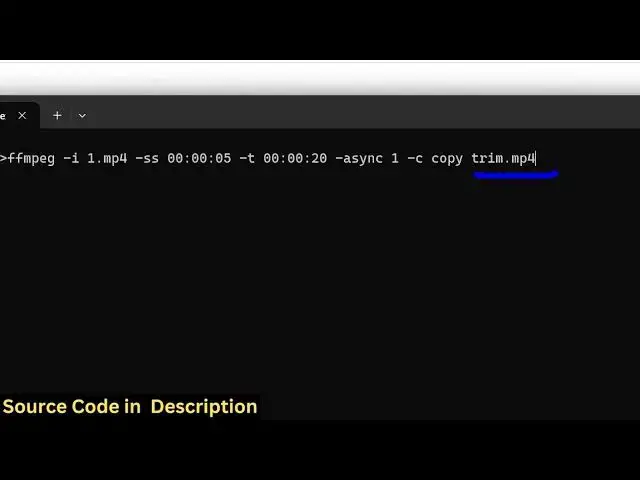
so so in the command it's very easy so
1:05
we specifically write here just write
1:08
ffmppg dash i we providing the input
1:11
file name right here fmpp i after that
1:14
we just need to provide the name of the
1:16
file here so in this case name is
1:19
1.mpp4 so we specifically provided the
1:22
name here after that we just need to
1:24
provide the starting duration which is
1:27
provided by this flag here - dash SS
1:30
which stands for starting duration and
1:32
here we need to provide from which
1:34
duration you want to cut the video so
1:37
you can just provide this format here 0
1:40
0 colon and uh 0
1:43
0 so let's suppose I want to cut the
1:46
video from the fifth se second here this
1:49
is the time period that I provided this
1:51
is the starting duration and then here
1:54
we need to specifically tell dash
1:58
t this dash t after that we need to
2:02
provide the ending duration
2:06
so here we again provide the ending
2:09
duration this is same right here
2:13
so we are providing this starting
2:16
duration here 00 col 0
2:19
05 so this is cutting from the first 5th
2:23
second here and it is the ending
2:26
duration is the 20th second so the total
2:30
length of the video will be 15 second
2:33
and after
2:34
that we just need to write here dash
2:38
async
2:40
1 and dash copy so this is actually we
2:45
are not encoding the video we are just
2:47
copying the settings of the original
2:49
video we are not re-encoding the video
2:51
we just we are just cutting the video so
2:54
this will take a very short amount of
2:57
time and after that we just need to
3:00
provide the output file name so let me
3:02
call this as
3:05
trim.mpp4 so this is the overall command
3:08
here so you can just pause the video and
3:11
again look this command and just press
3:14
enter right here and after you press
3:16
enter you will see a new video file will
3:18
be created in the same directory and if
3:21
you see if I try to open this total
3:24
length of the video will be 15 second
3:27
and it
3:30
is so you can see the total length of
3:34
the video
3:36
is 20 second you can see
3:40
that so the video has been successfully
3:43
cut from the starting duration to the
3:45
ending duration so this is the actual
3:48
fmpp command i have given the command in
3:51
the description of this video i have
3:53
linked this tag overflow.com article
3:56
where you can read more about this
3:58
command where they have
4:00
explained each option of this command in
4:03
detail so in in a nutshell you can just
4:06
see you can just uh see this command
4:09
right here
4:10
it's a very simple command you can just
4:13
uh memorize this command here we provide
4:15
fmpg- I the input video then we provide
4:19
the starting
4:21
duration then we provide the ending
4:23
duration and then we are simply uh
4:26
copying the encoding settings then we
4:28
provide the output video so this will
4:30
actually cut the video file and simply
4:33
create and this will work with all the
4:35
extensions so we are working with MP4 so
4:38
you can just provide any extension
4:41
mkv
4:43
avi so it's a very simple command so
4:47
thank you very much for watching this
4:48
video and uh also check out my website
4:52
freemediatools.com
4:54
uh which contains thousands of tools
4:57
regarding audio video and image
#Programming
#Multimedia Software