Up next in 10


Get the full source code of application here:
Show More Show Less View Video Transcript
0:00
Uh hello guys, welcome to this video. So
0:02
in this video, I'll show you a VS code
0:04
extension which allows you to keep track
0:07
of how much time you basically are doing
0:09
coding right inside your VS code. So
0:11
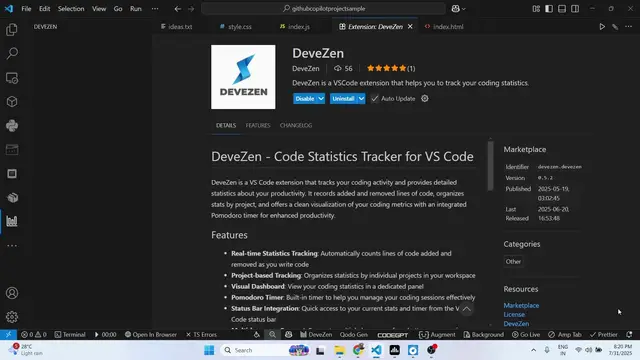
this is the extension dev zen. It's
0:15
fairly new extension. Simply activate
0:18
this and after activating this
0:20
extension, it will tell you the realtime
0:22
statistics about your development, how
0:25
much time you are doing. Now you can
0:28
open this panel. Uh first of all just
0:31
log
0:34
with this.
0:36
So here you just need to login with your
0:39
GitHub account.
0:46
So,
0:52
so after logging inside your GitHub
0:54
account, you will see.
0:58
So, login is successful. So, now it will
1:00
tell you the weekly, monthly, yearly
1:03
statistics how much time you are
1:05
actually uh consuming VS code by writing
1:09
code here. So current streak it will
1:12
tell you the amount of minutes right
1:14
here it will show side by side lines
1:17
added lines removed net lines everything
1:21
total statistics will be displayed right
1:23
here so it is a very useful VS code
1:25
extension it will exactly tell you how
1:27
much time you are visiting your VS code
1:30
so how much code you are writing so
1:32
every statistics it will be showing you
1:39
so as you can See
1:54
so you can see current streak. It will
1:56
show you the amount of minutes.
2:02
So it's a fairly good extension. You can
2:06
see it is telling you amount of time you
2:09
visited 24 second.
2:20
So definitely install this extension
2:23
guys which keep you track about your
2:25
coding statistics and also check out my
2:28
website freemediattools.com
2:31
uh which contains thousands of tools.
#Jobs & Education