Up next in 10

Build a React.js PDF Editor to Render & Export PDF Pages to PNG Images Using react-pdf in Browser
Jun 3, 2025

Get the full source code of application here:
https://codingshiksha.com/react/build-a-react-js-pdf-editor-to-render-export-pdf-pages-to-png-images-using-react-pdf-in-browser/
Watch My Visual Studio Code IDE Setup Video For Fonts,Themes & Extensions
https://youtu.be/Bon8Pm1gbX8
Hi Join the official discord server to resolve doubts here:
https://discord.gg/cRnjhk6nzW
Visit my Online Free Media Tool Website
https://freemediatools.com/
Buy Premium Scripts and Apps Here:
https://procodestore.com/
Show More Show Less View Video Transcript
0:00
uh hello guys uh welcome to this video
0:02
so in this video I will show you uh how
0:04
to convert your PDF into uh images
0:08
inside your react CH application so I'm
0:11
running this application or locally here
0:13
if you see we have a simple input field
0:16
where we allow the user to Simply select
0:19
a PDF file as soon as they select the
0:22
PDF file the PDF file will display all
0:24
the pages here this is the first page
0:27
you can see
0:28
that this is a second page so it
0:31
actually shows the all the pages here
0:33
you can successfully read the PDF file
0:36
and also it actually contains a button
0:38
right here convert all your pages into
0:41
images as soon as you click this button
0:44
it will actually take the snapshot or
0:46
the screenshot of each PDF page and
0:48
convert this into a images so this is
0:52
Page One screenshot page two page three
0:55
so for each page we have a download PNG
0:58
button right here so at the bottom side
1:00
so if you want to actually convert any
1:03
page to a image you simply click this
1:05
button so as soon as you click the
1:06
button the PNG file will be downloaded
1:09
so this is your actual page screenshot
1:12
taken and downloaded as a PNG file so
1:16
you will see that you can see the
1:18
quality of the
1:19
image so it's a single page application
1:23
which runs in the browser it allows you
1:25
to read the PDF file or convert pages
1:28
into images each page is actually having
1:33
this button right here download PNG so
1:36
as soon as you click it your page will
1:38
be converted to a image file so this is
1:41
actually a react Chase application and
1:44
we are using a package here specifically
1:48
built for react
1:50
CH which works with the PDF file so if
1:53
you go to npmjs just search for this
1:56
package which is react PDF
2:03
so we are using this package here react
2:05
PDF it actually displays PDF in the
2:08
browser it's almost got 1 million weekly
2:10
downloads so the command is very simple
2:13
you simply execute this command
2:16
here and uh now I will actually show you
2:21
how to make this application so all the
2:24
source code is given in the description
2:25
of this video so you can check out the
2:28
source code in the description of this
2:29
video video so I will start from scratch
2:32
just make a simple functional component
2:34
right here and first of all we will
2:37
import the packages we will need which
2:40
will
2:45
be this will be coming from react
2:49
PDF and also we will be importing this
2:52
PDF JS coming from react
2:56
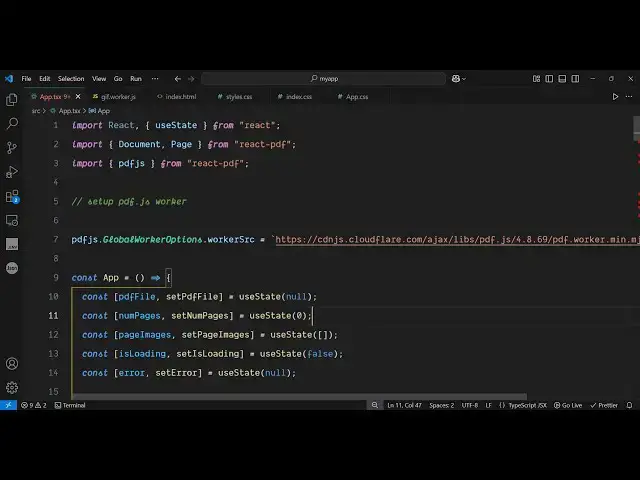
PDF so we actually added these two
2:58
import lines right here importing the
3:01
packages and after that we just need to
3:04
set up uh right
3:07
here the PDF JS worker so right here we
3:10
simply say
3:12
pdf.js uh Global worker options
3:17
dot worker source and here you need to
3:21
specify the CDN of
3:24
uh
3:28
the actual
3:31
thing that you will be using so WR
3:33
inside
3:35
this so we using this PDF JS worker CDN
3:39
right
3:41
here and after constructing it now for
3:44
the application we will declare some
3:46
variables so the very first variable
3:49
will be the PDF
3:52
file for this we will be using the U
3:55
State hook initial value will be
3:58
null and then for storing the number of
4:01
pages value will will declare another
4:04
variable initial value will be zero then
4:08
for actual storing the images you will
4:11
be storing it inside this array use
4:15
State initial array will be
4:17
empty and then we will also be showing a
4:20
loading
4:23
screen initial value will be false use
4:29
state Boolean false and lastly if any
4:32
sort of error take place for showing
4:34
that error message we will also be
4:37
having a UST State variable initial
4:40
value will be null for the error so
4:42
these are all the variables guys that we
4:45
have declared for this
4:47
application PDF file number of
4:50
pages this is the page
4:53
images loading error
5:06
so now we come to the jsx part right
5:09
here and for building this Ive already
5:11
included the CDN of Tailwind CSS so go
5:15
to your index. HTML I've already pasted
5:18
the Tailwind CSS CDM so we'll be using
5:20
Tailwind CSS for the user interface so
5:24
right inside your
5:26
j6 we
5:28
will include some tail bin classes
5:32
padding
5:35
six so this video is not about tail so
5:38
I'm just using it for the user
5:40
interface so give it a H1 heading which
5:44
will be PDF to image
5:56
converter so right here
6:00
I will paste this HTML you will get all
6:03
the source code in the description so
6:05
where we actually have a select PDF file
6:08
so here we allow the user to Simply
6:10
select a PDF file and we binded this on
6:14
change event handler so whenever user
6:18
changes or select any PDF file this
6:21
function will execute handle file change
6:24
now we just need to Define this function
6:27
which will be handle file change e
6:29
parameter will automatically get
6:32
passed so if you try to open this
6:35
application Local Host 5173 you will
6:38
actually see this uh input file choose
6:40
file
6:41
button so now as soon as you read the
6:45
file this function will execute so now
6:48
inside this function what we need to do
6:50
we need to read the file PDF file so you
6:54
can easily do this e. target. files zero
6:58
and here you'll be specifying if the PDF
7:01
file extension is equal
7:05
to application SL PDF if it's a PDF file
7:10
then only we need to process it so you
7:12
be setting the PDF file to the actual
7:14
file using this hook function and set
7:19
page images to be an empty
7:24
array and we will set the error to be
7:27
nothing so we are using using all these
7:30
hook functions we are setting this PDF
7:32
input PDF file setting page image to Mt
7:37
and setting error to
7:40
null so if the PDF if the file is not a
7:44
PDF then we will set the file set the
7:47
PDF file to be
7:49
null and we just set error message that
7:53
please
7:55
select a valid PDF file
8:00
so after
8:03
this we again come to the jsx right
8:09
here so after this if any sort of error
8:13
take place we we can simply display this
8:16
error message conditionally using
8:19
jsx so if error is defined then we are
8:21
displaying this error message inside
8:24
Codi bracket so now what happens if you
8:27
actually
8:31
select any other file which is not a PDF
8:35
file you will get this error message
8:36
please select a valid PDF file so now we
8:39
only need to select PDF file so after
8:43
when once we select the PDF file we now
8:45
need to display that PDF file in the
8:49
application for displaying it we will
8:51
again be rendering this logic if the PDF
8:54
file variable is there then inside this
8:59
we will
9:04
display use some Tailwind classes right
9:07
here so we are conditionally checking if
9:09
the PDF file variable is set because we
9:13
here we set this variable so we are
9:15
accessing this
9:17
value so if the PDF file variable is set
9:21
in that
9:23
case after this we will have an H2 tag
9:26
which will say PDF preview
9:29
and for this we will be using this
9:35
component here we actually imported this
9:37
document here which is coming from react
9:39
PDF so it actually it's a part of this
9:42
Library so here it actually takes uh
9:46
file as an attribute and here we need to
9:48
specify PDF file it also takes
9:52
onload success as a call back function
9:55
so once the PDF file automatically loads
9:59
successfully this call back function
10:01
will
10:02
execute and if any sort of error take
10:05
place then we can display some kind of
10:08
error message to the user that error has
10:11
taken place so we can actually display a
10:15
error message
10:30
so we are passing these three properties
10:32
here the input file that needs to be
10:34
displayed onload success and error so if
10:39
you refresh now what
10:42
happens you now need to display on
10:45
document load success function so we
10:47
just need to Define
10:54
this so right inside this function what
10:57
this function will do it will actually
11:03
hold the number of pages automatically
11:05
this value will be passed here number of
11:08
pages and here we will be setting this
11:11
number of pages using the hook
11:14
variable function and pass this number
11:17
pages so this Pages value will
11:20
automatically be passed in this uh
11:22
function so we are setting
11:26
this so you have setting this using this
11:28
hook function
11:30
how many pages are there in the PDF so
11:32
after doing this it becomes very much
11:35
easy for displaying the PDF file so
11:39
right
11:40
here we will
11:43
simply use this function array
11:47
from new array and we'll be constructing
11:50
it from this number of
11:54
pages and like this
11:59
and we will be looping
12:11
through so you'll be displaying each
12:13
page right here using this
12:23
code just all this source code is given
12:26
in the description guys you can
12:33
so this you need to do
12:35
inside so let me format this and explain
12:39
to you what is happening so we are
12:41
looping through this array right here
12:42
and how many pages are there this value
12:45
will pass here and it will be running
12:48
for each page here so we are attaching
12:51
this dwin classes and right here we are
12:54
using this page component which is
12:56
coming from this package which is react
12:58
PDF so you can see for displaying or
13:00
rendering each page in the PDF file we
13:02
are passing these four parameters which
13:05
is the page number render text layer
13:08
render annotation layer scale you can
13:10
control so now what happens if you
13:13
select any PDF file right here uh you
13:16
will see each page will be displayed
13:19
this is your first page second page it
13:22
can it calculates the total number of
13:24
pages and then displays each page in the
13:28
browser now what we need to do we need
13:30
to render out a button so that we can
13:32
convert all the pages to images right
13:36
after this document right here we will
13:39
have a condition first of all that if
13:41
the number of pages have been rendered
13:44
if it's greater than zero then only run
13:46
this
13:48
code and for this you'll be rendering a
13:52
simple button which will simply say to
13:54
the
13:57
user let attach all the Tailwind classes
14:00
so right here this button if you
14:03
see if the button is loading then we
14:06
will simply change this text to
14:08
converting if the button is not loading
14:10
then we'll say convert all pages PDF
14:12
pages to images convert all pages to
14:16
images so here we are attaching this on
14:18
click listener to this button so as soon
14:20
as we click this button we need to now
14:22
Define this function convert pages to
14:24
images so right here inside our
14:28
JavaScript we actually Define this
14:30
function
14:32
convert pages to
14:39
images so this is a main function so
14:43
just make this function as
14:45
async we will be using the weight
14:47
keyword right here so we'll be writing
14:49
all the code in a try catch
14:54
block first of all we'll make this
14:56
loading screen go away set is loading we
14:59
will set it to true we will show the
15:01
loading screen and then after that we
15:03
will start the processing set page
15:06
images we will reset this to an empty
15:10
array and then we'll be creating an
15:12
images array which will be empty by
15:15
default and then we'll be using a for
15:17
Loop and we will be starting the loop
15:20
from page number one and this Loop will
15:24
go
15:25
until the total number of pages so num
15:30
pages and then it will
15:33
increment page num Plus+ so this is your
15:37
for Loop and inside this we will wait
15:40
for the page to render so we'll be using
15:43
this
15:44
promise so once the page is rendered
15:47
this will
15:50
resolve using the set timeout function
15:54
and
15:56
after
15:57
one
16:02
millisecond then after the page is
16:04
rendered we will take the screenshot for
16:07
taking the screenshot we use the
16:09
document. query
16:10
selector and here we basically Target
16:15
the ID of
16:18
the each page has given this ID in the
16:21
HTML so we just targeting it with
16:23
document. query
16:26
selector canvas so so after doing
16:30
this we
16:32
actually inside this if condition that
16:35
if the
16:36
canvas is defined then we need to
16:38
convert this canvas to image for this we
16:41
use this two data URL function which
16:44
will construct the base 64
16:47
code where we specify the MIM type right
16:50
here so this will convert the canvas to
16:53
an image this is the main function and
16:56
after that we push the image to to the
16:59
images
17:01
array passing the page number and the
17:03
actual
17:05
image after we do this after we come out
17:09
of this
17:10
Loop we basically do this for all the
17:13
pages once the loop finishes we actually
17:16
re
17:17
reset we set the set page images
17:22
function to be the
17:26
images and set is loading we will set
17:29
reset to false we will hide the loading
17:32
screen so if any sort of error take
17:35
place inside the cat block we will
17:38
actually set
17:41
this if any sort of error tape
17:46
please
17:51
so now what we need to do we need to now
17:53
show these
17:55
images so for showing the images
18:01
inside your jsx after this button right
18:07
here because if you select now if you
18:10
check out your application just select a
18:12
PDF file just render downwards you will
18:16
see this button right here so as soon as
18:17
you click this button it will change to
18:20
converting and now we need to show the
18:23
images for showing these images we come
18:32
after this
18:34
div basically inside page
18:38
images length if the images length is
18:41
greater than zero then only we need to
18:43
display these images so here we are
18:46
comparing it if the images
18:49
array is exist if it's greater than zero
18:52
then only display this jsx code so right
18:56
here
19:01
this would be the code here you can
19:03
basically find all the source code guys
19:05
is given in the
19:08
description so what this code will do it
19:10
will render out all the
19:18
images so here for this we are using a
19:21
for each
19:24
Loop so we are using the map function
19:27
for each page we are showing this uh
19:31
image right here we are attaching this
19:33
Source image we are attaching all the
19:35
Tailwind classes right here for each
19:37
page we are putting this download PNG
19:40
button right here at the bottom side of
19:42
each page and
19:46
uh we are executing this function
19:48
download image so now we just need to
19:51
Define this function download image
19:53
inside our
19:55
JavaScript so right here we Define this
19:58
is download image
20:01
function which will actually contain the
20:04
actual page
20:08
number the actual image and the page
20:10
number so data URL and the page
20:15
number so this function will just create
20:18
a simple anchor tag
20:20
dynamically and download the image and
20:22
as an attachment so it's very simple
20:25
code we create this anchor tag we
20:27
attaches this data L to the link
20:30
ATF then we download the
20:33
image append this to the body click it
20:37
and then remove it so this is entirely
20:39
your application guys uh if
20:43
I reload select now a PDF file now you
20:49
can see the PDF is displaying with live
20:52
preview and uh then at the bottom side
20:55
we see this button convert all pages to
20:58
images so as soon as you click the
20:59
button you will see all your pages will
21:03
be converted it will be displayed a
21:06
download PNG button for each page and
21:08
now individually you can click any page
21:11
download PNG you will see your page will
21:13
be exported to an image PNG image file
21:17
so you can see the quality of the image
21:20
it's taken the screenshot so in this way
21:23
guys you can use this react CH
21:26
application which is built entirely
21:27
using this package react PDF uh thank
21:31
you very much for watching this video
21:32
all the source code is given in the
21:34
description of this video and also check
21:37
out my website free mediat tools.com
21:39
which contains thousands of tools
21:41
regarding audio video and image and I
21:43
will be seeing you in the next video
#Programming
#Software