Up next in 10

Build a Canva PDF Editor to Annotate & Edit PDF in Browser Using PDF-LIB in HTML & Javascript
Jun 25, 2025

Buy the full source code of the application here:
https://procodestore.com/index.php/product/build-a-canva-pdf-editor-to-annotate-edit-pdf-in-browser-using-pdf-js-pdf-lib-in-html-javascript/
Official Website:
https://freemediatools.com
Show More Show Less View Video Transcript
0:03
uh hello guys uh welcome to this uh live
0:05
stream so in this live stream I will
0:07
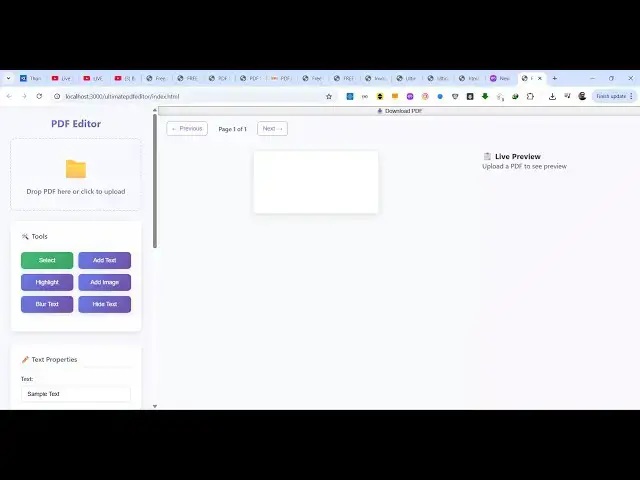
show you a PDF editor sim similar to
0:11
Canva that I developed on my website
0:13
freemediatools.com
0:15
it's a ultimate PDF editor used for
0:17
annotating or editing your PDF files
0:19
directly in the browser itself and uh if
0:23
you go to this you will find out this is
0:26
the tool here ultimate PDF editor tool
0:29
and the interface looks like this the
0:31
user interface here you can drag and
0:33
drop or simply select your PDF file that
0:36
needs to be edited you will simply
0:38
select let me select a sample PDF file
0:42
as soon as you select this the PDF file
0:45
will display this live preview of each
0:47
page and we have these controls to go to
0:50
the previous page or next page so only
0:53
two pages are there so we this is a
0:56
previous next page and then on the left
0:58
hand side you see all these controls for
1:01
adding text adding images annotating
1:04
highlighting blurring path hiding text
1:07
if I click add text you have different
1:09
properties here you can put your
1:13
logo right here free media tools
1:17
so all the source code will be given in
1:19
the description of the video you can
1:20
directly purchase the full source code
1:21
of this project
1:23
and then you can also select the color
1:26
of the text as well so as you can see
1:29
the text is added you go to the second
1:31
page again you add the watermark then we
1:34
have the download PDF button to download
1:36
the output PDF so you can see how easy
1:39
it is we have added our watermark
1:42
very easily you can even control the
1:44
opacity as well
1:52
can control the font size just need to
1:55
click on that location that text will be
1:57
automatically added then we have the
1:59
second tool for adding images so once
2:02
you click add image
2:05
same you need to first of all select
2:07
your image
2:11
i select the image and then I click on
2:14
the location so that image will be added
2:17
you go to the
2:22
next page here
2:25
the image is added then we also have the
2:28
annotate or highlight tool as well
2:29
simply click it and just select it using
2:32
your mouse that text will be highlighted
2:34
you can change the highlight color as
2:36
well using this picker as well
2:40
you can see that
2:43
if you download this you will see
2:47
all this highlighting is successfully
2:49
exported so uh I have used a open-source
2:53
package for building this PDF editor PDF
2:56
lip so almost 1,00 lines of code is
2:59
there so once you purchase it you will
3:01
get this index.html file which is needed
3:05
for this it is easily editable you can
3:07
easily modify the source code once you
3:09
purchase it uh you will get to know how
3:12
I coded this so it's a long project but
3:16
uh it is using this PDF lib library and
3:19
also it is using Mozilla PDFJS library
3:21
as well
3:24
so if you're interested first of all try
3:27
out this tool on the checkout page I've
3:29
given the demo link go to this URL try
3:32
out this tool if you are interested then
3:34
you can purchase it and uh PDF lib is a
3:38
library here it's a JavaScript library
3:40
for editing your PDF files directly in
3:42
the browser we have used this and also
3:46
we have used this as well PDFJS which is
3:49
a Mozilla based PDFJS library used for
3:52
viewing your PDF files directly in the
3:54
browser so these two packages we are
3:57
using and we can even blur out specific
4:00
text if you just click it
4:04
simply first of all refresh
4:06
let me take let me show you the blur
4:09
tool you simply select blur tool and
4:12
then select the text it needs to be you
4:14
can see it will add this blur you go to
4:18
the second page blur out this section
4:21
you have the hidden text as well too so
4:23
if you want to hide something it will
4:25
add this black background
4:29
we have the add text as well you can
4:32
and then we have the download PDF button
4:34
so all these changes will be reflected
4:36
back so this is the ultimate PDF editor
4:39
similar to Canva developed entirely
4:41
inside the browser HTML CSS and
4:44
JavaScript so you can purchase the full
4:46
source code of this project the link is
4:48
given in the description uh thank you
4:51
very much for watching this video