Up next in 10

Build a Angular Google OAuth2 One Tap JWT Login Using ngx-one-tap Library in Browser Using TS
Jan 21, 2025

Get the full source code of application here:
https://codingshiksha.com/angular/build-a-angular-google-oauth2-one-tap-jwt-login-using-ngx-one-tap-library-in-browser-using-ts/
Hi Join the official discord server to resolve doubts here:
https://discord.gg/cRnjhk6nzW
Visit my Online Free Media Tool Website
https://freemediatools.com/
Buy Premium Scripts and Apps Here:
https://procodestore.com/
Show More Show Less View Video Transcript
0:00
uh hello guys welcome to this video so
0:02
in this video I will show you uh how to
0:04
implement One Tap authentication of
0:07
Google inside angular application so on
0:10
your screen right here we have having
0:12
this on the right hand corner of the
0:14
screen we have this Google login screen
0:17
appearing
0:18
and we see the currently logged in
0:21
account so you can click this button as
0:25
soon as you click the button right here
0:27
the authentication will happen and you
0:29
will see the profile details of the user
0:32
which is the profile picture username
0:34
and email address so there is a specific
0:38
package which allows you to do this one
0:41
tape authentication inside angular
0:44
specifically made for react CH or sorry
0:46
angular application so if you go to
0:48
npmjs.com uh the package name is ngx one
0:53
tap so if you just search for this uh
0:57
the very first package which comes is
1:04
so you just type ngx one
1:12
tab so this is actually the package so
1:15
you just need to install it so I've
1:17
already installed it by the npm command
1:19
so ngx one
1:22
tap so just install
1:26
this so I have also given a detailed
1:29
block post where I written step byep
1:32
instruction and given all the source
1:33
code you can check the description link
1:36
so now to get started the very first
1:38
step I will show you from scratch so let
1:40
me delete everything and start from
1:44
scratch so let me just
1:46
delete
1:51
everything so if you refresh your
1:53
application now just go to Local Host
1:56
4200 you will see we are starting it
1:59
from scratch so you need to go to first
2:02
of all app. module. Ts file so to
2:05
register this module so just go to this
2:08
file and just import this module so we
2:11
simply add the import statement which is
2:15
ngx one
2:17
tap module and it will be coming from
2:20
this package ngx One Tap so you require
2:24
this it's 13.72%
2:30
and just add this line here
2:35
ngx and it contains this config and it
2:39
actually takes an object which contains
2:41
three properties first of all you need
2:43
to pass the client
2:45
ID which is Boolean
2:48
parameters Auto
2:50
Select now to get this client ID you
2:53
need to register a account in Google
2:56
Cloud console so
3:00
let me show you how to get that client
3:02
ID so go to Google Cloud console and
3:07
uh uh just create credentials so go to
3:10
credentials
3:15
option and click on this create
3:17
credentials and o or client ID so once
3:20
you click
3:21
it let me show you how to do this
3:29
so as soon as you click it
3:33
this application type you need to select
3:35
web application and in the authorized
3:38
JavaScript Origins you need to add the
3:40
URL on which you are making your
3:42
applications so we are developing it on
3:44
Local Host
3:46
4200 so just type the full URL and also
3:50
you need to also write the HTTP Local
3:52
Host so both the
3:54
versions this one this one and in the
3:57
authorized redirect URI you need to
3:59
paste the same
4:02
URL with port number like this so after
4:07
you do this click on the create button
4:09
so now it will actually create your
4:11
client ID and it will give you this
4:13
simply copy to clipboard and simply
4:16
paste it right
4:18
here so now just close this file come to
4:21
your app. component.ts files so inside
4:25
this file you need to now declare
4:30
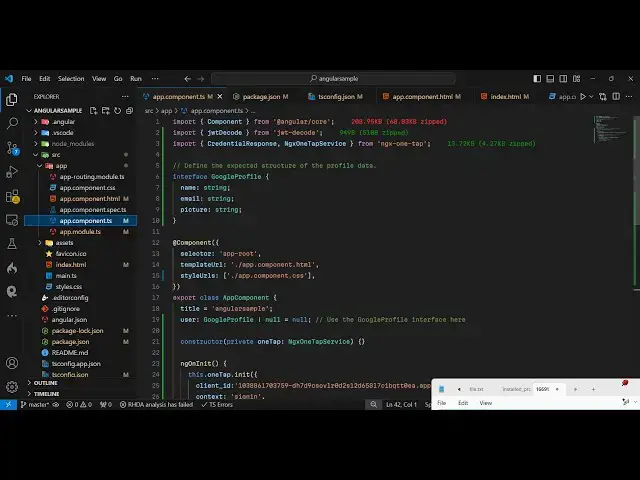
an interface so you'll simply declare an
4:33
interface right here so just make a
4:35
simple interface of uh Google profile
4:38
you can call this anything so this
4:41
interface will require three properties
4:43
name
4:44
email and picture all these will be data
4:48
type of string so declared a simple
4:50
interface which contains these three
4:53
properties and now we need to go to the
4:57
actual component and declare a user of
5:00
this type Google
5:02
profile and by default the value will be
5:06
null so we are using this interface
5:09
declaring an object or sorry variable
5:11
user currently the value is null here
5:14
we'll be storing the user profile
5:16
information and then in the Constructor
5:19
we need to
5:20
pass the
5:22
ngx one tap
5:24
service which will be imported from ngx
5:28
One Tap so
5:30
just it's empty Constructor we just need
5:32
to pass this and then we'll be using the
5:35
life cycle method ngx on in it this
5:38
executes as soon as your angular
5:40
application executes so right here we
5:43
will initialize this Google One Tap
5:45
authentication O So this contains this
5:49
init function so here you need to pass
5:51
your client ID again the context here
5:54
will be of sign
5:56
in so again you need to pass your client
5:59
client ID so just need to copy
6:03
this and simply paste it so this here
6:06
you pasting a client ID and after you do
6:12
this you simply need to call identity
6:17
dollar do
6:22
subscribe and this response will be
6:24
coming of credential
6:32
response and here you can console log
6:34
this response so this will contain the
6:37
Json web token uh if you refresh your
6:40
browser you will
6:41
see and the window will
6:45
appear uh I think this is not appearing
6:48
because we need to edit we need to edit
6:51
the component file here which is app.
6:53
component. HTML you need to render this
6:56
component to work so just declare
7:00
and declare this directive ngx One Tap
7:05
so just add
7:07
this so if you try to open this you will
7:10
see on the right hand side the window
7:12
the account screen will there so as soon
7:14
as you click it it will do the
7:17
authentication and now if you check the
7:19
console you will see this
7:23
uh so just need to refresh it
7:35
so I think if you your console logging
7:39
this
7:42
response now we need to decode this
7:45
response so for decoding it we need a
7:48
package so we are using this package JWT
7:54
decode so JW to decode it actually it
7:58
actually decodes the Json web token
8:01
which is there inside this response
8:08
variable
8:10
so have if condition that if response
8:15
credential then we need to get the
8:17
profile data we simply make a variable
8:20
profile data which will be of type
8:23
Google profile
8:30
so you use this function JWT decode and
8:32
we'll decode this response. credential
8:35
which will be coming and just you
8:38
console lock the profile data and store
8:41
it this. user profile data
9:04
so now we just need to display the
9:06
profile
9:08
information which is there inside this.
9:10
user you can directly go to the app.
9:13
component. HTML file right here and
9:16
embed this
9:22
data so we can add this NG if directive
9:25
that if the user is available then only
9:30
display this I will
9:32
change let me first of all
9:35
display the
9:40
image so user.
9:45
picture and then we display
9:55
our similarly we display user. email
10:01
so you're displaying all these three
10:02
details so if you refresh
10:20
now uh I
10:24
think all the source code guys I've
10:26
given in the description of this video
10:28
so
10:31
I think one thing I missed which is
10:37
credential I think I'm making some kind
10:39
of typ of mistake so what I will do I
10:41
will simply paste all this
10:45
code so you can go to the description
10:48
the link is given in the description of
10:50
Full Source
10:54
Code with step by-step instruction so
10:59
sometimes type of mistake will
11:06
happen so now you can see the profile
11:09
details are now appearing uh the picture
11:12
the username and the email
11:14
address so in the console also first of
11:18
all we get the Json web token credential
11:21
now we decode this and convert this into
11:23
the profile data object so all these
11:26
details are appearing if you see so we
11:28
are simply displaying these details in
11:29
the
11:30
browser so in this way you can do the
11:33
Google one tap authentication in angula
11:37
so as soon as you load the page it will
11:39
automatically detect and then you can
11:41
tap on that and it will display the
11:43
details so you can refer my blog post in
11:46
the description to get the full source
11:48
code it's step by-step instruction so
11:50
thank you very much for watching this
11:52
video and also check out my website as
11:54
well free mediat tools.com uh which
11:57
contains thousands of tools regarding
12:00
audio video and image and I will be
12:02
seeing you guys in the next video