Up next in 10

Build a Adobe Acrobat or Canva PDF Editor in Browser Using jsPDF & PDF-LIB in HTML & Javascript
Mar 21, 2025

Buy the full source code of application here:
https://procodestore.com/index.php/product/build-a-adobe-acrobat-or-canva-pdf-editor-in-browser-using-jspdf-pdf-lib-in-html-javascript/
Watch My Visual Studio Code IDE Setup Video For Fonts,Themes & Extensions
https://youtu.be/Bon8Pm1gbX8
Hi Join the official discord server to resolve doubts here:
https://discord.gg/cRnjhk6nzW
Visit my Online Free Media Tool Website
https://freemediatools.com/
Buy Premium Scripts and Apps Here:
https://procodestore.com/
Show More Show Less View Video Transcript
0:00
uh hello guys welcome to this video so
0:02
in this video I will show you a canva
0:05
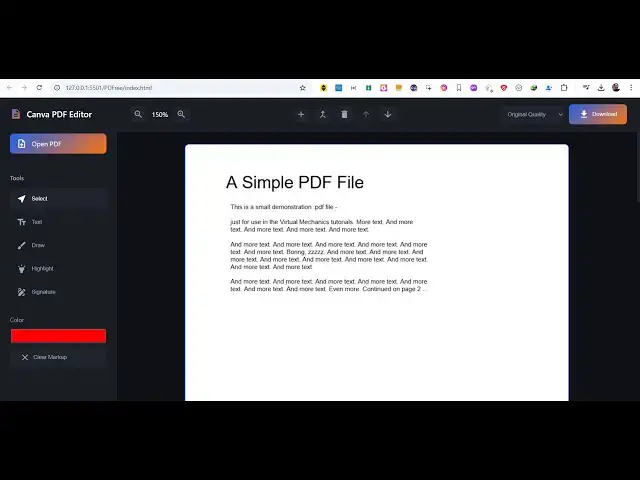
PDF editor or Adobe Acrobat PDF editor
0:08
uh tool that I developed which entirely
0:10
runs in the browser it's a static tool
0:13
which doesn't require server and it's
0:16
lightweight it's very fast as well you
0:18
can even try this as well I've deployed
0:20
this on my website freem mediat
0:22
tools.com canva altimate PDF editor and
0:25
if you land on this you will see this
0:27
interface and it is entirely built
0:29
inside HTML CSS and JavaScript and you
0:32
will see this interface and there is
0:35
option here to open or edit your PDF
0:38
file here so here you will simply select
0:40
whichever PDF file that you want to edit
0:42
so as soon as you select the PDF you
0:44
will see the PDF file will get rendered
0:45
right here it contains two pages this is
0:48
the first page this is a second page we
0:50
have all these controls here we can zoom
0:52
in we can zoom out we can add a new page
0:56
here add a blank page as well so if you
0:58
click it you will see a blank page will
1:00
be added you can even delete this as
1:03
well so by clicking the dpin icon you
1:06
can delete pages you can add blank pages
1:08
as well and if you want to add more PDFs
1:11
you can even merge PDF as well by
1:13
clicking this by adding more PDF
1:16
documents and then we can navigate to
1:18
the second page to the next page you can
1:21
see that all these controls are there
1:24
and we also have the compress quality
1:26
option as well so if you basically want
1:28
to uh compress the size of PDF you can
1:31
from this drop Dr you can reduce the
1:34
quality here for is original maximum
1:37
high quality medium low quality if you
1:39
want to reduce the size you select the
1:41
low quality and simply download and now
1:44
the size is considerably reduced here
1:46
you will see 32 kilobyte and you will
1:48
see the text is little bit of blurred
1:51
and the size is decreased then we
1:54
actually have all the uh capabilities to
1:57
edit this so we have the text tool so
1:59
just add this whichever location you
2:02
want
2:03
to actually add your
2:08
text you can actually annotate here so
2:12
what you need to actually annotate
2:13
highlight you can change the color here
2:15
or using this Color Picker as well so
2:17
you can see that we can change the color
2:20
of the text as well so then we also have
2:23
the Highlight option as well so you just
2:26
click
2:27
it to whichever portion you want to you
2:29
you can even change the color as well
2:31
you can see
2:34
that then you can actually control it we
2:38
go to the second page now if you want to
2:40
highlight it you can
2:43
simp you also have this dpin icon as
2:46
well side by side if you want to delete
2:47
this you can even delete this simply
2:49
click it and this will appear and here
2:51
you can highlight it this is for
2:54
annotating it so simply click the draw
2:57
option you will see
3:01
just go to the select tool here you can
3:03
even
3:11
select then we also have the signature
3:14
capability as
3:16
well so let me just show you uh this is
3:19
actually the source code here uh of this
3:22
ultimate PDF editor it is you can see it
3:24
is entirely built inside HTML CSS and
3:26
JavaScript these are three files you
3:28
will get if you want to purchase it you
3:30
can check out the live demo which is
3:32
deployed here before purchasing it at
3:35
the checkout page I have given the link
3:37
in the description of this video on my
3:39
website procore.com
3:42
so after you purchase it you will get
3:45
actually get the zip file from Google
3:47
Drive automatically and then it contains
3:49
these three files you simply run this
3:51
HTML file with live server so this will
3:53
actually open your project
3:56
locally so you can just see it runs
3:58
entirely in the browser it is running it
4:00
in the browser here so here you select
4:02
your PDF file whichever PDF file that
4:04
you want to edit so that file will be
4:07
you can see that you can zoom in you can
4:09
read the PDF document as well and then
4:12
we have all these
4:17
options simply
4:20
drag and simply add the text here you
4:24
can see that text will be added you can
4:27
see at any location you can add you just
4:29
need to click it at any location after
4:32
dragging this text tool simply click at
4:34
any location and then just type your
4:36
text and here you can even change the
4:39
color as well so you
4:43
can so I'm just telling you how to do
4:46
this and then same goes for signature as
4:48
well just need to drag
4:57
it you can even clear it as well so if
5:00
you want to clear everything you can
5:02
click this option so everything will be
5:05
deleted and
5:07
uh after you make the changes we you
5:11
can if you want to highlight something
5:14
you
5:23
can we have also the download button as
5:26
well so if you see if you want to modify
5:29
download the modified file you can see
5:31
the changes have taken place you
5:34
can so you can try this tool guys uh
5:38
just going to freem mediat tools.com I
5:40
added this tool here you can see canva
5:41
ultimate PDF editor so simply
5:44
select the PDF file that you want to
5:47
edit so it can even contain images as
5:49
well so you can see now this PDF file is
5:52
containing images so we can reduce the
5:54
quality of it by simply selecting low
5:56
quality it will reduce the size of it it
6:00
it a little bit make the images you can
6:03
see that so the quality Remains the Same
6:06
but can even Add Water Mark here you can
6:09
see
6:11
that can draw annotate you can change
6:16
the color here you can see everything
6:18
you can
6:20
do you can
6:27
highlight and lastly we can even add
6:30
digit digital signature this window will
6:33
appear so you can simply save your
6:35
signature like this and then simply
6:38
click the download
6:41
button so this tool guys is made using
6:44
HTML CSS and JavaScript and let me show
6:46
you the libraries that I built using so
6:49
we are using jspdf Library PDF lib
6:51
Library you can see that we are using
6:54
the CDN of it and then we are using the
6:56
PDF JS library for it's a Mozilla based
7:00
open source all these libraries are open
7:03
source you have known jspdf as well so
7:05
if you let me show you one by one so the
7:08
first library is jspdf if you know what
7:13
I'm just write jspdf this is actually
7:17
the library it also have nodejs module
7:19
as well so it's a PDF generation library
7:21
then we also have this Library PDF lip
7:24
which is an again an open source library
7:26
for editing the PDF files in the browser
7:30
so we are using this as well and lastly
7:34
we are also using pdf.js Mozilla if you
7:37
just dve this this is used for rendering
7:41
our PDF documents right in the browser
7:43
using HTML 5 canvas so we are just using
7:46
these three libraries in conjecture to
7:48
build this entire web application which
7:50
runs entirely in the browser so you can
7:52
see no server site code is involved it's
7:54
a static website which runs in the
7:56
browser it's very easy to deploy as well
7:59
so once you purchase the source code you
8:01
will see this whole JavaScript code you
8:04
will get you will be able to edit this
8:05
code as well so it's a add additional
8:08
functionalities so it's a great project
8:10
for student goinging students as well
8:11
you can see 1,400 lines of JavaScript
8:14
code is there then we also have the CSS
8:17
code as well this is your HTML file so
8:20
these three files you will get after the
8:21
payment the link is given in the
8:23
description guys so you can directly
8:25
purchase this uh canva or Adobe Acrobat
8:28
PDF like editor so thank you very much
8:31
for watching this video and I will be
8:33
seeing you in the next video
#Business & Productivity Software
#Multimedia Software