Up next in 10

Amazon AWS Toolkit CodeWhisperer AI Best FREE Alternative to GitHub Copilot For VSCode is INSANE
Jul 24, 2025

Get the full source code of application here:
Show More Show Less View Video Transcript
0:00
Uh hello guys, welcome to this video. So
0:02
in this video, I'll show you a VS code
0:04
extension which is released by Amazon uh
0:07
which is their own AI platform to build
0:09
out coding application similar to GitHub
0:11
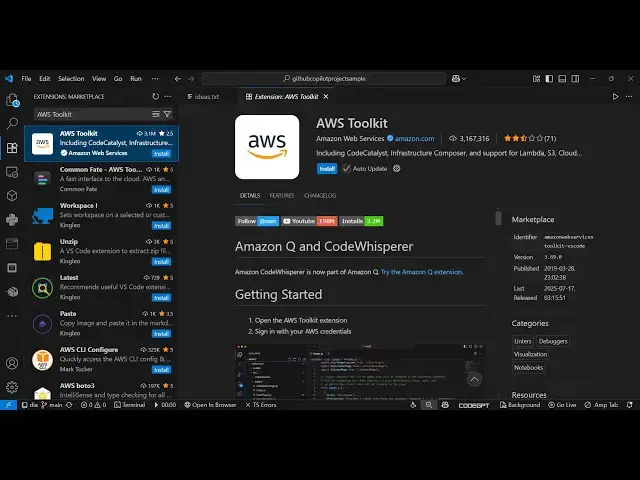
copilot. So if you are inside your VS
0:14
code, simply go to the extensions tab
0:15
and simply type here AWS toolkit.
0:20
So if you just write this extension, the
0:22
very first extension which comes right
0:24
here, it's developed by Amazon Web
0:26
Services and it's got almost 3 million
0:28
installs. So it's a verified extension
0:30
and simply you need to click the install
0:32
button and just activate this extension.
0:35
After activating this extension you will
0:37
see on the sidebar section this AWS
0:41
toolkit option will come right here. You
0:43
will see this AWS option is coming right
0:45
here. Simply activate this. So once you
0:49
activate this you just need to set up
0:51
the API keys here. You first of all need
0:54
to sign up with your Amazon account. So
0:58
just click either of these options. Just
1:00
provide your admin URL right here. This
1:03
option just select the reason.
1:11
So after you do this, you will see the
1:13
interface here. It just allows all the
1:17
functionalities of GitHub copilot such
1:19
as the AI coding assistant. It will
1:21
provide you with suggestions as you type
1:23
the code inside VS Code.
1:26
So you can even get the step-by-step
1:28
instruction. Simply go to get started
1:30
and you will see in the documentation it
1:32
is telling you how to get started right
1:34
here.
1:37
So this is their Amazon vis code whisper
1:41
a AI here. This is the actual thing. You
1:44
can read more about it.
1:47
It's a realtime AI coding assistant.
1:51
So
1:54
you can see in action right here as you
1:57
type it will give you suggestions.
2:02
So now to get started you do need to
2:04
create an account here. So click on
2:06
create account and just log in here.
2:12
So here you
2:15
need to set up this API key again. So
2:22
after logging in, you will be redirected
2:24
to the dashboard. In the console right
2:26
here, you will actually see an option to
2:29
create an API key.
2:31
And that API key, you need to paste it
2:33
right here in this VS code extension to
2:36
activate this.
2:44
So just fill out this information right
2:46
here.
3:09
So let me just enter this verification
3:11
code right here.
3:18
So now you can see we are on inside the
3:21
dashboard right here. And
3:33
so right here you can see the free trial
3:35
option right here which is available.
3:40
So these are the number of credits which
3:43
are available. So you can even redeem
3:45
click on this option to purchase more
3:47
credits as well. So clearly it shows you
3:50
how much usage you do this.
3:53
So
4:00
so it will directly open your account
4:02
here. So just log in.
4:46
So just enter again the verification
4:48
code which comes right here.
4:58
So once you do this you will be
4:59
authenticated and will be redirected
5:02
automatically inside VS code.
5:15
Here you just need to set a simple
5:17
password right here.
6:12
So after you authenticate you will be
6:13
redirected to this VS code extension and
6:16
you will be able to do the features all
6:18
the features which are there and also
6:21
check out my website freemediatools.com
6:24
uh which contains thousands of tools.
#Programming
#Software
#Web Services