Up next in 10


Project management Accounting -3
Show More Show Less View Video Transcript
0:20
foreign
0:27
welcome back again uh so today our agenda is that a few other
0:33
topics in project management accounting
0:39
so let's get started we uh covered all the transactions uh like our Journal
0:46
expense Journal fusional item beginning balance journal
0:52
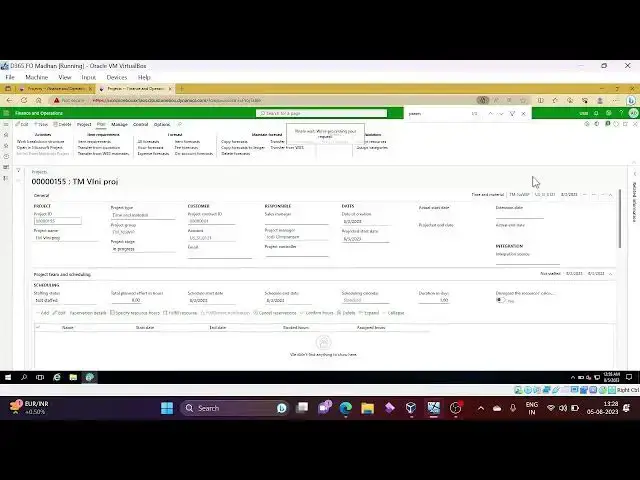
in the launched session so let's go to project management
0:59
module so we'll proceed with project adjustment transactions so if you want to do any
1:07
adjustment to the transactions how you can proceed with that how to do the
1:13
adjustment for the transactions so we'll take same example which we
1:21
already posted few transactions for the one of the project so we'll do the
1:27
changes to the same transactions so that you'll easily recognize what we are
1:33
doing
2:13
so uh to do the adjustment for the transactions
2:18
go to periodic there will be two ways go to particular specific project and uh or
2:26
we have periodic there is a just transactions first we'll proceed with uh
2:32
going to the project transactions so how to go
2:38
to all projects select your project and may under many step we have uh project
2:45
posted transactions
3:05
these are very uh basic topics in the project management accounting that we
3:11
are learning together in this sessions
3:52
so one double five this is the first project we posted a few transactions
4:00
at the first session of this project management accounting
4:26
okay these many transactions we have
4:31
and we have process tab here adjust transactions
4:39
on date you need to select adjustment date so I'm taking the today's date as
4:47
adjustment date
5:11
okay I'm not giving any changes in this particular form I'm just clicking ok
5:19
you'll get one more form there you can do the adjustments what you want to do
5:25
so this is uh actual entry and we have uh below one more form and for example
5:35
you have posted to PM right a category you posted to PM but you need a
5:43
you supposed to post different project by mistake or something uh
5:51
while posting the entry maybe you were wrongly taking the PM
5:57
so to correct that you can select the different uh
6:03
category I am taking the service
6:09
once the service selected I'm just clicking the
6:16
post button directly after changing the category
6:53
foreign
7:45
message saying that transaction updated for transaction ID
7:51
this one so let's go back and check the transactions
8:03
okay so if you see here
8:10
this is the newly posted transaction again no
8:31
so see here these two note these two uh this one
8:36
this is the one we just corrected it to the service
8:45
and we have a just Trace as well here
8:55
so this is the adjustment trees for this particular transaction
9:02
you can go and check the voucher from this screen as well
9:10
so this is the one project cost and WAP
9:21
only if you go first in this line
9:27
you have this project WAP pro project course but this
9:33
is uh pm category
9:45
okay so
9:55
you can see here minus and positive
10:01
I am filtered with hover Journal so this is place and we system is automatically
10:10
reversing the transaction which you posted to the PM category because you
10:16
are adjusting that particular transaction right so it's whatever the
10:22
transaction debit credit it will be now credit debit uh for the PM category and
10:30
uh service category one more transaction has been booked
10:36
one more transaction has been booked
10:43
okay so
11:10
sorry one more transaction has been booked with as we are changing the category to
11:19
service so next one more uh topic as I said you we can
11:28
adjust the transaction from the project uh form itself to the specific project and
11:36
posted transactions then adjustment we have one more method for adjusting
11:44
the transactions that is from the periodic tab
11:50
periodic and we have adjust
11:56
transactions
12:04
so it will come the screen with empty uh transactions or empty lines but when you
12:12
do the uh when you click this uh select option you will get the all list
12:21
of transactions available or you need you can select the what type of
12:27
transactions you want to adjust currently I'm doing for time and
12:32
material project right my project is time and material so I am selecting only time one material project and I am
12:39
selecting maybe uh have a expense item fee
12:46
these journals I want and so adjustment date and pro project date
12:54
so from date and to date I'll give August 2nd and fourth so that
13:02
ah it will come very few transactions so that we can easily
13:08
recognize or you can select the project uh that you want to do the adjustment uh
13:17
from this uh periodic so I'll take uh only one project that we
13:26
already posted the transactions so that we can recognize easily
13:31
so this is the project we created and we did some transactions and we are testing
13:37
on this so only this project
13:43
transactions will appear during this period the karate and the criteria you have
13:51
selected based on that it will show us to do the adjustment
14:00
so you can do a multiple adjustments as
14:06
well for example if you select three lines
14:12
and if you want to change the line property to be level you can do
14:20
that as well once you click ok
14:26
it will come to the next form so if you go with one by one one one by
14:34
one line this line it will show one transaction when we select the first
14:40
line and you can change the category as well so you can do the category changes
14:47
as well but I changed only line property while doing the adjustment I can post it
15:01
so okay so pending for adjustment the posted one gone from the screen if you post this
15:09
one this will also uh exit from this particular form
15:16
so these two are already selected for adjustment so three lines so I am
15:22
posting all the three lines it's went off here if you go to that particular posted
15:27
transactions you will get these list of adjustments there
15:33
we just changed the line property so that's why it won't create any uh
15:40
transactions for reversal it will come for billing
15:47
instead of that it will come from Bill Comfort billing
15:56
so this is that project and posted transactions
16:07
filter with hover
16:12
see adjusted only one is there these three we changed to chargeable
16:19
these three okay there is no negative transaction and all though that stuff is not there
16:27
because we adjusted only the whether it is billable or non-villable
16:33
okay got it so I hope you understood this concept
16:46
uh
17:01
okay let's go to parameters uh to see if
17:06
you uh fields
17:32
see here a lower just transactions of transaction status so what type of
17:41
transaction seal is allowed for adjustment posted invoice proposal once
17:46
invoices well and also if you want to adjust you can do that and estimated if
17:53
it is there elimination if you want to adjust you can do that if you enable these fields
17:59
okay and we have
18:05
always create adjustment transactions if you want to enable this one you can
18:12
enable it when when you have the requirement
18:28
okay
18:36
so coming to next concept I will show from here
18:42
itself so it is validations project validations
18:50
validation is nothing but controlling or recording the transactions for the work
18:56
have expenses item tasks Etc
19:02
so there are three types of validation worker as worker and project project
19:10
category category and worker so these are the three types of uh
19:18
validations we have so to enable those validations first
19:25
first of all you need to go to project management accounting parameters and the
19:33
general tab we have somewhere validation
19:39
here sorry here these are the three types project category Pro resource project category
19:46
resource okay
19:54
so worker project project category resource project resource category so
20:01
these are the three types we have and we have three options here none means
20:08
nothing no validation required and mandatory means it must ensured and look
20:15
up lookup means it will take from the uh project uh
20:21
validation form
20:38
so if it is uh lookup it will show the project applicable categories and if it
20:46
is mandatory it will show all the categories available
20:53
in the system so let's
21:00
will proceed with one first and maybe you can do your testing if in your
21:07
system with other Concepts none anyway there will be no validation maybe I'll
21:13
try with a lookup lookup value it is project and category
21:19
lookup okay so let's close it
21:49
okay let's go to the project that we have created
22:03
oh
22:13
okay this is our project
22:22
and this project I'll try to create our Journal again
22:58
so I just uh given five hours here
23:04
and try to save it and I'll validate this one
23:38
Journal is okay if I click category for this project
23:45
it's showing everything
23:52
let me go and save one more time I think it's not refresh refresh state
24:07
or project category validation is already available um
24:27
together
24:58
foreign
25:18
[Music]
25:37
sorry this is product
25:46
foreign
26:24
project resource resource category
26:31
category
27:07
so validations
27:19
foreign
27:48
project category validation groups check it out
27:58
um our project is one five level five
28:03
one double five
28:12
so category what is this category group or
28:17
category
28:24
right
28:33
foreign
28:40
so I think it's refresh issue let me
28:46
do it again I'll go with the expense Journal
30:02
foreign
30:16
this one category
30:28
we are able to select it
31:08
nothing selected what happening
31:14
what's happening
31:35
parameters project category lookup
32:27
I think I need
33:13
foreign
33:39
try this it's supposed to give an error message
33:46
when the project category validation is not available
34:55
accounting deleting this line
35:03
under resource list
35:29
is taking a lot of time
35:44
I'll give you Leah so
35:53
Julia funderburg here
36:15
you can assign the projects as in the categories from the this level as well
36:21
you can assign it from here
36:29
which project validation group
36:46
so I'm going to parameters to change it mandatory
36:55
instead of lookup
37:01
this is Project category
38:12
so let's keep on validating so I'm not sure why it is
38:20
not giving an error message let's go to Project
38:32
so here
39:02
enable category validation
39:10
so I just given the enabling category validation for this project
39:15
and let's create the expense Journal now
39:46
fill the data and validate the journal so see here the combination of project
39:52
and category is mandatory but does not contains the project category travel so
40:00
category not available for this project so see here nothing is showing it is not
40:07
defined so that's why it's giving the error message then what we need to do is that to solve
40:16
this let's delete the line
40:22
so this is what I want to show you so that's why I tried it mandatory and
40:29
this field we missed this setup we missed so that's why we are not able to
40:34
replicate the issue but now anyway we got the we got which strap is missed we
40:41
enable this one and while posting the while creating the journal itself we are getting the error message
40:50
coming to how to solve it go to manage tab
40:55
oh sorry plan tab assign categories
41:09
here group level you can give or maybe category level you can give
41:25
let me select only one
41:38
so now this project is assigned with this particular
41:44
category validation let's do the expansion now
42:08
so click on drop down see we can see only one
42:15
which is assigned to that particular project you don't have option to select it
42:23
select the other because another other categories are not as into
42:30
this particular project okay let's go with uh
42:35
one more scenario by changing to lookup previously it's lookup notebook because
42:42
we didn't enable the category validation at the project level
43:08
let me take new one instead of that let's save this
43:15
and close it
43:34
so it's showing the same travel category
43:41
okay so this is the way you can validate uh
43:50
project category project resource and resource category
43:57
so you can assign the projects to the resource as well from
44:03
the human resource module or from the project management module
44:10
from the resource list page from here you can assign it
44:17
and same way if you mention the validate Resource as well you need to
44:25
enable the resource functionality
44:35
let me give all the three years
44:41
all the three validations required then I'll go with all mandatory things
44:54
save and close
45:02
let me delete this new
45:22
travel is coming because we already assigned to that particular project
45:29
I don't give any resource no as of now I'll book only
45:36
seven thousand try to validate
46:20
validate
47:03
it's validating successfully let's go back
47:10
foreign
47:37
Let me refresh the URL
47:47
a parameter level whatever you are mentioning that is applicable and it is
47:53
this General configuration if you want to uh enable
48:00
the validation for the particular project and then you can enable from the project
48:06
master it's very slow actually
48:15
maybe next session I'll try to improve this system speedness
48:23
but not guaranteed
49:25
this is our project
49:51
foreign
50:32
the resources you can do it from here or you can you want to brew from the
50:41
validation group you can group here so I'm assigning this person to the
50:48
validation session
51:08
yeah I think system is very slow actually so maybe I'll try to cover remaining
51:15
things in the next session so it's very
51:21
slow but not that I'll go to explain
51:26
so I'll stop here by so today we discussed adjustments and validations
51:34
so three types of validations we have worker project project category category
51:40
resource there are three types of project categories okay
51:47
we'll discuss later with maybe I'll cover this validation if possible one
51:55
more time because system it is uh very slow and
52:00
not able to explain it uh both the ways like input and output
52:08
okay I'll stop here thank you
#Business Plans & Presentations
#Management
#Accounting & Auditing
#Tax Preparation & Planning
#Financial Planning & Management
#Education
#Other
#Asset & Portfolio Management