0:00
Now, let's talk about the Tkinter, which
0:02
is Tkinter widget provided almost a
0:04
we'll say like 15 types of widget, okay?
0:07
For example, it provides widget such as
0:11
Label, entry, frame, canvas, check
0:13
button, radio button, list box,
0:16
menu, message, scale, scrollbar, so and
0:18
a lot of widget that it provide, okay?
0:21
Now, we are going to learn how we can
0:24
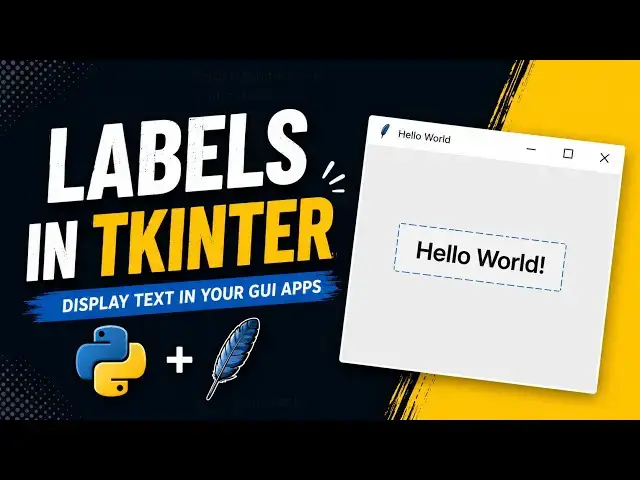
in Python Tkinter because the label
0:26
widget display the text or image inside
0:29
uh our window, okay? So, in order for us
0:32
to do that, very easy.
0:33
I'm just going to come here, okay?
0:35
See, this one, this window's main loop
0:37
will always be the last line, okay? So,
0:39
that's why you can just give a spacing,
0:41
keep it there down, no problem. So, in
0:43
order for us to create a label in
0:48
First, we need to create a variable. I'm
0:49
going to call a variable. I can just
0:51
give, for example, label. So, you can
0:53
give any name, whatever you want, okay?
0:55
I'm just going to give label to make it
0:59
label, in order for us to get the label,
1:00
we need to call the instance, okay?
1:04
Okay? Then, it will be open, and here
1:07
inside we are going to give some
1:08
properties for this label. But, when we
1:10
get the label, first we need to place it
1:14
of any window or canvas, something like
1:17
this, so. In order for us to show this
1:19
label in our window, we need first to
1:21
give it the first instance, which is
1:26
Comma. So, this means we are going to
1:28
show this label inside of this window.
1:34
after this, okay? I'm just going to go
1:36
down, then I will say label
1:41
So, this pack will help us to show
1:44
this label inside of our window, so.
1:47
The way that it is, if I run this, let's
1:50
see what is going to happen.
1:53
Boom, as you can see, we have our label
1:55
here, this small thing which is changed.
1:57
So, when we create a label, we can also
1:59
change the properties of label, okay?
2:03
text, which text will be displayed, the
2:05
color of the the text, the shape of the
2:07
text, so a lot of things that we can
2:09
change in our label. So, in order for us
2:12
to give a text in our label, do
2:14
something like this, so I'm going to
2:15
give a property called text will be
2:18
equal, okay? Then we need to pass this
2:21
value as a string also. Then we can say
2:25
label, okay? First label. If I save
2:29
okay, let me close this one, and
2:32
now if I run this thing,
2:37
boom, as you can see, we have here our
2:42
So, apart of changing the text of the
2:44
label, we can also give a font for our
2:47
label. So, in order for us to give a
2:48
font for our label, we need to give to
2:51
call the property called font this way,
2:53
then we can just open something like
2:55
this, and here we are going to choose
2:57
which font that we want to use. Then I
2:59
can just do something like this. I'm
3:01
going to give area this way, okay? Then
3:04
I want it to be bold,
3:05
okay? I'm going I'm going to come here,
3:08
then I will give a comma, then here we
3:10
are going to choose the size of this
3:12
font. So, I can give something for
3:14
example like 30, then if I save this
3:17
now, and if I run, let's see what we are
3:22
Boom, as you can see, now we got a
3:26
We kind of increase increase the
3:30
font of our label, we make it bold also.
3:32
For example, if I remove this bold,
3:36
save, and if I run this,
3:38
what's going to happen?
3:43
Okay. Now it's not bold because since it
3:45
is a huge the size is kind of big,
3:49
that's why it's looking like this, but
3:52
Now for example, if I decrease this one
3:54
for the at least into 10, save.
4:00
and as you can see now it became a
4:01
little smaller, okay? Because we just
4:03
changed the size of our font.
4:06
So, perfect. See, apart of font, we can
4:09
also, let me put comma, okay?
4:12
It's very important for you to separate
4:14
the properties with comma, okay? If you
4:16
don't separate them with comma, you are
4:17
going to you will get error. For
4:19
example, if I remove this comma here, I
4:21
save. Now, if I run this,
4:24
as you will see, we got kind of error,
4:27
okay? So, that's why it's very important
4:28
for you to separate them with comma.
4:30
Save. Now, if I run, nothing's going to
4:36
As you can see here. Perfect.
4:41
we can also change the color of our
4:44
label, okay? In order for us to change
4:46
the color of the text of our label,
4:48
something like this. I can just give
4:49
something like for example, FG,
4:51
which stand for the color, okay? Then I
4:55
can just say something like for example,
4:59
Here also it works the same way, okay?
5:01
You can give also hexadecimal values, it
5:03
will work. Green. And apart of change
5:05
the color, okay? Of the text, we can
5:08
also change the background color. For
5:09
example, if I give something BG, BG
5:12
stand for background,
5:14
okay? Now, I'm going to give for
5:15
example, throw white.
5:18
I'm going to save this. Then just let me
5:26
as you can see, we got like a green this
5:29
color and background white background.
5:32
So, let me increase the size so that it
5:33
can show better. Let me give at least
5:42
and the boom, as you can see now we got
5:44
this one, okay? First label.
5:47
See, apart of this also, we can change
5:49
also the width and the the height of our
5:52
labels. In order for us to change the
5:53
width or height and of our label, we can
5:56
do something like this, width,
5:58
which is this one. And if I give, for
5:59
example, like a 20, {comma} and for the
6:04
okay, if I give at least 10,
6:06
save. And now, if I run this, what we
6:12
Boom, as you can see, hey, it's a lot,
6:14
okay? 20, 10, it's a lot. So, let me
6:16
give it at least three.
6:18
Going to save this and let me run.
6:23
Boom, as you can see, now we changed the
6:25
width and the height of our label.
6:29
So, now we can create also more than one
6:31
label, not only one label. So, if I'm
6:33
just going to copy this one,
6:35
come here and paste here. But, it's very
6:37
good also to give different names into
6:40
your label. This one I'm going to put
6:42
label one, label one.
6:45
Oh, oh, label one, label one.
6:47
Save this. This, instead of being first,
6:54
Let me save this. Now, if I run this
7:01
boom, as you as you see, we have here
7:04
first label and second label.