Up next in 10


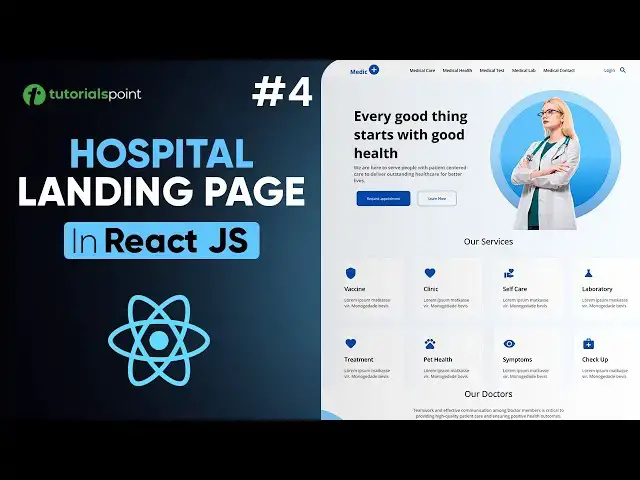
Services component - Hospital landing page using ReactJS Part 4
Welcome to the third part of our React Website Tutorial where we’ll be building the Banner component for the Hospital Landing Page. In this video, we will guide you through creating a professional and visually appealing banner that enhances the user experience on the homepage. This beginner-friendly tutorial is perfect for those who are new to React JS or want to enhance their front-end web development skills.
Whether you're a beginner or intermediate web developer, this React JS tutorial will help you build a real-world project and deepen your understanding of React. By the end of this series, you'll have a fully functional hospital landing page with a clean and modern design, ready to be deployed!
What you'll learn in this tutorial:
✅ Build a clean and structured Services component using React
✅ Implement responsive layouts with CSS to ensure optimal viewing on all devices
✅ Learn best practices for creating reusable and modular UI components in React
Resources:
Download the source code and assets for this project on GitHub:
https://github.com/realtutorialspoint/hospital-landing-react
Full Playlist: https://youtube.com/playlist?list=PLWPirh4EWFpFKvub_T78RseN-516YoaCZ&si=qH-SSiRfoMEP7tXy
Don’t forget to like, comment, and subscribe for more tutorials on React JS and web development! Stay tuned for part 5, where we continue building out this project and dive deeper into React's features.
React Website Tutorial - Hospital Landing Page Part 4, Services Component, React JS Tutorial, Hospital Landing Page, React JS Project, Front-End Development, React Components, React JS Beginner Tutorial, Web Development, Modular UI Components, React Router, HTML CSS React, React JS Services, Responsive Design in React, ReactJS Projects, React Tutorials for Beginners, Web Design, React JS Tutorial, CSS in React
#ServicesComponent #ReactJS #ReactTutorial #WebDevelopment #HospitalLandingPage #ReactProject #BeginnerReact #FrontEndDevelopment #ReactJSProject #WebDevTutorial #ReactComponents #ReactRouter #HTMLCSSReact #LearnReact #WebDesign #ReactJSForBeginners #ReactJSDevelopment #ResponsiveDesign #ReactJSTutorial #CSSInReact #tutorialspoint
Show More Show Less View Video Transcript
0:00
hey welcome to tutorials point we are
0:02
continuing to build our Hospital landing
0:04
page using reactjs you can find the
0:06
links for GitHub and other parts in the
0:09
description below now in this video we
0:11
will build the services component so
0:14
let's start building our services
0:16
component but before that let me just go
0:18
back to browser yeah so in our browser
0:21
as you can see we have this scroll bar
0:23
problem and this problem is in this
0:26
component what is this component called
0:28
let me just go back to visual studio
0:30
your code and yeah it's our Banner
0:32
component so let me just open banner.
0:34
jsx and here uh what I'm going to do for
0:38
now is I'm just going to add some line
0:39
breaks so after every good thing I would
0:42
just add a line break something like
0:45
this and another line break would be
0:47
after good
0:49
health so okay so let me just add
0:53
another line break here let me save it
0:57
let's go back to browser and as you can
1:00
see the scroll the scroll bar problem is
1:03
of course gone right okay great now
1:06
let's go back to visual studio code let
1:08
me just close this all right so now we
1:10
are going to create our services
1:12
component for that I will create a new
1:15
folder inside our components and let us
1:18
call it I don't know uh something like
1:21
uh services so I'll write Services hit
1:24
enter now inside our services I will
1:26
create our component uh let's call it uh
1:29
services say
1:32
doj SX of course and in here also a CSS
1:37
file so services. CSS and there you have
1:43
it okay so in our services. jsx I'm
1:46
going to write ra
1:49
Ace and here we have basic react boiler
1:53
plate and then let me just write import
1:56
our CSS F so it will be services CSS all
2:01
right save it now in our app.js we need
2:03
to import it so here I'll just import
2:06
our services component and as you can
2:08
see it automatically gives us the
2:10
suggestion let's just press enter and
2:13
there you have it I'll just save it
2:15
let's go back to browser to
2:17
check and I hope it's there as you can
2:20
see we have the services here fine let
2:23
me just zoom in if you're not able to
2:25
see and we have the services here all
2:27
right let me just zoom out let's go back
2:29
to visual studio code to start designing
2:30
it all
2:32
right okay now in our services what we
2:34
are going to do is something very simple
2:37
firstly I'll just give this parent name
2:39
this parent de a class name and let's
2:41
call it Services
2:45
container okay now inside the services
2:47
container I'm going to create another de
2:50
actually I'm going to create a a heading
2:52
tag an H3 tag that will just say our
2:55
services now inside I'll just create
2:58
another D and let's give it a class of
3:01
services rapper hit enter all right so
3:04
this is uh pretty much it for our
3:06
services and for uh for this
3:11
Services now inside our services raer de
3:15
what I'm going to do is I'm going to
3:17
create another component right it'll be
3:20
very simple let me just show you for our
3:22
components folder I'll create a new
3:24
folder and let's call it service okay
3:28
now inside service I create a component
3:31
and I'll say service. jsx and a CSS file
3:36
also so I will write service. CSS now
3:40
note out the difference this is a
3:42
Services component and this is a service
3:44
component right great so let me just
3:48
close this for now so for our service.
3:50
jsx let me write basic react boiler
3:52
plate something like this let me just
3:55
import the CSS fight so I'll write
3:58
service. CSS and save it let's go back
4:02
now in our services let's import it here
4:04
in our services component so I'm going
4:06
to import my service component inside
4:09
our services component okay so I'll
4:13
write
4:15
service okay uh this should be actually
4:18
in capital letter the first letter here
4:20
right so let me just go here and let me
4:23
rename
4:24
it because it is always a good practice
4:26
to write our components in uh capital
4:30
letter something like this so let me
4:33
just change it here as well and Export
4:36
default will be service okay let me save
4:39
it let's go back and now we have the
4:42
service now we need to import it also so
4:44
I'll just write import service and not
4:48
this one this is actually importing this
4:50
service in our Assets in our assets if
4:53
you see
5:00
let's see if it
5:06
works components service service. jsx it
5:10
says file not cannot find file service.
5:14
jsx actually we need to capitalize this
5:18
so let me just save it something like
5:25
that let's go back to check and as you
5:29
can see we have our services and inside
5:32
we have a service as well
5:34
great now let's understand what we are
5:37
actually doing let me just split it
5:40
something like this so that we are able
5:42
to see much better let me close the
5:43
Explorer for now let's just give some
5:46
basic design to our uh Services
5:48
component so firstly I will Target the
5:52
services container and I will give it a
5:56
background color of
5:58
rgba the first one is going to be
6:02
62 and the second one is 161 third one
6:06
is going to be
6:08
255 and
6:11
0.04 great all right uh next we are
6:14
going to Target this H3 here
6:18
so let's
6:20
just Target this H3 I'll write a
6:24
Services container has a H3 tag inside
6:28
so we'll Target that one and we'll just
6:30
give it a text align of
6:32
Center and then we are going to give it
6:35
a font size of 32 pixels then font rate
6:39
will be set to normal and also just give
6:42
it a bottom uh margin of let's say 42
6:46
pixels let me save it let's go back to
6:49
browser to check and yeah as you can see
6:52
it's here perfect let's go back to
6:54
visual studio code all right now next
6:58
why is it showing in red color anyways
7:01
we'll look uh we'll look into it why is
7:03
it uh behaving weirdly later on for now
7:06
I'm going to Target this Services
7:08
wrapper so let me just copy the class
7:10
name here and paste it now for our
7:13
services wrapper what I'm going to do is
7:15
I'm going to give it a display of Flix
7:18
also Gap will be 42 pixels and then I'll
7:22
set the flex wrap to
7:24
wrap because we will add many services
7:27
here right also justify content will be
7:29
Center hit save all right let's close
7:32
these Services now our main thing is to
7:35
design this service component so I'll
7:38
just create a CSS file is already
7:40
actually here so let me just split it
7:41
for our good W and we are going to
7:44
design the service component now so for
7:47
our service component what we are going
7:49
to do is let me just Del the text here
7:52
and let me give this t a class name and
7:55
let's call it a service
7:57
container now inside service container
8:00
what we going to do uh is we are
8:02
basically going to have multiple Dives
8:05
so let me just write it down for you the
8:06
first da is going to be uh service icon
8:10
so I will give it a class of service
8:11
icon this will basically hold the image
8:14
all right this will be the first de let
8:16
me just do it something like this then
8:18
we will have another D inside and I will
8:20
just call it service head so I'll give
8:22
it a class of service head something
8:26
like this and we will have another d and
8:29
I'll give it a class of service body
8:33
great now basically this will hold the
8:34
image this will hold the heading of that
8:37
particular service and this will hold
8:38
some little bit uh let's say a paragraph
8:40
of that service right now for that what
8:42
we are going to do since we are going to
8:44
have many services listen to me what we
8:47
are going to do is we are going to
8:49
create a basically a an array of
8:53
services then we are going to use the
8:55
map method of JavaScript uh so that all
8:57
of the services will be mapped inside
8:59
this div component let me show you how
9:02
let's just save this for now and let's
9:04
go to file explorer in our components
9:07
sorry in our assets I'm going to create
9:09
a new file and let's call it uh
9:12
services. JS or JavaScript hit enter now
9:16
inside let's just close this Explorer
9:18
now inside what I'm going to do is
9:20
basically I will just import everything
9:22
all the images here as you can see in
9:24
our images we have these different
9:26
Services let me just expand to show you
9:28
we have the V icon we have treatment we
9:31
have symptoms self-care and many others
9:34
will be there we have like this checkup
9:36
so we are going to use all of these
9:37
services so we will first import all
9:40
these images here and then we will
9:41
create an array of these images as well
9:43
as all the data uh necessary with it
9:46
right so how will we do that it's very
9:48
simple let me just say I will import an
9:50
image let's say import vaccine
9:54
from all right so it's in our assets
9:58
okay inside assets that's in our images
10:00
and let's say vaccine icon great so we
10:04
have this vaccine icon now I'm going to
10:05
create an ARR all right so let's give it
10:09
let's store it inside a constant let's
10:11
call it services and it'll be equal to
10:14
an array of objects now inside we will
10:17
have an object Now understand this for
10:19
each object there will be three
10:20
properties first will be the image now
10:22
the image is going to be of course that
10:24
we imported that is vaccine all right
10:26
second will be the name and we are going
10:29
going to give it a name of vaccine and
10:32
third will be a paragraph So let's call
10:35
it body and for the body I already have
10:38
this sample text let me just copy and
10:41
paste it for you something like this all
10:44
right so let me just save it and then
10:47
see we have image name body we're going
10:49
we are going to create multiple services
10:51
like this and then we will import it in
10:53
our service. jsx component and then we
10:55
will use the javascript's map method to
10:58
map all of the Services inside this
11:00
service container pretty much simple so
11:02
let me just do one thing let me import
11:04
all the images and also create more
11:06
objects for the services for
11:08
you okay so I have imported all the
11:11
images required for our services and I
11:13
and I have also created different
11:15
objects for all the services as as you
11:16
can see vaccine treatment selfcare
11:18
laboratory also another treatment it's
11:20
fine we can change it to something else
11:22
we have pet health symptoms checkup now
11:25
we have this constant all right this
11:27
constant of services which is an array
11:29
now each now in this array we have
11:31
objects right multiple objects right so
11:33
we are going to export this Services
11:36
constant so I'll simply write export uh
11:40
default what is it of course our
11:43
services very simple let's just save
11:46
this okay now remember this is an array
11:48
and inside array we have objects with
11:50
three properties image name and body
11:53
great we'll use it inside our services
11:55
or service component so let me just
11:57
close services. Js now inside here in
12:00
our services I'm going to import this
12:03
Services basically array right so I'll
12:06
just simply write
12:08
import uh
12:10
services not this one this will actually
12:12
import a component we don't want that we
12:14
want the import another asset so I'll
12:17
write import services from and I'll say
12:21
in our assets we have something like
12:24
Services exactly this is what we want
12:26
now what we are going to do is very very
12:29
simple let me just do one thing for our
12:32
de let me wrap it inside our react
12:34
fragments something like
12:38
this all right I'll show you so I have
12:42
wrapped them all right and now I'm going
12:45
to write some basic JavaScript but
12:46
before that let's just create tags here
12:49
that we're going to use right so first
12:51
will be an image tag now inside image we
12:53
are going to have of cross uh the map
12:55
method so we'll use JavaScript here for
12:57
the alternate image we can have anything
12:59
I don't know let's say
13:03
service icon and then in our head what
13:07
we are going to do is we're going to
13:08
have an H5 tag and then we will also
13:12
have a paragraph tag very simple right
13:15
now what what I'm going to do is let me
13:17
just write curly braces because we need
13:19
to write some JavaScript here now what
13:21
I'm going to do is I'll write
13:24
Services these imported Services if I
13:26
click on it as you can see we have an
13:28
array of objects so let me just close it
13:31
so I I was here I'll write services and
13:34
then I'll use the map method okay and
13:37
then inside map method there will be a
13:38
call back function okay now call back
13:41
function there are going to be two
13:42
parameters here first one will be the
13:44
service and second one will be index now
13:47
index is used because the parent de must
13:49
have in this um this uh you know what do
13:51
we call it a key prop that's why we need
13:54
this index so let me just write this
13:57
call back function and let me wrap all
14:00
of my internal dues inside this call
14:03
back function something like this
14:06
perfect now see we are going to map our
14:09
services and this will be of in of
14:12
individual service right that we have so
14:14
here let me just use it something like
14:18
service. image very simple and then in
14:21
our H5 another curly braces and I will
14:24
write service do name great and for our
14:28
paragraph
14:29
I will write
14:32
service do body okay so let me just save
14:36
this and let's go back to browser to
14:39
check I'm in browser and as you can see
14:42
we have everything that we needed as I
14:44
told you earlier now we need to do a bit
14:46
of styling to our service component so
14:48
that so that all of this looks a bit
14:50
appealing to the user let's go back to
14:52
vs code and let's start designing our
14:56
service component so firstly I will will
14:59
Target this service container let me
15:01
just copy and paste it now for this what
15:04
I'm going to do is I'll have a display
15:06
of flex and then a flex direction of
15:10
column of course I'm going to have some
15:13
background color of white let me just
15:16
see if it is working let's save it let's
15:18
go back to
15:20
browser okay yeah it's working it's
15:22
definitely working and we have this a
15:23
little bit of white color I hope you're
15:25
able to see that let's go back to vs
15:28
code and uh what next what I'm going to
15:31
do is give it a gap of 16 pixels and
15:35
then let's give them a border a radius
15:38
of I don't know 10 pixels maybe right
15:40
and then we'll give them a padding of 34
15:43
pixels of course the cursor will be
15:46
Point uh also yeah I think that is it
15:49
for now let me just save it and let's go
15:52
check okay yeah they look fine but yeah
15:56
we can change them I would say
15:59
but yeah let it be for now let's see now
16:02
let's target these things these headings
16:04
and this paragraph stuff let's go back
16:06
to vs code and what I'm going to do is
16:10
let me just Target this H5 so I'm just
16:13
going to copy paste this Dives class and
16:16
it is service head so inside service
16:19
head we have a H5 tag and we'll Target
16:22
it I'll write the font size uh to let's
16:26
say 22 pixels then the font weight is
16:29
going to be 500 all right next up I'm
16:32
going to Target this one this Services
16:34
service body so let me just copy it
16:38
again and paste it so I'm just going to
16:41
give it a width so that it looks a bit
16:43
smaller in width of course so width
16:46
let's say 15 where width it will be fine
16:49
font size of course are default 16
16:52
pixels and then I'm going to give it a
16:53
grayish color I have already written it
16:56
so let me just write it it is hash 5 C 5
17:00
C 5c okay so let me just save it and
17:04
let's go back to browser to check okay
17:07
they look fine as you can see we can
17:10
also add a h effect right I mean that
17:12
may look good so let's go back and add a
17:15
h effect here
17:16
right so what I'm going to do is I'm
17:19
going to add a transition a very simple
17:22
transition in fact and let's say all 3
17:26
seconds and E is out so we need to add a
17:33
h okay something like this I'll just
17:35
write on hor what should be done is
17:39
actually the background color should be
17:41
changed to Blue so I've already written
17:44
it it's 174 DB
17:48
26e and of course let me just copy paste
17:52
this transition here and I'll also have
17:56
some transform scaled
17:59
of I don't know
18:00
1.1 and
18:03
translate Z would be set to zero so let
18:07
me just save it let's go back to
18:10
check and okay you can change it more if
18:14
you want but for now I I'll say that uh
18:18
this looks fine so I think we have we
18:21
have designed our services component for
18:26
now and now let me just close this all
18:30
right yeah it's gone whatever the
18:32
problem was so yeah we have designed
18:34
three components Nar banner and services
18:38
and up next we are going to design
18:40
doctor's component now that will be
18:42
enough for this video in the next video
18:44
we will build the doctor's component
18:47
make sure to like this video share it
18:48
with your friends and I will see you in
18:50
the next one
Jobs & Education
Education
Education