Up next in 10


Linux - Managing users password
Watch more Videos at https://www.tutorialspoint.com/videotutorials/index.htm
Lecture By: Ms. Mamta Tripathi, Tutorials Point India Private Limited
Show More Show Less View Video Transcript
0:00
now here in this video we are going to
0:02
see how to manage the users password
0:04
managing is the user password is just we
0:07
are going to play around user password
0:09
we are going to restrict the user which
0:11
kind of password he can set and also we
0:13
can create a deadline for the users
0:15
password so let us see how we can do it
0:18
so for doing this first of all we are
0:20
going to see the passwd command so till
0:23
now we have created the user we have
0:25
changed the password of the user during
0:26
the creation of the user itself now we
0:29
can allocate restrictions for the users
0:32
password now the user which we generally
0:35
create we have seen we have set very
0:36
simple password three characters for
0:38
characters password now if I want to set
0:41
a long password if I want or force my
0:43
user to set a long passwords or to set a
0:46
minimum characters of the password or
0:48
provide some restrictions so that it
0:51
should not keep any particular symbol
0:53
password so I want to restrict him event
0:56
to set a complex password we'll be using
0:58
the command called as past w d so passwd
1:01
will be helping us to create or change
1:04
the user's password first of all if the
1:07
user want to change the password he can
1:08
also use the passwd command even though
1:11
if this command can be used by these
1:12
standard users or by the root users as
1:15
well
1:16
he password a sign should be complex
1:18
this restriction so we can keep complex
1:21
means the user whenever he is going to
1:23
set the password that password should
1:25
not be completely into text format it
1:27
should not be completely into number
1:28
format that should not match the user
1:31
name so I want the password what the
1:34
user is going to assign should be at
1:35
least one character of those particular
1:38
password should be in capital case one
1:40
should be in a small case one special
1:42
character we should use and one number
1:45
we can use so that the password is a
1:47
complex the password is hard to crack so
1:50
those kind of complex password I want
1:52
that my user should set so I can put the
1:54
restrictions to them along with that I
1:57
can also check the Linux directories and
2:00
the users when they are assigning the
2:02
password not only it should not match to
2:04
the user name but also I want those
2:07
particular passwords should not be the
2:09
any particular word we
2:10
have used into the linen directories
2:12
that you should not provide any
2:14
particular confliction or you should not
2:16
you know make any problems into the
2:18
programs so we can also restrict them so
2:20
that they can use those password which
2:22
are not real it's based password or any
2:24
particular Linux directories word we
2:27
have used next do not need to encrypt
2:29
password manually so user should not be
2:32
able to encrypt its own password so root
2:35
will assign which kind of encryption is
2:36
to be done but user should not be able
2:39
to encrypt the password so these are the
2:41
restrictions which we can assign by
2:43
using the passwd command so this
2:46
possibility command even we have the
2:48
restriction for the standard users the
2:50
root user can change the password of any
2:52
one by giving the command passwd - users
2:55
but the user when he is going to change
2:57
the command by giving just passwd what
3:00
will happen it will ask him for the
3:02
existing password now what if the user
3:05
has already forgotten his password so if
3:08
he has missed out it password if he
3:10
forgot it the password he can contact
3:12
the root user the new twos and we can
3:14
set his password by just defining the
3:17
passwd command along with the user name
3:19
how first password is to be reset so
3:22
while resetting the password the root
3:24
won't get the prompt for assigning the
3:27
old password directly he will be able to
3:29
reset the password with the new
3:30
passwords and this command can only be
3:33
run through the super user that is our
3:35
root not by the other users then again
3:39
for changing the password age like if
3:41
suppose I want the user if he is
3:43
assigning the password his password
3:46
should automatically expire after 30
3:48
first day so I want to expand those
3:51
password after one month so that the
3:53
password will be reset it so the user
3:55
has to manually reset the pass over from
3:58
one month so that restrictions we can
4:01
provide by using minimum password age so
4:03
we are just providing a age to my
4:05
password of early or your user password
4:08
so that he will be able to get this
4:11
password or use this password only for
4:13
one month
4:13
host one month he has to reset his
4:16
password by his own next maximum
4:19
password age if he is not resetting the
4:21
password till when he will be able to
4:23
use this power
4:24
we can put a particular period that is
4:26
called as a maximum password age lock
4:29
the account if I do not want my user to
4:32
get login IDs and he's on he's on leave
4:35
or he has already resigned
4:37
I want to deactivate the account so I
4:39
can directly use lock the account by
4:42
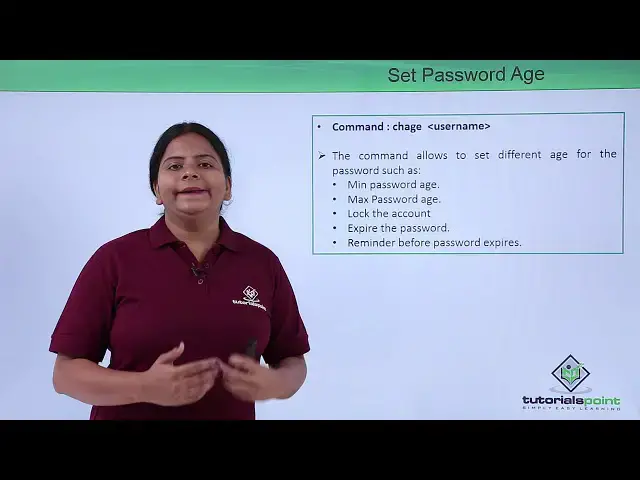
using the CH h command we can also set
4:45
the expiry date of the password now for
4:47
an example I have one guest user who is
4:50
going to sit into my organization only
4:52
for one month so after one month what
4:55
will happen the user will be able to
4:56
login automatically the user account
4:58
will be deleted or expired then we have
5:02
reminder before the path of expert now
5:06
if suppose I have set a limit by using
5:07
the minimum password age or maximum
5:09
password age so before towards three
5:12
days when my password is going to expire
5:13
the user should get prompt that your
5:16
password is going to expire after three
5:18
days your password will be expired after
5:20
two days this reset your password this
5:23
warning messages will be provided to my
5:25
user automatically before the number of
5:27
taste of the expiry that we need to
5:30
define by using the CH h kamar so CH
5:33
cage command generally will be using for
5:35
you know assigning age to my user's
5:38
password that's reason the name is CH H
5:41
that has changed H of the users password
5:44
so let us see how we can use passwd
5:46
command as well as CH h command for
5:48
changing the policies of the users
5:51
password into our terminal so we have
5:53
already used the passwd command now this
5:57
command I am going to use with my user 1
5:59
user 1 is a limited write user and if he
6:01
wants to change his password using pasta
6:03
WT come on he won't be able to do that
6:06
he's showing you
6:10
passwd he will be able to do this by
6:12
using the UNIX passwords but he requires
6:16
a current password now if he knows the
6:18
current password he can easily change it
6:20
and while the user is changing the
6:21
password
6:24
he will be asked to keep the password
6:28
complex password and that password
6:30
should not be matching some of the
6:32
dictionary of your Linux operating
6:34
system so for that I can define the new
6:38
password with a different name
6:42
so I'm just refining complex password
6:45
and accepting the same but what if if
6:48
the user has already forgot his current
6:52
password so generally as we have used
6:55
the command from the root user that is
6:58
passed up UT user one which has replaced
7:00
the password cannot be done over here so
7:03
user can only change its own password
7:05
that's reason it can only use the passwd
7:07
command not possibility username that
7:10
can be used by the root user so I'm just
7:14
have logged in through the root user
7:16
here
7:17
now if the root user wants to reset the
7:19
password of your user 1 as user one has
7:22
forgot thee his current password so I
7:25
can directly reset the password so it
7:27
will prompt me from the new password so
7:30
I'm just going to set the password here
7:32
okay so it's successfully updated now
7:35
again the trainer or the user one wants
7:38
to get login so I can get login ok
7:42
switch user using one with the new
7:45
password he can get login right so this
7:48
is how generally we use the passwd
7:49
command now we also have the command
7:53
called as password age so we can also
7:55
use CH h command to change the password
7:57
or the policies for a particular user
8:00
you can see the minimum password age for
8:03
this user you can set now for example I
8:04
want this this user should be able to
8:06
use the password current password for 31
8:10
days on the 31st day he should be asked
8:13
for her naming his password so he should
8:16
reset a new password and change his
8:19
password unless that he won't be able to
8:21
get Logan so this is the restrictions
8:23
I'm going to provide him this is the
8:25
maximum password age like when you want
8:28
this password of this user should get
8:29
expired so I do not want this right now
8:32
you can also set the last password
8:34
change date of this particular user but
8:37
it's by default this so I do not want to
8:39
change and make changes to it same
8:42
password expiration warning if the
8:44
password is going to expire after 30 40
8:48
I should get the warning from 5 days
8:52
before that the user is going to your
8:54
password is going to expire after
8:56
five days four days three days and the
8:58
last ultimately he has to change his
9:00
password password can get inactive for a
9:04
number of days I offer an umber of days
9:06
we can also make it in a queue but right
9:08
now I do not want to account expire now
9:11
I want to completely expire my account
9:13
for a number of days after a particular
9:15
number of days I can also define the
9:17
year like for example I want this user
9:20
share term the user account should get
9:23
expired after day 18 after this
9:26
particular month so I can define
9:35
age that is month and then the date
9:38
current date today is
9:40
can check for the date here
9:47
23rd right so 23rd so it is accepted we
9:54
can also check check it by using the
9:56
command CH h CH h - l and then the
10:04
username so you can check for thee
10:07
policy is what we have set for thee
10:09
using one so these are the policies we
10:11
have set right so this is what the
10:15
policy we can use by using CH h command
10:17
but CH h come on we'll set the policy
10:19
for a particular user what if I want to
10:21
change the policy for all the users I
10:23
can move in to the file called as VI / e
10:29
TC and slash default / user ed moving to
10:32
the file you have the policies over here
10:34
for the particular users what are the
10:38
group policies with the group generally
10:40
we have write all the policies and you
10:42
have over here
10:43
same way you have multiple policies
10:52
you
10:59
that is until user at
11:04
into default itself you can set the
11:06
policies into the default and then user
11:10
Adam so whatever the policies you want
11:12
for the user add where the home
11:14
directory should move when you should
11:16
get active when it should get expired
11:18
you can also define everything over here
11:20
itself so earlier into the earlier
11:22
Windows operating system as well as your
11:24
Linux operating system they contains a
11:26
file called as you know default dot user
11:29
that dot default so this default dot
11:31
conf can also be configured for I know
11:33
changing this particular activities or
11:37
this particular completely configuration
11:38
so here if I want my user should get
11:41
expire all the user should get expert
11:43
off money or I'll be able to find it
11:44
over here number of groups I can created
11:46
is from hundred the home directory is by
11:49
default slash home inactive no we do not
11:51
want create email yes automatically when
11:54
the user is created the main account
11:58
will be created into the spool that is
12:00
worse pull mail so this is what exactly
12:03
we have about the user entities like
12:06
what the users generally we have what
12:08
are the changes we want to make for the
12:09
users by setting this password ages that
12:12
we have seen into this particular video
12:15
into the next video we are also going to
12:17
discuss about like how we are going to
12:20
manage your different passwords as well
12:23
as different user accounts and their
12:25
owners and group entities so for that
12:28
let us move on the next tweet you
#Hacking & Cracking
#Programming
#Operating Systems